Welcome to ZeexasTech.com, your online resource for AI tools, Microsoft Excel tutorials, technology guides, productivity tips, and digital solutions.
I’m Vishal Kumar, the founder of ZeexasTech.com. I share informative articles designed to help readers discover useful AI tools, understand Excel formulas, improve their digital skills, and find smarter ways to complete everyday tasks.
Our mission is to provide clear, practical, and beginner-friendly technology content that helps students, professionals, content creators, and businesses make better use of modern digital tools.
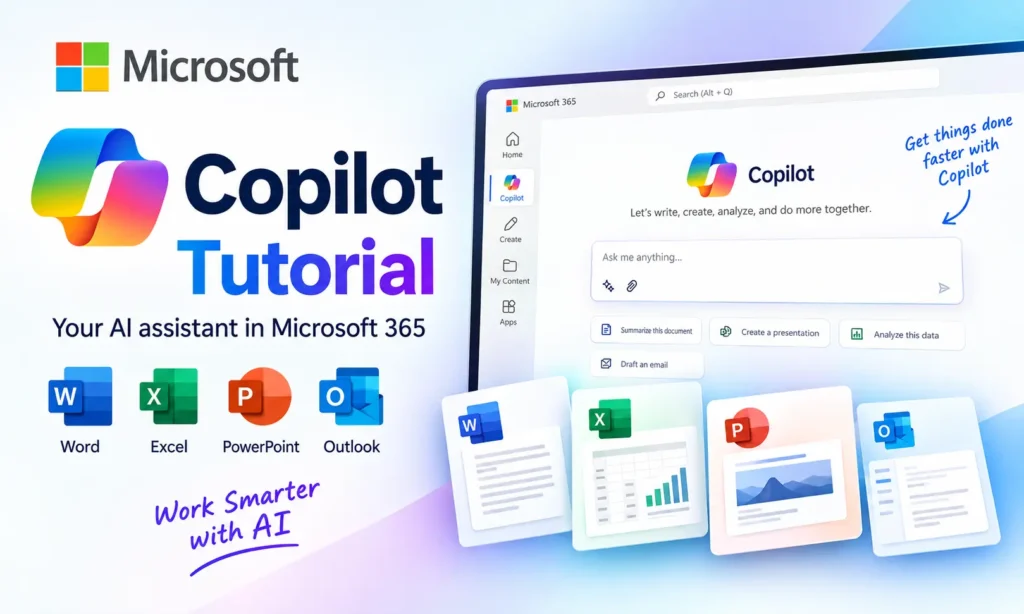
Microsoft Copilot Tutorial is an excellent starting point for anyone who wants to learn how to use artificial intelligence to improve productivity, create content, analyze information, and complete everyday tasks. Whether you are a student, office professional, business owner, teacher, freelancer, or beginner, Microsoft Copilot can help you work more efficiently when you know how to use it correctly.
In this complete Microsoft Copilot tutorial, you will learn what Microsoft Copilot is, how to access it, how to write effective prompts, and how to use Copilot with Microsoft Word, Excel, PowerPoint, Outlook, and Windows. You will also discover practical examples, useful prompts, common mistakes, privacy considerations, and tips for getting better results.
By the end of this guide, you will have a clear understanding of how to get started with Microsoft Copilot and use its AI-powered capabilities in your daily work.
Table of Contents
- What Is Microsoft Copilot?
- How Does Microsoft Copilot Work?
- Types of Microsoft Copilot
- How to Get Started With Microsoft Copilot
- How to Use Microsoft Copilot Chat
- How to Write Effective Copilot Prompts
- Microsoft Copilot Tutorial for Word
- Microsoft Copilot Tutorial for Excel
- Microsoft Copilot Tutorial for PowerPoint
- Microsoft Copilot Tutorial for Outlook
- How to Use Microsoft Copilot on Windows
- Microsoft Copilot for Students and Teachers
- Microsoft Copilot for Business and Professionals
- Best Microsoft Copilot Prompts
- Advantages of Microsoft Copilot
- Limitations of Microsoft Copilot
- Microsoft Copilot Safety and Privacy Tips
- Common Microsoft Copilot Problems and Solutions
- Frequently Asked Questions
- Conclusion
1. What Is Microsoft Copilot?
Microsoft Copilot is an AI-powered assistant developed by Microsoft. It helps users answer questions, generate text, summarize information, brainstorm ideas, understand documents, and complete various productivity tasks.
You can interact with Copilot using natural language. Instead of learning complicated commands, you can type a request in ordinary English, ask a follow-up question, and refine the response until it meets your needs.
For example, you can ask:
- “Write a professional email requesting a meeting.”
- “Explain Microsoft Excel formulas in simple language.”
- “Summarize this report in five bullet points.”
- “Create an outline for a presentation about digital marketing.”
- “Help me understand the main differences between two products.”
Copilot can help with these tasks, although the features available depend on your account, subscription, application, and organizational settings.
Main features of Microsoft Copilot
Some important capabilities include:
Content creation: Generate drafts for articles, emails, reports, descriptions, and other written materials.
Information summarization: Condense lengthy documents, conversations, or other supported content into shorter summaries.
Question answering: Ask questions about general topics, research subjects, and information you provide.
Productivity assistance: Organize ideas, prepare meeting agendas, create task lists, and plan projects.
Microsoft 365 integration: Depending on your license, use AI assistance within applications such as Word, Excel, PowerPoint, and Outlook.
Image creation: Generate images from text descriptions when the relevant feature is available.
Data analysis: Explore spreadsheet data, identify patterns, and get help with formulas and charts in supported experiences.
Microsoft Copilot is not just a chatbot. It is a collection of AI experiences designed for different devices, applications, and work environments.
2. How Does Microsoft Copilot Work?
Microsoft Copilot uses large language models and other supporting technologies to interpret requests and generate responses.
When you submit a prompt, Copilot processes your instructions and uses the information available to that particular experience to produce an answer.
Depending on the product and context, this information may include public web content, text you provide, uploaded files, or authorized organizational data.
For example, suppose you want to create a weekly sales report.
You might enter:
“Help me create a weekly sales report with sections for total revenue, best-selling products, sales trends, and recommendations for next week.”
Copilot can produce a report structure with suggested content. You can then provide your actual sales figures and ask it to tailor the report to your data.
The process generally follows four steps:
- Enter a prompt: Explain what you want Copilot to do.
- Provide context: Include relevant text, figures, files, or background information.
- Review the response: Check whether the output is accurate and useful.
- Refine the result: Ask Copilot to revise, shorten, expand, or reorganize the answer.
One important point is that Copilot can sometimes generate incorrect or misleading information. Always verify important facts, calculations, citations, and recommendations before using its output.
3. Types of Microsoft Copilot
Microsoft offers different Copilot experiences for personal use, productivity applications, software development, and business workflows.
Understanding these differences helps you select the appropriate tool.
Microsoft Copilot
The standalone Microsoft Copilot experience is useful for general questions, brainstorming, writing, learning, and other everyday tasks.
You can access it through the official website at copilot.com or through supported desktop and mobile applications.
Typical uses include:
- Writing blog posts and social media captions.
- Explaining difficult concepts.
- Generating ideas for projects.
- Summarizing information.
- Helping with research.
- Creating images when image generation is available.
Microsoft Copilot Chat
Microsoft Copilot Chat provides a conversational AI experience for eligible users, including many work and school account holders.
It can help with research, content creation, and questions about information you supply. Work or school experiences may provide additional organizational context depending on the account, available features, and permissions.
Visit Microsoft Copilot Chat to explore the work-oriented experience.
Microsoft 365 Copilot
Microsoft 365 Copilot brings AI assistance into productivity workflows involving applications such as Word, Excel, PowerPoint, Outlook, and Teams.
Its capabilities depend on the subscription or license assigned to your account. Some chat functionality may be available without the full Microsoft 365 Copilot license, while advanced in-app capabilities require an eligible plan.
GitHub Copilot
GitHub Copilot is designed primarily for software developers. It assists with writing code, explaining programming concepts, suggesting code completions, and helping with development workflows.
It is different from the general-purpose Microsoft Copilot assistant.
Microsoft Security Copilot
Microsoft Security Copilot is designed for cybersecurity professionals and security operations. It helps authorized teams investigate security events and work with security-related information.
For most beginners interested in writing, spreadsheets, presentations, or general AI assistance, the standalone Copilot experience is the simplest place to begin.
4. How to Get Started With Microsoft Copilot
You do not necessarily need to install a complicated program to start using Copilot. The web experience is a convenient option for beginners.
Step 1: Open the official Copilot website
Open your preferred web browser, such as Microsoft Edge, Google Chrome, or another supported browser.
Visit:
You can also use the Microsoft Copilot app on supported Windows, Mac, iOS, or Android devices.
Step 2: Sign in to your account
Depending on the experience, you may be able to start without signing in, but signing in can provide access to additional features and a more personalized experience.
Choose the appropriate account:
- A personal Microsoft account for personal use.
- A work or school account for an organization-managed experience.
Some features, conversation histories, file access options, and usage limits vary according to your account and subscription.
Step 3: Open the chat interface
Once you reach Copilot, locate the message box where you can enter a question or instruction.
The interface may include additional controls for voice, file uploads, image creation, or other capabilities.
The exact layout can change as Microsoft updates its products.
Step 4: Enter your first prompt
Try this beginner-friendly prompt:
“Explain Microsoft Copilot in simple language and give me five examples of how I can use it every day.”
Copilot will generate a response based on your request.
Read the answer and decide whether you need more details.
Step 5: Ask a follow-up question
You do not need to start a new conversation for every small change.
For example, you could continue with:
“Give me examples specifically for students.”
Then ask:
“Create a seven-day learning plan for a beginner who wants to understand AI tools.”
This conversational approach helps you develop a more useful answer gradually.
Step 6: Experiment with different tasks
Try using Copilot for a few everyday activities:
- Draft an email.
- Explain a difficult topic.
- Generate a list of blog post ideas.
- Summarize a document.
- Create a study timetable.
- Suggest an Excel formula.
Start with simple requests before moving to complex tasks.
5. How to Use Microsoft Copilot Chat
Microsoft Copilot Chat is one of the easiest ways to learn how to interact with AI.
The key is to provide a clear instruction rather than typing only a general topic.
Example 1: Ask a question
Enter:
“What is cloud computing? Explain it to a beginner and give three real-world examples.”
This tells Copilot both the subject and the level of explanation you want.
Example 2: Generate written content
Enter:
“Write a 500-word introduction to digital marketing for a beginner-friendly educational blog. Use short paragraphs, clear headings, and a professional tone.”
Copilot can produce a first draft that you can edit.
Example 3: Summarize information
If you have text you want summarized, provide it in your prompt or use an available file-upload feature.
For example:
“Summarize the following report in six bullet points. Highlight the main findings, important figures, risks, and recommended actions.”
Then paste the report or attach a supported file if your Copilot experience allows it.
Example 4: Compare two options
Enter:
“Compare Microsoft Excel and Google Sheets in a table. Include collaboration, formulas, automation, compatibility, and typical use cases.”
A structured comparison makes it easier to evaluate the differences.
Example 5: Improve an existing draft
Enter:
“Rewrite the following paragraph to make it clearer and more professional. Preserve the original meaning and avoid adding unsupported facts.”
Paste your paragraph after the instruction.
Example 6: Brainstorm ideas
Enter:
“Generate 20 blog post ideas about Microsoft Excel for beginners. Focus on practical tutorials, common problems, and searchable topics.”
You can then ask Copilot to group the ideas by difficulty or search intent.
6. How to Write Effective Copilot Prompts
A prompt is the instruction you provide to an AI assistant. Good prompts generally produce more useful responses because they communicate your objective, context, and expectations.
A vague prompt often produces a generic answer.
For example:
Weak prompt: “Write about Excel.”
Better prompt: “Write a beginner-friendly tutorial about Excel formulas with five practical examples.”
More detailed prompt: “Write a 1,500-word beginner-friendly tutorial about Excel formulas for office workers. Include an introduction, step-by-step examples, common mistakes, FAQs, and a conclusion. Use clear headings and simple language.”
The final prompt provides considerably more direction.
Use the five-part prompt method
A practical prompt can contain five elements.
1. Role: Explain the perspective you want Copilot to adopt.
Example: “Act as an experienced Excel instructor.”
2. Task: Describe the work to perform.
Example: “Explain how to use the SUM and AVERAGE functions.”
3. Context: Explain the audience or situation.
Example: “The audience consists of beginners with no programming experience.”
4. Format: Specify the output structure.
Example: “Use numbered steps, examples, and a comparison table.”
5. Constraints: Explain what to include or avoid.
Example: “Use simple language, avoid unnecessary jargon, and verify that the example formulas are valid.”
Combine these elements into a single request:
“Act as an experienced Excel instructor. Explain the SUM and AVERAGE functions to beginners. Use numbered steps, sample spreadsheet data, and practical formulas. Keep the language simple and explain common mistakes.”
Use follow-up prompts
Your first response does not need to be perfect.
You can improve it by asking:
- “Make the explanation shorter.”
- “Add a practical example.”
- “Explain the second step in more detail.”
- “Rewrite this for a nontechnical audience.”
- “Present the information in a table.”
- “Identify any claims that need verification.”
- “Give me three alternative versions.”
Provide source material when accuracy matters
When working with a particular report, spreadsheet, policy, or document, provide the relevant source material instead of expecting Copilot to know its contents.
For example:
“Using only the information in the text below, summarize the three main findings and list any questions that remain unanswered.”
This can help keep the response focused on your supplied information.
However, you should still review the output to ensure it accurately represents the source.
7. Microsoft Copilot Tutorial for Word
Microsoft Word is widely used for creating documents, letters, reports, assignments, and articles. Copilot can help with drafting, rewriting, summarizing, and exploring document content in supported Word experiences.
The available tools depend on your Microsoft 365 plan and account.
How to use Copilot in Word
Step 1: Open Microsoft Word and create a new document or open an existing one.
Step 2: Look for the Copilot feature in the Word interface. Its location and availability may vary by version and license.
Step 3: Enter a clear prompt describing the content you want to create or revise.
Step 4: Review the generated text before inserting or retaining it in your document.
Step 5: Edit the result to match your writing style, facts, formatting requirements, and audience.
Example: Create a professional report
Suppose you need to prepare a report about employee productivity.
Use this prompt:
“Draft a professional report about employee productivity. Include an introduction, key factors affecting productivity, practical improvement strategies, recommendations, and a conclusion. Use a formal business tone and clear headings.”
Copilot can create a starting structure and draft content.
You should add verified company data, relevant examples, and your own conclusions before distributing the report.
Example: Rewrite an existing paragraph
Select or reference the relevant text, depending on your Word experience, and ask:
“Rewrite this paragraph to make it more concise and professional while preserving all important details.”
This can help improve readability without requiring you to rewrite everything manually.
Example: Summarize a long document
If document summarization is supported in your version, ask:
“Summarize this document in 10 bullet points. Identify the main arguments, important dates, decisions, and outstanding actions.”
Review the summary against the original document before relying on it.
Example: Create a blog outline
Use this prompt:
“Create an SEO-friendly outline for a blog post titled ‘How to Use Microsoft Excel for Beginners.’ Include an introduction, logically organized H2 and H3 headings, practical examples, common mistakes, FAQs, and a conclusion.”
Copilot can help organize your article before you begin writing.
Tip: Use Copilot to accelerate drafting, but do not publish its output without fact-checking, editing, and checking for originality and usefulness.
8. Microsoft Copilot Tutorial for Excel
Microsoft Excel is used for data entry, calculations, reporting, budgeting, and business analysis. Copilot can assist with spreadsheet tasks in supported Microsoft 365 experiences.
Depending on your license and environment, it may help explain formulas, analyze tables, identify trends, suggest calculations, and create or interpret charts.
How to use Copilot in Excel
Step 1: Open an Excel workbook containing your data.
Step 2: Organize the information into a clearly structured table with meaningful column headings.
For example:
| Product | Units Sold | Price |
|---|---|---|
| Laptop | 10 | 50000 |
| Keyboard | 25 | 1200 |
| Mouse | 40 | 600 |
Step 3: Select the Copilot feature if it is available in your Excel environment.
Step 4: Ask a specific question about the data.
Step 5: Review any formulas, calculations, or analysis suggested by Copilot.
Example 1: Calculate total sales
You can ask:
“Help me calculate total sales for each product using Units Sold multiplied by Price. Explain the formula and show how to apply it to every row.”
If Units Sold is in column B and Price is in column C, the formula for the first data row could be:
=B2*C2
Copy the formula down to calculate the other rows.
For the example data above, total sales are:
- Laptop: 500,000
- Keyboard: 30,000
- Mouse: 24,000
The combined total is 554,000.
These figures assume the sample prices and quantities are correct and expressed in the same currency.
Example 2: Identify the best-selling product
Prompt:
“Analyze this product table and identify which product sold the highest number of units. Explain how you determined the result.”
Copilot can help interpret the table, but verify the answer against the actual values.
Example 3: Create a sales chart
Prompt:
“Help me create a column chart comparing total sales by product. Explain which columns I should select and suggest an appropriate chart title.”
If chart creation is supported in your environment, Copilot may help generate the chart or guide you through the process.
Example 4: Find trends in a dataset
Prompt:
“Analyze this monthly sales table. Identify the highest and lowest sales months, explain any noticeable patterns, and suggest three questions for further analysis.”
Use actual, well-structured data for the best results.
Example 5: Get help with Excel formulas
You can ask:
- “Explain how the XLOOKUP function works.”
- “Write a formula to calculate the percentage change between two values.”
- “Explain the difference between COUNT, COUNTA, and COUNTIF.”
- “Help me find duplicate entries in a spreadsheet.”
- “Show how to calculate the average sales for each region.”
For complex formulas, test the result on a small sample before applying it to important workbooks.
Important Excel tips
- Use descriptive column names.
- Keep data organized in a consistent format.
- Check that numbers are stored as numbers rather than text.
- Verify formulas against known results.
- Avoid uploading confidential data to an account that is not approved for it.
Copilot is most useful when your workbook is organized and your questions are specific.
9. Microsoft Copilot Tutorial for PowerPoint
Microsoft PowerPoint helps users create presentations for education, business, training, and communication.
Copilot can help develop presentation outlines, draft slide content, summarize source documents, and generate presentations in supported experiences.
How to use Copilot in PowerPoint
Step 1: Open Microsoft PowerPoint and create a presentation or open an existing file.
Step 2: Locate Copilot if it is available with your account.
Step 3: Describe the purpose, audience, topic, and approximate presentation length.
Step 4: Review the generated slides and refine the content.
Step 5: Check the visual layout, factual claims, and speaker notes before presenting.
Example: Create a business presentation
Try this prompt:
“Create an outline for a 10-slide presentation about digital marketing for small businesses. Include an introduction, target audience, search engine optimization, social media marketing, content strategy, budget considerations, performance metrics, and recommendations. Keep each slide concise.”
This gives Copilot a clear structure to follow.
Example: Turn a document into a presentation
If your version supports document-based presentation creation, provide a suitable Word document and ask:
“Create a presentation based on this document. Organize the main ideas into eight slides, preserve important facts, use concise bullet points, and finish with three recommendations.”
Review the result to ensure that key details have not been omitted or misrepresented.
Example: Improve existing slides
Ask:
“Suggest ways to improve this presentation for a business audience. Focus on reducing text, improving the logical flow, strengthening slide titles, and making the recommendations clearer.”
Copilot can suggest improvements, but you should make the final decisions about design and messaging.
Best practices for presentations
- Use one main idea per slide.
- Keep slide text concise.
- Verify statistics and source references.
- Use consistent formatting.
- Include meaningful charts where appropriate.
- Rehearse your presentation rather than reading every bullet aloud.
Copilot can help you prepare a first draft faster, while your expertise ensures that the final presentation is accurate and persuasive.
10. Microsoft Copilot Tutorial for Outlook
Microsoft Outlook is used for email, calendars, and professional communication. Copilot can help with drafting messages, summarizing supported email threads, and organizing information.
Features depend on the account, license, application version, and organizational configuration.
Example 1: Write a professional email
Prompt:
“Draft a professional email requesting a meeting with a client next week. Keep it polite, concise, and flexible about the meeting time.”
Review the proposed email and insert the correct recipient, dates, and meeting details.
Example 2: Improve an existing email
Prompt:
“Rewrite this email to make it more professional and easier to understand. Keep the tone friendly and preserve all dates, commitments, and important details.”
This is useful when your original message is too long or unclear.
Example 3: Summarize an email conversation
If email summarization is available, ask:
“Summarize this email thread. Identify the main issue, decisions made, outstanding questions, and actions assigned to each person.”
Verify the summary before responding, particularly if the conversation includes deadlines or financial commitments.
Example 4: Prepare a meeting agenda
Prompt:
“Create a 30-minute meeting agenda for a project progress review. Include project updates, current risks, upcoming deadlines, and next steps.”
You can refine the result by asking Copilot to allocate time to each agenda item.
Example 5: Draft a follow-up message
Prompt:
“Write a polite follow-up email asking for an update on the proposal I sent last week. Avoid sounding impatient and include a clear next step.”
Always verify the dates and context before sending a message.
Important: Review every AI-generated email before sending it. Copilot may not know your intended commitments, relationship with the recipient, or the latest developments unless that context is available and correctly interpreted.
11. How to Use Microsoft Copilot on Windows
Microsoft Copilot is available through supported Windows experiences, including a dedicated app on compatible devices.
It can provide conversational assistance, and certain versions offer features for interacting with screen content, finding files, and getting help with Windows settings.
Step 1: Open Copilot
On supported Windows 11 PCs, the Copilot app may already be installed.
Look for Copilot in the Start menu or on the taskbar. If it is not installed, check the Microsoft Store for the official application.
You can also access the web experience through copilot.com.
Step 2: Sign in if needed
Sign in using the appropriate personal or work account to access the features available to you.
Step 3: Ask for help
Try prompts such as:
- “Explain how to organize files in Windows.”
- “Help me understand how to connect a Bluetooth device.”
- “Give me troubleshooting steps for a printer that is not responding.”
- “Explain how to change display settings.”
Copilot may explain the steps or direct you to the relevant settings.
Step 4: Use supported screen or file features
Depending on the application and settings, you may be able to share a screenshot or ask questions about supported files.
For example:
“Explain what this error message means and suggest safe troubleshooting steps.”
Only share the screen area or file needed for the task.
Step 5: Verify before making system changes
Read the instructions carefully before changing settings, deleting files, installing software, or modifying security options.
For detailed instructions, consult Microsoft’s official guide to accessing Copilot on Windows.
12. Microsoft Copilot for Students and Teachers
Microsoft Copilot can be useful in education when it supports learning rather than replacing it.
Students can use AI assistance to understand difficult concepts, organize study schedules, brainstorm assignment ideas, and practice explaining what they have learned.
Teachers can use it to draft lesson plans, generate quiz questions, prepare classroom materials, and adapt explanations to different learning levels.
Useful prompts for students
Understand a difficult topic
“Explain photosynthesis to a beginner using simple language, an everyday analogy, and five review questions.”
Prepare for an exam
“Create a seven-day study timetable for an upcoming mathematics exam. Include revision sessions, practice questions, and short breaks.”
Practice a new language
“Help me practice English conversation. Ask one beginner-level question at a time and explain my grammar mistakes.”
Learn a computer skill
“Teach me Microsoft Excel from the beginning. Divide the learning process into short lessons and give me one practical exercise per lesson.”
Useful prompts for teachers
Create a lesson plan
“Prepare a 45-minute introductory lesson about computer networks for secondary-school students. Include learning objectives, explanations, activities, and an assessment.”
Generate quiz questions
“Create 10 multiple-choice questions about spreadsheet formulas. Include four options per question, the correct answer, and a short explanation.”
Simplify an explanation
“Explain database management in two versions: one for beginners and one for advanced learners.”
Responsible use in education
Students should follow their school’s academic integrity policy and identify AI assistance when required. Use Copilot to understand material, check your reasoning, and practice skills instead of submitting unverified AI-generated work as your own.
Teachers should review educational content for accuracy, age appropriateness, accessibility, and alignment with the curriculum.
13. Microsoft Copilot for Business and Professionals
Businesses and professionals can use Copilot to support writing, planning, research, reporting, and routine administrative work.
Its value depends on the task, the quality of available information, and how well users review the results.
Marketing
Marketing teams can use Copilot to brainstorm campaign ideas, prepare content calendars, draft product descriptions, and summarize customer feedback.
Example prompt:
“Create a 30-day content calendar for a small business selling office accessories. Include a topic, target audience, suggested format, and objective for each post.”
The resulting calendar should be adjusted to reflect real customer needs, brand guidelines, and available resources.
Human resources
HR teams can use Copilot to draft onboarding checklists, organize interview questions, and create internal communications.
Example prompt:
“Create a first-week onboarding checklist for a new administrative employee. Include introductions, account setup, policy review, training, and a check-in meeting.”
Sensitive employee data and employment decisions require particular care. AI suggestions should not replace fair, human-led decision-making.
Project management
Project managers can use Copilot to structure plans, summarize status updates, identify potential risks, and prepare meeting agendas.
Example prompt:
“Create a project status report template with sections for objectives, completed tasks, upcoming milestones, risks, blockers, owners, and deadlines.”
Customer service
Customer service teams can use Copilot to draft replies, summarize customer concerns, and develop troubleshooting guides.
Example prompt:
“Draft a courteous response to a customer reporting a delayed delivery. Acknowledge the inconvenience, explain that the order status needs to be checked, and avoid promising a delivery date that has not been confirmed.”
Business analysis
Professionals can use Copilot to help interpret reports, explain unfamiliar metrics, and organize findings.
Example prompt:
“Turn the following verified business results into an executive summary. Separate confirmed facts from possible explanations and recommend three follow-up analyses.”
For any business use, verify calculations, protect confidential information, and ensure that the final work complies with company policies.
14. Best Microsoft Copilot Prompts
The following examples can help beginners get useful results quickly. Adapt the details to your specific task.
Writing and content creation
- “Write a professional introduction for a blog post about artificial intelligence.”
- “Rewrite this paragraph using simple language and shorter sentences.”
- “Generate 15 article ideas for a technology tutorial website.”
- “Create an outline for a beginner-friendly computer guide.”
- “Summarize this report in five key takeaways.”
Excel and data analysis
- “Explain how the XLOOKUP formula works with a practical example.”
- “Help me calculate the percentage change between two monthly sales figures.”
- “Explain how to identify duplicate values in Excel.”
- “Suggest an appropriate chart for comparing monthly sales.”
- “Review this sample dataset and identify any missing or inconsistent values.”
Email and communication
- “Draft a professional email requesting a project update.”
- “Make this message more polite without changing its meaning.”
- “Summarize this email thread and identify outstanding actions.”
- “Create a meeting agenda for a weekly team review.”
- “Write a concise follow-up message after a business meeting.”
Learning and productivity
- “Explain cloud computing as if I were a complete beginner.”
- “Create a 14-day learning plan for Microsoft Excel.”
- “Generate 10 practice questions about computer fundamentals.”
- “Break this complex task into manageable steps.”
- “Create a daily schedule that includes study time, focused work, and breaks.”
Presentations and business
- “Create an eight-slide presentation outline about cybersecurity awareness.”
- “Turn these notes into an executive summary.”
- “Prepare a project risk register template.”
- “Create a customer feedback analysis framework.”
- “List the assumptions that need verification before this report is published.”
How to customize a prompt
Instead of using a generic instruction, add your audience, desired output, and any important limitations.
For example:
Generic prompt: “Write a marketing plan.”
Improved prompt: “Create a three-month digital marketing plan for a small online stationery business. Include target audiences, content ideas, SEO activities, social media channels, measurable goals, and a modest-budget approach. Clearly label assumptions that need confirmation.”
The improved version gives Copilot a clearer objective and makes the result easier to evaluate.
15. Advantages of Microsoft Copilot
Microsoft Copilot can provide several benefits when used appropriately.
1. Saves time on first drafts
Copilot can quickly generate an initial draft of an email, report, article outline, or presentation. This reduces the amount of time spent starting from a blank page.
2. Helps explain complex subjects
You can request beginner-friendly explanations, examples, analogies, or step-by-step instructions.
This can be useful when learning unfamiliar software or concepts.
3. Supports productivity workflows
Copilot can help organize notes, prepare checklists, draft communications, and structure reports.
4. Assists with Microsoft 365 tasks
Eligible users can access AI assistance within supported Microsoft 365 applications, reducing the need to move constantly between tools.
5. Encourages brainstorming
Copilot can generate alternative ideas, titles, outlines, and approaches that you can evaluate and improve.
6. Supports different writing styles
You can ask it to make content more concise, professional, friendly, persuasive, or suitable for a particular audience.
7. Offers conversational refinement
Instead of rewriting a request from scratch, you can ask follow-up questions to improve the response.
These benefits do not mean that every task will be completed correctly or automatically. The best results come from combining AI assistance with clear instructions, good source material, and human judgment.
16. Limitations of Microsoft Copilot
Although Microsoft Copilot can be useful, it has limitations that every user should understand.
Incorrect information
Copilot may generate statements that sound convincing but are wrong. This is particularly important for technical instructions, statistics, legal information, and financial analysis.
Solution: Verify important claims against trustworthy sources.
Incomplete context
Copilot cannot automatically access every file, email, application, or organizational record. Access depends on the account, permissions, available integrations, and the specific experience.
Solution: Provide relevant context or reference an accessible source.
Variable feature availability
Features may differ according to the product, subscription, region, account type, application version, and organizational policies.
Solution: Check the current Microsoft documentation and your account’s available features.
Formula and calculation errors
Copilot may suggest a formula that does not fit your workbook or make mistakes when interpreting data.
Solution: Test formulas on sample data and compare the results with independent calculations.
Generic writing
AI-generated text can sound repetitive or lack specific knowledge about your audience or business.
Solution: Add real examples, original insights, verified facts, and your own writing style.
Privacy concerns
Uploading sensitive information to an unsuitable account or sharing more data than necessary can create risks.
Solution: Follow organizational rules and share only the information needed for the task.
Subscription costs
Some Copilot capabilities require a paid plan or additional license.
Solution: Check the current plan details before purchasing a subscription.
17. Microsoft Copilot Safety and Privacy Tips
Using AI responsibly is important, particularly when handling business, academic, or personal information.
Protect confidential information
Do not paste passwords, authentication codes, payment card details, confidential customer records, or sensitive company information into an account unless its use is explicitly permitted and appropriately protected.
Understand your account type
Personal Copilot experiences and work or school experiences can have different privacy protections, controls, and data-handling arrangements.
For organizational use, check your employer’s approved tools and policies.
Review generated content
Before publishing a document or sending an email, check names, dates, figures, citations, and factual claims.
Be careful with file uploads
Review the content of documents before uploading them. Remove unnecessary sensitive information and use approved storage and AI tools.
Verify sources
When Copilot provides citations or references, open them and confirm that they support the statements being made.
Keep human oversight
Use Copilot as an assistant, not as the sole authority for important decisions.
For additional details, consult Microsoft’s official Copilot support and learning resources.
18. Common Microsoft Copilot Problems and Solutions
Beginners sometimes encounter issues when opening Copilot or using its features.
Problem 1: Copilot is not opening
Possible reasons: A network problem, browser issue, account problem, or temporary service interruption.
Solutions:
- Check your internet connection.
- Refresh the page or restart the app.
- Try a supported, updated browser.
- Sign in again if necessary.
- Check official Microsoft service information if the issue continues.
Problem 2: Copilot is unavailable in Word or Excel
Possible reasons: Your account may not have the required license, your application may be outdated, or your organization may restrict the feature.
Solutions:
- Confirm which Microsoft account is signed in.
- Check your Microsoft 365 subscription or work license.
- Update your Office applications.
- Ask your IT administrator whether the feature is enabled.
Problem 3: Copilot gives an incorrect answer
Possible reasons: The prompt lacks context, the source information is incomplete, or the AI has misinterpreted the task.
Solutions:
- Provide more specific instructions.
- Include relevant source material.
- Ask Copilot to show its assumptions or explain its method.
- Verify the result independently.
Problem 4: Copilot does not understand your request
Possible reasons: Your prompt may be too vague or contain several unrelated tasks.
Solutions:
- State one main objective.
- Specify the desired format.
- Include relevant examples.
- Break complex requests into smaller steps.
Problem 5: File analysis is not working
Possible reasons: The file type may not be supported, the file may be too large, or the account may lack the required permissions.
Solutions:
- Check the supported file types and size limits for your experience.
- Confirm that you have permission to access the file.
- Try a smaller file or a relevant excerpt.
- Verify that the uploaded content is readable.
Problem 6: The result is too long or too short
Solution: Tell Copilot the approximate length or level of detail you want.
For example:
“Summarize this document in exactly six bullet points, with each bullet containing no more than two sentences.”
Copilot may not always follow length requirements exactly, so review the final output.
19. Frequently Asked Questions About Microsoft Copilot
Microsoft Copilot helps with tasks such as answering questions, drafting content, summarizing documents, generating ideas, assisting with spreadsheets, and preparing presentations. Its capabilities vary by product and subscription.
Some Microsoft Copilot experiences are available at no cost, while other capabilities require a paid subscription or additional Microsoft 365 license. Check the current plan details and feature limits for your account.
Open copilot.com, sign in if needed, and enter a simple question in the chat box. Start with everyday tasks such as drafting an email, explaining a concept, or creating a list. Improve the results with follow-up prompts.
Yes, Copilot features are available in supported Excel experiences. Depending on your license, you may be able to get help analyzing data, understanding formulas, and creating or interpreting charts.
Copilot can help create presentation outlines and, in supported versions, generate or refine presentations from prompts and source documents. The available features depend on your subscription and application environment.
Yes. Copilot can generate article outlines, introductions, draft sections, titles, and FAQs. However, high-quality publishing requires fact-checking, editing, originality, and useful information for the intended audience.
No. Both are AI assistants, but they have different products, integrations, capabilities, account options, and feature availability. Microsoft Copilot is particularly relevant to people who use Microsoft’s ecosystem, while ChatGPT offers its own set of tools and workflows.
Yes. The Microsoft Copilot app is available for supported iOS and Android devices. Some features may differ from the desktop and web versions.
Yes. Copilot is available through supported Windows experiences, including the Copilot app. Specific functions and access methods vary by device, region, app version, and account.
Copilot can be used safely when you understand your account’s protections, follow applicable policies, and avoid sharing unnecessary sensitive information. Work and personal accounts may have different data-handling terms and controls.
Can Microsoft Copilot replace human work?
Copilot can automate or accelerate some tasks, but it does not reliably replace human judgment, domain expertise, fact-checking, or accountability. It is generally most useful as a tool that supports human work.
How can I get better results from Microsoft Copilot?
Write specific prompts, provide relevant context, state the format you want, ask follow-up questions, and verify important details. These habits make AI assistance more practical and reliable.
20. Conclusion
Microsoft Copilot is a useful AI assistant for people who want to improve productivity, create content, learn new skills, and work more efficiently with digital tools.
In this Microsoft Copilot tutorial, we explored how to access Copilot, use conversational prompts, work with Word, Excel, PowerPoint, and Outlook, and apply AI assistance to education and business tasks.
The most important lesson is that the quality of your results depends on how clearly you explain the task and how carefully you review the response.
Start with simple activities, such as drafting an email or summarizing a document. Once you understand how prompting works, move on to more advanced tasks, such as spreadsheet analysis, presentation planning, and workflow organization.
Remember to verify important facts, protect sensitive information, and check which features your account supports.
With regular practice, Microsoft Copilot can become a valuable part of your daily workflow and help you spend less time on repetitive tasks while focusing more on meaningful work.
Thank you so much for visiting ZeexasTech.com and taking the time to read my articles. Your support and interest mean a lot to me. I hope you find the information useful and enjoy exploring the website!
Best regards,
Vishal Kumar
Writer of ZeexasTech.com


4 comments