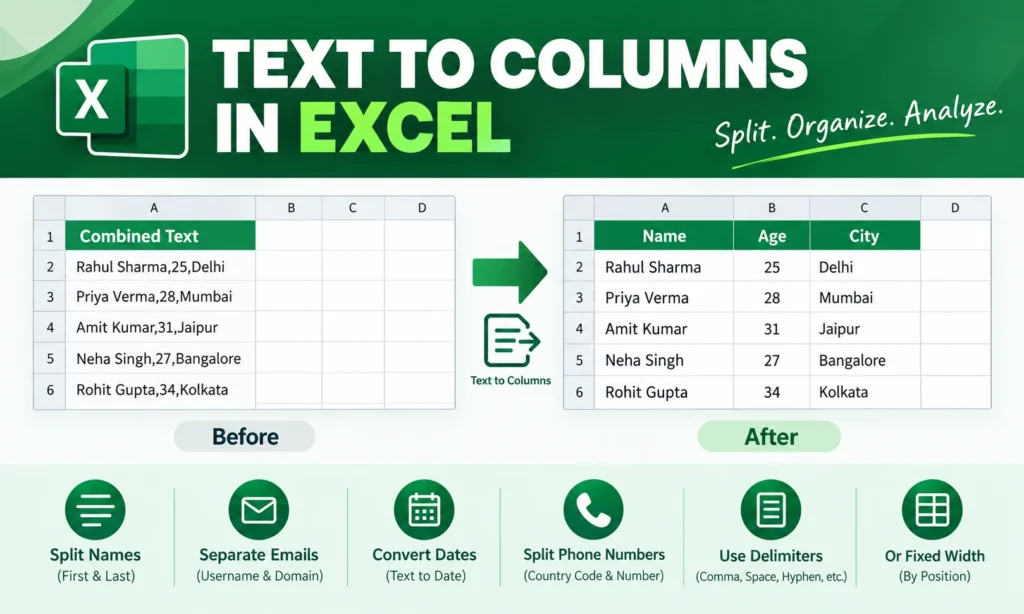
Introduction to Text to Columns in Excel
Welcome to ZeexasTech.com, your trusted destination for technology, AI tools, Microsoft Excel tutorials, digital productivity, and the latest tech insights.
I’m Vishal Kumar, the creator of ZeexasTech.com. My goal is to make technology simple, practical, and accessible for everyone. Through helpful guides, step-by-step tutorials, and informative articles, I aim to help students, professionals, bloggers, and business owners learn new skills and work smarter.
At ZeexasTech.com, we believe that the right knowledge and tools can make a real difference in your digital journey.
Microsoft Excel is one of the most widely used spreadsheet applications for managing, organizing, and analyzing data. Whether you are a student, office employee, accountant, business owner, or data analyst, Excel provides many tools that make working with information easier. One particularly useful feature is Text to Columns in Excel.
The Text to Columns feature allows you to split information stored in a single column into multiple separate columns. For example, if a full name is stored in one cell, you can separate the first name and last name into different columns. Similarly, you can split email addresses, phone numbers, dates, product codes, and other text-based information.
Manually separating hundreds or thousands of records can take a considerable amount of time. Text to Columns helps automate this process and makes your spreadsheet easier to read, filter, sort, and analyze.
In this comprehensive guide, you will learn what Text to Columns in Excel is, how it works, how to use delimiters and fixed-width formatting, how to handle common data-cleaning problems, and how to troubleshoot errors.
What Is Text to Columns in Excel?
Text to Columns is a built-in Microsoft Excel feature that separates text from one column into two or more columns according to a selected rule.
You can find this feature under the Data tab in the Excel ribbon.
For example, imagine you have the following data in column A:
| Full Name |
|---|
| Rahul Sharma |
| Priya Verma |
| Amit Kumar |
You can use Text to Columns to separate the names into two columns:
| First Name | Last Name |
|---|---|
| Rahul | Sharma |
| Priya | Verma |
| Amit | Kumar |
Excel can separate text based on spaces, commas, semicolons, tabs, or another character. You can also specify positions in the text when the data follows a fixed-width pattern.
This makes Text to Columns useful for preparing imported data, cleaning spreadsheets, and organizing information before performing calculations or analysis.
Why Is Text to Columns Important?
Data does not always arrive in a format that is ready for analysis. Information downloaded from websites, exported from accounting software, copied from emails, or received from customers may contain several values in a single column.
Text to Columns helps solve these problems.
1. Saves Time
Instead of manually copying and pasting individual values, you can separate an entire range of records in a few steps.
2. Improves Data Organization
Splitting information into separate columns makes it easier to sort, filter, and search your spreadsheet.
3. Supports Data Cleaning
You can separate names, addresses, product identifiers, and other combined information to prepare your data for further processing.
4. Makes Reporting Easier
Organized columns are useful when creating PivotTables, charts, reports, and dashboards.
5. Helps Prepare Imported Data
Text files and CSV exports sometimes contain data that needs to be separated or reformatted before you can use it effectively in Excel.
Where Is Text to Columns in Excel?
Follow these steps to locate the feature:
- Open Microsoft Excel.
- Open the workbook containing your data.
- Select the column or cells containing the combined text.
- Click the Data tab in the ribbon.
- Find the Text to Columns command in the Data Tools group.
- Click it to open the Convert Text to Columns Wizard in versions that provide this wizard.
Depending on your Excel version, the interface may look slightly different. The underlying purpose remains the same: to split text according to delimiters or fixed-width positions.
Important: Always check the columns to the right of your selected data before proceeding. Excel may overwrite existing content when the split results occupy those cells.
Types of Text to Columns in Excel
Excel provides two main ways to divide text.
1. Delimited
The Delimited option separates text whenever Excel encounters a specified character, such as a comma, space, tab, or semicolon.
For example:
Rahul,Sharma,Delhi
Using a comma delimiter produces three columns:
| First Value | Second Value | Third Value |
|---|---|---|
| Rahul | Sharma | Delhi |
Delimited formatting is useful when your information contains a consistent separator between values.
Common delimiters include:
- Comma (,)
- Space
- Tab
- Semicolon (;)
- Other custom characters, such as a hyphen or vertical bar
2. Fixed Width
The Fixed Width option divides text according to specific character positions rather than looking for a separator.
For example, suppose every record contains a product code followed by a description, and the product code always occupies the first five characters.
You can place a break after the fifth character to separate the code from the description.
Fixed Width is useful when records follow a consistent layout, such as certain exported reports or legacy text files.
However, it may not work well if the number of characters varies unpredictably between records.
How to Use Text to Columns in Excel Step by Step
Let’s understand the complete process with a practical example.
Suppose column A contains the following information:
| A |
|---|
| Rahul,25,Delhi |
| Priya,28,Mumbai |
| Amit,31,Jaipur |
You want to separate each person’s name, age, and city into different columns.
Step 1: Select the Data
Open your worksheet and select the cells containing the combined information. For example, select A2 if your records start in row 2.
You can select the entire column if needed, but selecting only the relevant range helps prevent unintended changes.
Step 2: Open the Data Tab
Click the Data tab at the top of Excel. Locate the Text to Columns command.
Step 3: Choose Delimited
Select the Delimited option because commas separate the values.
Click Next if your version displays the wizard.
Step 4: Select the Comma Delimiter
In the delimiter settings, check Comma and uncheck any other delimiter that you do not want to use.
The data preview should now display the name, age, and city in separate fields.
Step 5: Review the Data Preview
Confirm that the values are divided correctly. If the preview is incorrect, check whether your source data uses commas, spaces, tabs, or another character.
Step 6: Choose the Destination
Select the destination where the split data should appear. For example, choose cell B2 if you want to preserve the original values in column A.
Leaving the destination at the original column’s starting cell may replace the original data with the split results.
Step 7: Finish the Process
Click Finish. Excel will place the separated values into their respective columns.
Your final table should look like this:
| Name | Age | City |
|---|---|---|
| Rahul | 25 | Delhi |
| Priya | 28 | Mumbai |
| Amit | 31 | Jaipur |
You have now successfully used Text to Columns in Excel.
How to Split Full Names into First Name and Last Name
One of the most common uses of Text to Columns is separating full names.
Suppose column A contains:
- Rahul Sharma
- Priya Verma
- Amit Kumar
Follow these steps:
- Select the full-name column.
- Open Data and choose Text to Columns.
- Select Delimited.
- Select Space as the delimiter.
- Review the preview.
- Choose an appropriate destination.
- Click Finish.
Excel will separate the words at spaces.
However, there is an important limitation. A name such as “Rahul Kumar Sharma” may be divided into three columns rather than two. Text to Columns separates according to the delimiter; it does not automatically understand which word is a first name, middle name, or surname.
For more complex names, consider using Excel formulas, Power Query, or manual review.
How to Split Text Using a Comma
Comma-separated information frequently appears in exported reports and text files.
For example:
Laptop,Electronics,45000
To separate the values:
- Select the relevant cells.
- Click Data.
- Select Text to Columns.
- Choose Delimited.
- Check Comma.
- Review the preview and destination.
- Click Finish.
The result will be three columns containing the product, category, and price.
This technique is helpful for inventory records, product lists, contact data, and other structured information.
Be careful with text that contains commas inside quotation marks, such as CSV records with quoted addresses or descriptions. Depending on the data and Excel version, a simple delimiter split may not interpret those records as intended. For complex CSV files, importing through Power Query is often a better option.
How to Split Text Using a Space
Sometimes multiple values are separated by spaces rather than commas.
For example:
India Delhi 110001
If you select Space as the delimiter, Excel can divide the text into separate fields.
To do this:
- Select the data.
- Open Text to Columns.
- Select Delimited.
- Check Space.
- Review the preview.
- Select the destination.
- Finish the operation.
One important consideration is that multiple spaces may create empty fields depending on the delimiter settings and source data. Names and addresses may also contain a different number of words, making a simple split unsuitable for every record.
For more predictable results, clean the text first or use formulas that handle spaces carefully.
How to Split Text Using a Hyphen
A hyphen can separate product codes, dates, reference numbers, and other identifiers.
For example:
PROD-125-BLACK
To divide this value:
- Select the cells containing the codes.
- Open Text to Columns.
- Choose Delimited.
- Select Other.
- Enter a hyphen (-).
- Check the preview.
- Choose the destination.
- Click Finish.
The resulting columns will contain PROD, 125, and BLACK.
This method works well when the hyphen consistently separates meaningful parts of the value.
If hyphens also appear inside descriptions, splitting at every hyphen may create more columns than expected.
How to Use Fixed Width in Excel
Fixed Width is appropriate when values are arranged according to fixed character positions.
Suppose a text file contains:
1001RahulSharma
If the first four characters always represent an employee ID, you can split the ID from the remaining text after the fourth character.
Follow these steps:
- Select the relevant text.
- Open Text to Columns.
- Choose Fixed Width.
- Click Next if prompted.
- Add a column break at the correct character position.
- Review the preview for all records.
- Set the destination and data format.
- Click Finish.
The first four characters will be separated from the remaining text.
For a successful split, the positions must be consistent. If employee names have different lengths and need further separation, another step or a different method may be necessary.
How to Convert Text into Dates Using Text to Columns
Dates imported into Excel may sometimes be stored as text rather than recognized date values.
For example:
12/10/2026
Whether this represents 12 October or December 10 depends on the date convention used by the source.
Text to Columns can help convert some text dates into real Excel dates.
A general approach is:
- Select the cells containing the dates.
- Open Text to Columns.
- Choose Delimited and proceed through the wizard.
- If you do not want to split the values, leave the delimiter settings so that the dates remain in one field.
- In the final step, choose Date and select the appropriate order, such as DMY or MDY.
- Choose the destination and click Finish.
- Apply a suitable date number format.
Always confirm the source date convention before converting dates. Choosing the wrong order can produce incorrect dates.
Also note that date strings with unusual formats, invalid dates, or ambiguous values may require additional cleaning.
How to Split Email Addresses in Excel
Email addresses can be separated into a username and a domain using the at sign (@).
For example:
rahul@example.com
To split it using Text to Columns:
- Select the email-address cells.
- Open Data and click Text to Columns.
- Choose Delimited.
- Select Other.
- Enter
@. - Review the preview.
- Choose a destination.
- Click Finish.
The output will contain:
| Username | Domain |
|---|---|
| rahul | example.com |
| priya | company.in |
This method is useful for organizing email lists and analyzing domains.
Keep in mind that the resulting username is not necessarily a person’s actual name. An email address may contain numbers, abbreviations, or role-based labels.
How to Split Phone Numbers in Excel
Phone numbers may be stored together with country codes or separated by punctuation.
For example:
+91-9876543210
You can split this value at the hyphen by using Text to Columns.
However, phone numbers should generally be treated as text rather than ordinary numeric values. They may contain a plus sign, leading zeros, spaces, or other formatting characters that are important.
When importing or splitting phone numbers, use the Text data format where appropriate. This helps prevent Excel from interpreting them as numbers and changing their appearance.
If you need to separate country codes from phone numbers across a large dataset, check that the formatting is consistent before applying a delimiter.
How to Split Text into Multiple Columns Without Losing Data
Protecting your original information is an important part of using Text to Columns.
Before splitting data, consider these precautions:
Make a Backup
Duplicate the worksheet or copy the original column to another location before making changes.
Choose a Separate Destination
In the wizard, select an empty destination column if you want to preserve the source values.
Check the Number of Output Columns
If a record contains several delimiters, Excel may produce more columns than expected. Ensure that the destination area is empty.
Inspect the Results
After splitting, review several rows, including records with unusual spacing, missing values, or extra delimiters.
These steps can prevent accidental data loss and make it easier to correct mistakes.
Text to Columns vs. Excel Formulas
Text to Columns is not the only way to separate information in Excel. Formulas can be more appropriate when you want results that update automatically as the source data changes.
Using TEXTBEFORE and TEXTAFTER
In Excel versions that support these functions, you can use formulas to extract text before or after a delimiter.
For example, if A2 contains Rahul Sharma, this formula extracts the first part:
=TEXTBEFORE(A2," ")
To extract everything after the first space:
=TEXTAFTER(A2," ")
These formulas are useful when you want a dynamic result rather than a one-time split.
If a name contains several spaces, TEXTAFTER returns everything after the first matching space, so it may include a middle name and surname together.
Using LEFT and FIND
For compatibility with older Excel versions, you can use:
=LEFT(A2,FIND(" ",A2)-1)
This extracts the text before the first space.
The formula assumes that the cell contains a space. If no space exists, FIND returns an error. You can use IFERROR or another validation method to handle such cases.
Using MID, FIND, and LEN
More complicated text patterns can be handled with MID, FIND, and LEN. These functions allow you to extract text between positions or delimiters.
However, complex formulas may become difficult to maintain. For large or irregular datasets, Power Query can provide a more manageable alternative.
Text to Columns vs. Flash Fill
Flash Fill is another useful Excel feature for separating and reformatting text.
Suppose column A contains full names. In column B, you type the first name for the first record and begin entering the next result. Excel may recognize the pattern and suggest the remaining values.
Press Ctrl + E to use Flash Fill in supported Excel versions.
The difference: Text to Columns applies a delimiter or character-position rule, while Flash Fill identifies a pattern from examples.
Flash Fill can be convenient for irregular text patterns, but the results should be checked carefully. Neither approach automatically understands every possible naming or formatting convention.
Text to Columns vs. Power Query
Power Query is a data-import and transformation tool available in modern Excel versions.
It is especially useful when you regularly receive data that needs the same cleaning process.
With Power Query, you can split a column by delimiter, trim spaces, change data types, remove unwanted characters, and apply repeatable transformations.
Unlike a typical one-time Text to Columns operation, Power Query lets you refresh the transformation when new source data becomes available.
Choose Text to Columns for quick, straightforward splits. Consider Power Query when you work with large datasets or repeat the same process regularly.
Common Text to Columns Errors and How to Fix Them
Even though Text to Columns is easy to use, certain issues can affect the output.
1. Data Is Not Splitting Correctly
Cause: The wrong delimiter may be selected.
Solution: Reopen the wizard, verify the delimiter, and inspect the data preview before finishing.
2. Existing Data Gets Overwritten
Cause: The output range contains information.
Solution: Undo the operation immediately if possible, or restore your backup. Select an empty destination before running the split.
3. Leading Zeros Disappear
Cause: Excel interprets a value such as 00125 as a number.
Solution: Choose the Text column data format where available, or use an appropriate import method that preserves identifiers as text.
4. Dates Are Incorrect
Cause: Excel interprets the date using a different regional convention.
Solution: Select the correct date order in the wizard and verify the results.
5. Extra Empty Columns Appear
Cause: Repeated delimiters or inconsistent spacing create empty fields.
Solution: Inspect the source data, normalize repeated spaces where appropriate, and check the delimiter options.
6. The Entire Value Remains in One Column
Cause: The chosen delimiter does not appear in the selected data, or the wrong range was selected.
Solution: Confirm the source format and select the correct delimiter or fixed-width method.
7. The Output Contains Too Many Columns
Cause: The delimiter appears inside descriptions or other fields that were not intended to be separated.
Solution: Review the data structure and consider using formulas or Power Query for more precise parsing.
Practical Examples of Text to Columns in Excel
Here are additional examples showing how the feature can be used in everyday work.
Example 1: Splitting Customer Names
Original value:
Priya Verma
Delimiter: Space
Possible result:
| First Part | Second Part |
|---|---|
| Priya | Verma |
This works best when each record contains exactly two name parts.
Example 2: Splitting Product Information
Original value:
Mouse,Accessories,599
Delimiter: Comma
Result:
| Product | Category | Price |
|---|---|---|
| Mouse | Accessories | 599 |
Example 3: Splitting Website Addresses
Original value:
Delimiter: :
The result may separate https from //example.com, but this may not be the desired structure. Always select delimiters based on the actual purpose of the split.
Example 4: Separating Employee IDs
Original value:
EMP-1025-Rahul
Delimiter: Hyphen
Result:
| Prefix | ID | Name |
|---|---|---|
| EMP | 1025 | Rahul |
Example 5: Splitting City and Postal Code
Original value:
Lucknow 226001
Delimiter: Space
Result:
| City | Postal Code |
|---|---|
| Lucknow | 226001 |
If the postal code must retain leading zeros, set the appropriate output format or store it as text.
Best Practices for Using Text to Columns
To get reliable results, follow these recommendations:
- Keep a backup: Save a copy of the original data before transforming it.
- Check the delimiter: Confirm that the selected character matches the source format.
- Use a clean destination: Avoid overwriting other data.
- Preview before finishing: Inspect the output to catch unexpected splits.
- Preserve identifiers: Treat postal codes, product codes, and phone numbers as text when appropriate.
- Validate dates: Confirm regional date formats before converting text to dates.
- Check unusual records: Review blank cells, extra delimiters, and inconsistent spacing.
- Choose the right tool: Use formulas for dynamic extraction and Power Query for repeatable data transformations.
- Verify the final output: Compare a sample of the results with the original records.
Following these practices makes data cleaning more efficient and reduces the risk of errors.
Keyboard Shortcuts and Quick Tips
There is no universal, single-keystroke shortcut for Text to Columns that works identically in every Excel version and keyboard configuration.
On Windows, you can often access ribbon commands using the Alt key and the key sequence displayed by Excel for your version. These sequences can vary, so use the ribbon KeyTips shown on your screen.
Useful related shortcuts include:
- Ctrl + Z: Undo the last action.
- Ctrl + C: Copy selected cells.
- Ctrl + V: Paste copied information.
- Ctrl + E: Run Flash Fill in supported Excel versions.
- Ctrl + S: Save the workbook.
You can also use Excel’s Find and Replace feature to clean certain characters before splitting data.
Frequently Asked Questions About Text to Columns in Excel
Text to Columns is an Excel feature that divides information in one column into multiple columns using delimiters or fixed character positions.
You can find it under the Data tab, generally within the Data Tools group.
Select the full-name cells, open Text to Columns, choose Delimited, select Space, review the preview, choose a destination, and finish. Names with middle names may require additional processing.
Yes. Choose Delimited and select Comma as the delimiter. Excel will split the values wherever the selected comma delimiter occurs.
Delimited separates values at selected characters, such as commas or spaces. Fixed Width separates values at specified character positions.
Yes. Selecting the at sign (@) as the delimiter can separate the username portion from the domain portion of a standard email address.
It can replace the original data if the output begins in the same cells. Choose an empty destination to preserve the original values.
Yes, it can convert supported date strings when you choose the appropriate Date format in the wizard. Always verify the date order.
Availability and interface details depend on the Excel edition and platform. It is available in many desktop versions of Excel, although commands and layouts may differ.
Text to Columns is useful for consistent delimiters and fixed-width data. Flash Fill is helpful when Excel can recognize a pattern from examples. The best option depends on the data.
Yes. If your data contains multiple delimiters, Excel can split it into several columns, depending on the number and position of those delimiters.
Yes, but you should verify the output range, preserve the source data, and check the results. For repeated large-scale transformations, Power Query may be more suitable.
Conclusion
Text to Columns in Excel is a practical tool for organizing and cleaning spreadsheet data. It can split full names, product information, email addresses, phone numbers, dates, and other combined values into separate columns.
The process is straightforward: select your data, open the Data tab, choose Text to Columns, select the appropriate delimiter or fixed-width method, review the preview, and finish the operation.
For the best results, always check the source format, choose an empty destination when necessary, and verify that Excel has preserved important details such as leading zeros and dates.
Once you understand the Delimited and Fixed Width options, you can handle many common data-cleaning tasks more quickly. For more complex or regularly repeated transformations, Excel formulas, Flash Fill, and Power Query provide additional flexibility.
Learning how to use Text to Columns effectively can improve your Excel skills and help you create cleaner, more organized, and more useful spreadsheets.
Thank you so much for visiting ZeexasTech.com and taking the time to read my articles. Your support and interest mean a lot to me. I hope you find the information useful and enjoy exploring the website!
Best regards,
Vishal Kumar
Writer of ZeexasTech.com



1 comment