In this guide
- What Is VLOOKUP?
- VLOOKUP Syntax
- XLOOKUP Syntax
- Using VLOOKUP
- Using XLOOKUP
- 1. Compatibility
- 2. Existing Workbooks
- 3. Familiarity
- Mistake 1: Lookup and Return Ranges Do Not Match
- Mistake 2: Hidden Spaces
- Mistake 3: Wrong Match Mode
- 1. Forgetting FALSE
- 2. Using the Wrong Column Number
- 3. Trying to Look Left
- Use XLOOKUP if:
- Use VLOOKUP if:
- Frequently Asked Questions
- Is XLOOKUP better than VLOOKUP?
- Is XLOOKUP faster than VLOOKUP?
- Can XLOOKUP look left?
- Does XLOOKUP require FALSE for an exact match?
- Can VLOOKUP return values to the left?
- Can XLOOKUP replace HLOOKUP?
- Should beginners learn VLOOKUP or XLOOKUP?
- What is the biggest difference between XLOOKUP and VLOOKUP?
When working with Microsoft Excel, lookup functions are some of the most useful tools for finding information in large datasets. For many years, VLOOKUP was the go-to function for searching a table and returning related information. However, Microsoft introduced XLOOKUP, a newer and more flexible lookup function designed to overcome many of VLOOKUP’s limitations.
This raises an important question for Excel users:
Should you use XLOOKUP or VLOOKUP?
For most modern Excel users, XLOOKUP is the better choice. It is more flexible, easier to maintain, and can perform lookup operations that VLOOKUP cannot handle directly. However, VLOOKUP is still widely used, especially in older workbooks and organizations that rely on older versions of Excel.
In this guide, we will compare XLOOKUP vs VLOOKUP in detail, explain their syntax, look at practical examples, discuss their advantages and disadvantages, and help you decide which function is best for your Excel projects.
What Is VLOOKUP?
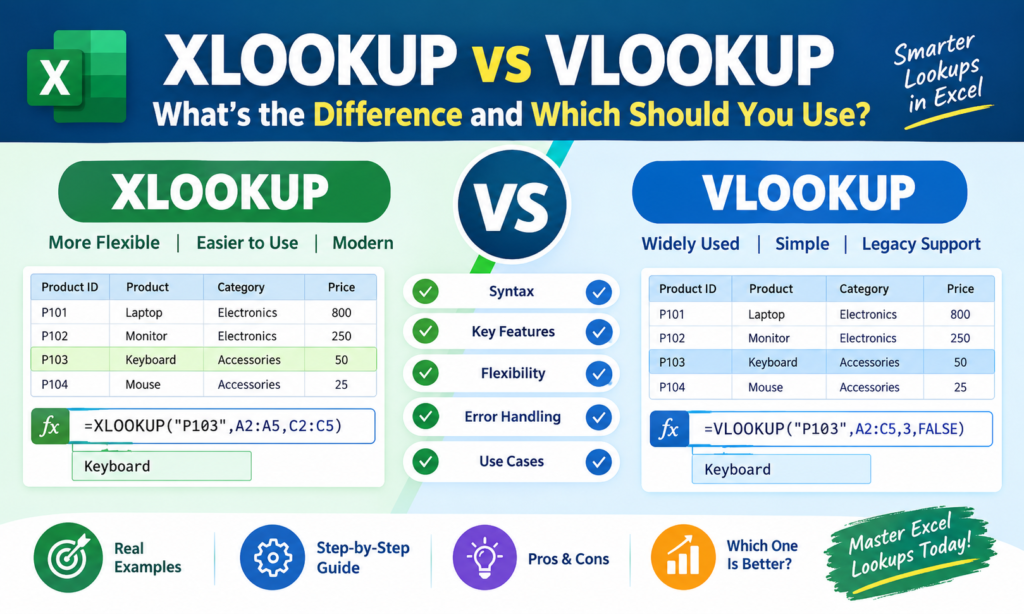
VLOOKUP stands for Vertical Lookup. It searches for a value in the first column of a table and returns a corresponding value from another column in the same row.
For example, imagine you have a product table:
| Product ID | Product | Price |
|---|---|---|
| P101 | Laptop | $800 |
| P102 | Monitor | $250 |
| P103 | Keyboard | $50 |
| P104 | Mouse | $25 |
If you want to find the price of product P103, you could use VLOOKUP.
=VLOOKUP("P103",A2:C5,3,FALSE)
The formula searches for P103 in the first column of the range A2:C5. Once it finds the matching row, it returns the value from the third column.
The result is:
$50
VLOOKUP has been available in Excel for decades, making it one of the most recognizable Excel functions.
What Is XLOOKUP?
XLOOKUP is a modern Excel lookup function designed to replace many common uses of VLOOKUP, HLOOKUP, and some combinations of INDEX and MATCH.
Its basic syntax is:
=XLOOKUP(lookup_value, lookup_array, return_array)
Using the same product table, you could find the price of P103 with:
=XLOOKUP("P103",A2:A5,C2:C5)
The formula searches the product ID column and returns the corresponding value from the price column.
The result is:
$50
At first glance, both functions appear to do the same thing. The major difference becomes apparent when you start working with more complicated datasets.
XLOOKUP vs VLOOKUP: Quick Comparison
Here is a quick overview of the major differences.
| Feature | VLOOKUP | XLOOKUP |
|---|---|---|
| Lookup direction | Left to right | Left, right, up, and down |
| Requires lookup column first? | Yes | No |
| Exact match default | No | Yes |
| Approximate match | Yes | Yes |
| Can return multiple columns | Limited | Yes |
| Custom “not found” message | No direct argument | Yes |
| Search from bottom to top | No | Yes |
| Horizontal lookup | Not directly | Yes |
| Column number required | Yes | No |
| Breaks when columns are inserted? | Can | Much less likely |
| Available in older Excel versions | Yes | No |
| Easier to maintain | Moderate | Excellent |
| Recommended for modern Excel | Sometimes | Yes |
The biggest advantage of XLOOKUP is that it separates the lookup range from the return range. This makes formulas more intuitive and considerably more flexible.
XLOOKUP vs VLOOKUP Syntax
Understanding the syntax is essential before comparing the two functions.
VLOOKUP Syntax
=VLOOKUP(lookup_value, table_array, col_index_num, [range_lookup])
The arguments are:
- lookup_value – The value you want to find.
- table_array – The range containing your data.
- col_index_num – The column number containing the result.
- range_lookup – Determines whether Excel should perform an approximate or exact match.
For an exact match, you normally use:
FALSE
Example:
=VLOOKUP(A2,$A$2:$D$100,4,FALSE)
XLOOKUP Syntax
=XLOOKUP(lookup_value, lookup_array, return_array, [if_not_found], [match_mode], [search_mode])
The arguments are:
- lookup_value – The value you want to find.
- lookup_array – The range where Excel should search.
- return_array – The range containing the result.
- if_not_found – Optional message or value if no match exists.
- match_mode – Controls how Excel matches the value.
- search_mode – Controls the direction and method of the search.
For example:
=XLOOKUP(A2,$A$2:$A$100,$D$2:$D$100,"Not Found")
This formula searches column A and returns the corresponding value from column D.
1. XLOOKUP Can Look to the Left
This is one of the biggest differences between XLOOKUP and VLOOKUP.
VLOOKUP requires the lookup column to be the first column of the selected table.
Suppose your data looks like this:
| Employee Name | Employee ID | Department |
|---|---|---|
| John | E101 | Sales |
| Sarah | E102 | Marketing |
| David | E103 | Finance |
Suppose you know the Employee ID and want to return the Employee Name.
With VLOOKUP, this becomes a problem because Employee ID is to the right of Employee Name.
VLOOKUP cannot directly look to the left.
XLOOKUP can do it easily:
=XLOOKUP(E2,B2:B4,A2:A4)
Here:
E2contains the Employee ID.B2:B4is the lookup range.A2:A4is the return range.
This makes XLOOKUP much more flexible.
2. XLOOKUP Uses Exact Match by Default
Another important difference is the default matching behavior.
With VLOOKUP, you should explicitly specify FALSE when you want an exact match:
=VLOOKUP(A2,A2:D100,4,FALSE)
If you leave out the fourth argument, VLOOKUP assumes an approximate match.
That can produce unexpected results if the user does not understand how approximate matching works.
XLOOKUP, on the other hand, uses an exact match by default.
=XLOOKUP(A2,A:A,D:D)
This is safer for many everyday lookup tasks.
If there is no exact match, XLOOKUP returns #N/A unless you provide another value using the if_not_found argument.
3. XLOOKUP Has a Built-In “Not Found” Option
With VLOOKUP, a missing lookup value normally produces:
#N/A
You can handle this using IFERROR:
=IFERROR(VLOOKUP(A2,A2:D100,4,FALSE),"Not Found")
XLOOKUP makes this easier because it has a dedicated argument for missing results:
=XLOOKUP(A2,A2:A100,D2:D100,"Not Found")
You can return almost anything you want.
For example:
=XLOOKUP(A2,A2:A100,D2:D100,"Employee not found")
Or:
=XLOOKUP(A2,A2:A100,D2:D100,0)
This can make formulas easier to read and maintain.
4. XLOOKUP Does Not Require a Column Number
VLOOKUP requires you to specify the number of the column containing the result.
For example:
=VLOOKUP(A2,A2:D100,4,FALSE)
The 4 means “return the value from the fourth column.”
This can become confusing when working with large tables.
XLOOKUP does not use column numbers.
Instead, you specify the actual return range:
=XLOOKUP(A2,A2:A100,D2:D100)
This is easier to understand.
Someone looking at the formula can immediately see:
Search column A and return the corresponding value from column D.
5. XLOOKUP Is Less Vulnerable to Column Insertions
Consider this VLOOKUP:
=VLOOKUP(A2,A:D,4,FALSE)
It tells Excel to return the fourth column.
If your spreadsheet structure changes, formulas based on column positions can become difficult to manage.
XLOOKUP references the actual lookup and return ranges:
=XLOOKUP(A2,A:A,D:D)
This makes the intention of the formula clearer.
It is particularly useful in workbooks that are frequently updated or expanded.
6. XLOOKUP Can Search From Bottom to Top
XLOOKUP provides a useful feature that VLOOKUP does not have directly: reverse searching.
Suppose a customer has several transactions:
| Customer | Date | Amount |
|---|---|---|
| A101 | Jan 1 | $100 |
| A102 | Jan 2 | $150 |
| A101 | Feb 10 | $250 |
| A101 | Mar 15 | $300 |
If you want to find the most recent transaction for A101, XLOOKUP can search from the bottom of the list.
Example:
=XLOOKUP("A101",A2:A5,C2:C5,"Not Found",0,-1)
The -1 search mode tells XLOOKUP to search from the last item toward the first.
The result is:
$300
This is extremely useful when working with transaction histories, logs, sales records, attendance data, and other datasets where the latest record is important.
7. XLOOKUP Can Return Multiple Columns
XLOOKUP can return an entire range rather than just a single cell.
Suppose you have:
| ID | Name | Department | Salary |
|---|---|---|---|
| E101 | John | Sales | 50000 |
| E102 | Sarah | Marketing | 55000 |
| E103 | David | Finance | 60000 |
You can use:
=XLOOKUP("E102",A2:A4,B2:D4)
Instead of returning just one value, Excel can return:
Sarah | Marketing | 55000
This works particularly well with Excel’s dynamic array functionality.
Traditional VLOOKUP generally requires separate formulas when you want multiple columns.
8. XLOOKUP Can Perform Horizontal Lookups
Despite its name, VLOOKUP is designed primarily for vertical lookups.
For horizontal lookups, Excel users traditionally used HLOOKUP.
XLOOKUP can handle both vertical and horizontal searches.
For example:
| Jan | Feb | Mar | Apr | |
|---|---|---|---|---|
| Sales | 100 | 150 | 175 | 200 |
To find March sales:
=XLOOKUP("Mar",B1:E1,B2:E2)
The result is:
175
Therefore, one XLOOKUP function can replace many situations where users previously needed either VLOOKUP or HLOOKUP.
9. XLOOKUP Supports Different Match Modes
XLOOKUP offers several matching options.
The most common is:
0
which represents an exact match.
Other options allow you to find:
- An exact match
- An exact match or the next smaller value
- An exact match or the next larger value
- A wildcard match
For example:
=XLOOKUP(A2,A:A,D:D,"Not Found",0)
uses an exact match.
Wildcard matching can be useful when you want to find values based on partial text.
For example:
=XLOOKUP("*Laptop*",A2:A100,B2:B100,"Not Found",2)
This can search for text containing “Laptop.”
10. VLOOKUP Is Still Useful
Although XLOOKUP is generally more flexible, that does not mean VLOOKUP is obsolete.
VLOOKUP remains useful when:
- You are working with older Excel versions.
- You need compatibility with older workbooks.
- Your organization uses legacy spreadsheets.
- You are maintaining existing formulas.
- You are learning traditional Excel functions.
For a simple lookup, VLOOKUP can still be perfectly adequate.
For example:
=VLOOKUP(A2,A:D,4,FALSE)
is short, familiar, and easy to understand once you know how VLOOKUP works.
XLOOKUP vs VLOOKUP: Real-World Example
Let’s consider a sales dataset.
| Product ID | Product | Category | Salesperson | Revenue |
|---|---|---|---|---|
| P101 | Laptop | Electronics | John | 5000 |
| P102 | Monitor | Electronics | Sarah | 3200 |
| P103 | Keyboard | Accessories | David | 1200 |
| P104 | Mouse | Accessories | John | 900 |
Suppose cell G2 contains:
P103
You want to return the salesperson.
Using VLOOKUP
Because Product ID is in the first column, you can use:
=VLOOKUP(G2,A2:E5,4,FALSE)
The result is:
David
Using XLOOKUP
With XLOOKUP:
=XLOOKUP(G2,A2:A5,D2:D5)
The result is also:
David
Both formulas work.
However, the XLOOKUP formula directly tells you what it is doing:
Find G2 in A2:A5 and return the corresponding value from D2:D5.
When VLOOKUP Is Better Than XLOOKUP
There are situations where VLOOKUP can still be the better choice.
1. Compatibility
If your workbook needs to work with older versions of Excel that do not support XLOOKUP, VLOOKUP is safer.
This is particularly important when spreadsheets are shared with other users.
2. Existing Workbooks
If you are maintaining an established workbook containing hundreds of VLOOKUP formulas, replacing every formula with XLOOKUP may not provide enough benefit to justify the effort.
3. Familiarity
Many Excel users already understand VLOOKUP.
If you are creating a simple spreadsheet for a team that primarily uses older Excel formulas, VLOOKUP may be easier for everyone to recognize.
When XLOOKUP Is Better Than VLOOKUP
For modern Excel users, XLOOKUP is usually the preferred choice.
XLOOKUP is particularly useful when:
- You need to look left.
- You want exact matching by default.
- You want a custom result when a value is missing.
- You want to search from bottom to top.
- You want to return multiple columns.
- You want formulas that are easier to maintain.
- You do not want to count column numbers.
- You need both vertical and horizontal lookup functionality.
In short, XLOOKUP is more flexible and generally better suited to modern Excel workflows.
XLOOKUP vs VLOOKUP Performance
Performance can become important when working with very large Excel workbooks.
Neither function should automatically be considered slow simply because of its name. Workbook design, range size, formula count, calculation settings, and data structure can all affect performance.
A good practice is to avoid unnecessarily large lookup ranges when possible.
For example, instead of:
=XLOOKUP(A2,A:A,D:D)
you might use a defined data range when appropriate:
=XLOOKUP(A2,A2:A10000,D2:D10000)
However, Excel’s modern features and structured tables can make full-column or table-based formulas practical in many situations.
The important lesson is not simply “XLOOKUP is faster.” The better approach is to design formulas and datasets efficiently.
XLOOKUP vs VLOOKUP for Beginners
If you are new to Excel, which function should you learn first?
For modern Excel, XLOOKUP is generally the better function to learn first.
Its syntax is more intuitive:
=XLOOKUP(what_to_find,where_to_find,what_to_return)
Compare that with:
=VLOOKUP(what_to_find,table,column_number,match_type)
XLOOKUP also avoids one of the most common beginner mistakes: forgetting to specify FALSE for an exact VLOOKUP match.
That said, learning VLOOKUP is still worthwhile because you will encounter it frequently in existing spreadsheets, tutorials, Excel tests, and workplace files.
Common XLOOKUP Mistakes
Even though XLOOKUP is easier in many situations, mistakes are still possible.
Mistake 1: Lookup and Return Ranges Do Not Match
For example:
=XLOOKUP(A2,A2:A100,D2:D50)
The lookup and return arrays do not represent the same number of rows.
Use matching ranges:
=XLOOKUP(A2,A2:A100,D2:D100)
Mistake 2: Hidden Spaces
If your lookup value contains unwanted spaces, the formula may fail.
For example:
P103
and:
P103
may not behave as expected.
Functions such as TRIM can sometimes help clean the data.
Mistake 3: Wrong Match Mode
Be careful when using match modes other than exact matching.
For ordinary lookups, the default exact match is often the safest option.
Common VLOOKUP Mistakes
VLOOKUP has several common pitfalls.
1. Forgetting FALSE
This is perhaps the most famous VLOOKUP mistake.
Instead of:
=VLOOKUP(A2,A:D,4)
use:
=VLOOKUP(A2,A:D,4,FALSE)
when you need an exact match.
2. Using the Wrong Column Number
If you want to return the fourth column, you need:
4
If you accidentally enter:
3
Excel will return a different column.
3. Trying to Look Left
VLOOKUP cannot naturally return a value from a column located to the left of the lookup column.
In that situation, use XLOOKUP or another lookup approach.
Can XLOOKUP Replace VLOOKUP?
In many modern Excel situations, yes.
XLOOKUP can replace most common VLOOKUP use cases and provides additional functionality.
For example, this VLOOKUP:
=VLOOKUP(A2,A:D,4,FALSE)
can usually be replaced with:
=XLOOKUP(A2,A:A,D:D)
The XLOOKUP version is more explicit and does not depend on a column index number.
However, you should not automatically replace every VLOOKUP formula in every workbook. Compatibility, existing spreadsheet design, and user requirements still matter.
XLOOKUP vs VLOOKUP: Which One Should You Use?
The answer depends on your version of Excel and what you need to accomplish.
Use XLOOKUP if:
- You use a modern version of Excel.
- You want flexible lookup formulas.
- You frequently work with changing datasets.
- You need to look left or right.
- You want better error handling.
- You need the latest matching record.
- You want to return multiple columns.
- You want a formula that is easy to understand.
Use VLOOKUP if:
- You work with an older Excel version.
- Compatibility is important.
- You are maintaining legacy spreadsheets.
- Your lookup is simple and already works correctly.
- Your team is familiar with VLOOKUP.
XLOOKUP vs VLOOKUP: Final Verdict
When comparing XLOOKUP vs VLOOKUP, XLOOKUP is the clear winner for most modern Excel users.
VLOOKUP remains an important Excel function and is still useful for simple lookups and compatibility with older spreadsheets. However, its limitations become obvious when you need more flexibility.
XLOOKUP solves many of these problems.
It can look left or right, uses exact matching by default, allows custom “not found” results, can search from bottom to top, can return multiple columns, and eliminates the need to manually specify a column number.
The difference can be summarized simply:
VLOOKUP tells Excel which column number to return. XLOOKUP tells Excel exactly where to look and exactly what to return.
For example:
=VLOOKUP(A2,A:D,4,FALSE)
versus:
=XLOOKUP(A2,A:A,D:D)
The second formula is generally easier to read, maintain, and adapt.
If you are learning Excel today, it is worth learning both functions. Understand VLOOKUP because it remains common in existing workbooks, but prioritize XLOOKUP for new spreadsheets whenever your version of Excel supports it.
Ultimately, knowing when and why to use each lookup function will make you faster, more confident, and more effective when working with Excel data.
Frequently Asked Questions
Is XLOOKUP better than VLOOKUP?
For most modern Excel users, yes. XLOOKUP is more flexible and solves several limitations of VLOOKUP, including left-side lookups, custom not-found results, reverse searches, and the need for column index numbers.
Is XLOOKUP faster than VLOOKUP?
Performance depends on the workbook, ranges, number of formulas, and data structure. It is better not to choose between the functions based solely on a general claim that one is always faster.
Can XLOOKUP look left?
Yes. This is one of its major advantages. XLOOKUP can search one range and return a corresponding value from a range located either to the left or right.
Does XLOOKUP require FALSE for an exact match?
No. XLOOKUP uses exact matching by default, so you generally do not need to specify an exact-match argument for a standard lookup.
Can VLOOKUP return values to the left?
Not directly. VLOOKUP normally searches the first column of its table and returns values from columns to its right. XLOOKUP is a better option for left-side lookups.
Can XLOOKUP replace HLOOKUP?
Yes, XLOOKUP can perform both vertical and horizontal lookup operations, making it a flexible alternative to VLOOKUP and HLOOKUP.
Should beginners learn VLOOKUP or XLOOKUP?
Beginners should understand both, but XLOOKUP is generally the better function to prioritize when using a modern version of Excel. VLOOKUP remains important because it is widely used in existing spreadsheets.
What is the biggest difference between XLOOKUP and VLOOKUP?
The biggest difference is flexibility. VLOOKUP requires the lookup column to be the first column of the selected table and uses a column number to identify the return column. XLOOKUP separately specifies the lookup and return ranges, allowing much more flexible lookups.