Welcome to ZeexasTech.com, your online resource for AI tools, Microsoft Excel tutorials, technology guides, productivity tips, and digital solutions.
I’m Vishal Kumar, the founder of ZeexasTech.com. I share informative articles designed to help readers discover useful AI tools, understand Excel formulas, improve their digital skills, and find smarter ways to complete everyday tasks.
Our mission is to provide clear, practical, and beginner-friendly technology content that helps students, professionals, content creators, and businesses make better use of modern digital tools.
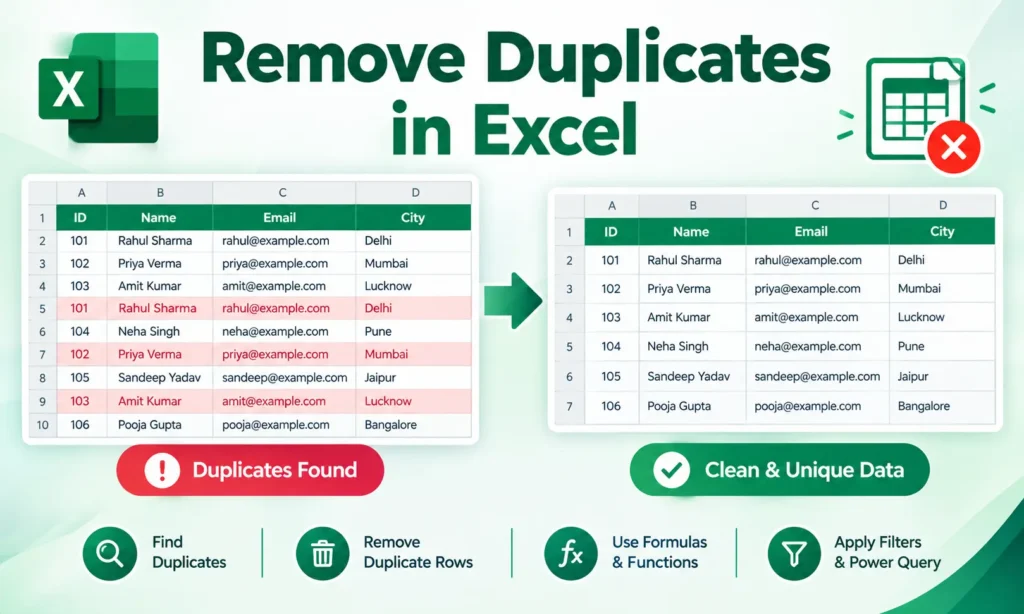
Microsoft Excel is one of the most popular tools for managing, organizing, and analyzing data. Whether you work with customer lists, employee records, sales reports, product inventories, or financial spreadsheets, keeping your data accurate is essential. However, duplicate entries can easily appear when you combine multiple files, import data from different sources, or enter information manually.
Fortunately, Excel provides several tools to identify and remove duplicate values quickly. You can use the built-in Remove Duplicates feature, conditional formatting, formulas, filters, Power Query, and other methods to clean your spreadsheet.
In this comprehensive guide, you will learn how to remove duplicates in Excel step by step, how to identify duplicate values without deleting them, and how to prevent duplicate data in future worksheets.
Whether you are a beginner or an experienced Excel user, these techniques will help you clean your data efficiently and improve the accuracy of your reports.
What Are Duplicates in Excel?
Duplicates are repeated values or records that appear more than once in a worksheet.
For example, consider the following customer list:
| Customer ID | Customer Name | City |
|---|---|---|
| 101 | Rahul Sharma | Delhi |
| 102 | Priya Verma | Mumbai |
| 103 | Amit Kumar | Lucknow |
| 101 | Rahul Sharma | Delhi |
| 104 | Neha Singh | Pune |
| 102 | Priya Verma | Mumbai |
In this example, Rahul Sharma and Priya Verma appear twice. If each customer should have only one record, these entries are duplicates.
Duplicate data can create several problems, including inaccurate calculations, incorrect sales reports, repeated customer communications, and unreliable business decisions.
Before removing duplicates, it is important to understand whether you want to remove entire duplicate rows, identify repeated values in a single column, or keep one record for each unique item.
Why Should You Remove Duplicates in Excel?
Removing duplicate data is an important part of spreadsheet management. Here are some reasons why you should regularly clean your Excel files.
1. Improve Data Accuracy
Duplicate records can cause totals, averages, and other calculations to become incorrect. Removing unwanted duplicates helps ensure that your calculations reflect the actual data.
2. Save Time
Manually searching for duplicate entries in a large spreadsheet can take hours. Excel’s built-in tools can identify and remove repeated records in seconds.
3. Maintain Clean Customer Records
Businesses often maintain customer databases containing names, email addresses, phone numbers, and customer IDs. Duplicate records can result in repeated emails or unnecessary calls.
4. Improve Data Analysis
PivotTables, charts, and dashboards work best when the underlying data is clean. Removing unwanted duplicates helps you analyze information more effectively.
5. Avoid Incorrect Reports
Duplicate sales transactions, employee records, or inventory entries can affect important business reports. Cleaning your data before analysis reduces this risk.
Method 1: Remove Duplicates Using the Built-in Excel Feature
The easiest way to remove duplicates in Excel is to use the built-in Remove Duplicates command.
This method is ideal when you want to permanently remove duplicate rows while keeping one occurrence of each record.
Steps to Remove Duplicates in Excel
Step 1: Select your data
Open your Excel worksheet and select the range containing the records you want to clean. If your data is organized in a continuous table, you can click any cell inside it.
Step 2: Open the Data tab
Go to the ribbon at the top of Excel and click the Data tab.
Step 3: Click Remove Duplicates
In the Data Tools section, select Remove Duplicates.
Step 4: Choose the columns
Excel displays a dialog box listing the columns in your selected range. Select the columns that should be used to determine whether a record is a duplicate.
If the first row contains column headings, make sure the My data has headers option is selected.
Step 5: Confirm your selection
Click OK. Excel removes duplicate records according to the selected columns and displays a message showing how many duplicate values were removed and how many unique values remain.
Example
Suppose your worksheet contains the following data:
| Product | Price |
|---|---|
| Laptop | 50000 |
| Mouse | 500 |
| Keyboard | 1200 |
| Laptop | 50000 |
| Mouse | 500 |
If you select both Product and Price, Excel keeps one copy of each unique combination.
The cleaned data becomes:
| Product | Price |
|---|---|
| Laptop | 50000 |
| Mouse | 500 |
| Keyboard | 1200 |
Important: Excel’s Remove Duplicates feature permanently removes the extra records from the selected range. Make a copy of your original data before using it.
Method 2: Remove Duplicates Based on One Column
Sometimes, you only need to remove repeated values from a specific column, such as email addresses, employee IDs, product codes, or customer names.
For example:
To remove duplicate email addresses:
- Select the email address column.
- Click the Data tab.
- Select Remove Duplicates.
- Confirm the selected column.
- Click OK.
Excel keeps one occurrence of each email address and removes the additional occurrences.
When Should You Use This Method?
Use this approach when the selected column uniquely identifies a record.
For example, if each customer should have only one email address, selecting the Email Address column is appropriate.
However, be careful when your spreadsheet contains other related information. If you remove duplicates based on only one column in a multi-column dataset, Excel may delete entire rows, including information in the other columns.
For instance, two people may have the same name but different phone numbers. Removing duplicates based only on names could incorrectly delete a valid record.
Method 3: Highlight Duplicate Values Before Removing Them
If you want to identify duplicates before deleting them, use Excel’s Conditional Formatting feature.
This method highlights repeated values with a color, allowing you to review the data first.
Steps to Highlight Duplicates
- Select the column or range you want to check.
- Open the Home tab.
- Click Conditional Formatting.
- Choose Highlight Cells Rules.
- Select Duplicate Values.
- Choose a formatting style, such as red fill with dark red text.
- Click OK.
Excel highlights values that occur more than once in the selected range.
Example
Suppose a list of product codes contains the following entries:
| Product Code |
|---|
| PR101 |
| PR102 |
| PR103 |
| PR101 |
| PR104 |
| PR102 |
Conditional Formatting highlights PR101 and PR102 because each appears twice.
You can then review the highlighted values and decide which records should be removed.
Advantages of Conditional Formatting
- Identifies duplicates without deleting data.
- Makes repeated values easy to recognize.
- Works well with large datasets.
- Helps you review data before making changes.
Note: Conditional Formatting identifies duplicate values based on the selected range. It does not automatically remove them.
Method 4: Remove Duplicates Using the UNIQUE Function
Excel provides the UNIQUE function in Microsoft 365 and supported versions of Excel, including Excel 2021 and later.
This function returns a list of unique values from a range without deleting the original data.
Formula to Remove Duplicate Values
Suppose your data is in cells A2. Enter the following formula in an empty cell:
=UNIQUE(A2:A10)
Excel returns a list containing each distinct value once.
Example
Original data:
| A |
|---|
| Apple |
| Banana |
| Apple |
| Orange |
| Banana |
| Mango |
Formula:
=UNIQUE(A2:A7)
Result:
| Unique Values |
|---|
| Apple |
| Banana |
| Orange |
| Mango |
The result spills into the cells below the formula automatically, provided those cells are available.
Get Unique Values in Alphabetical Order
You can combine UNIQUE with SORT to display unique values alphabetically.
=SORT(UNIQUE(A2:A10))
This formula removes repeated values from the output and sorts the remaining values in ascending order.
Return Only Values That Appear Exactly Once
If you want to return values that occur only once in the original range, use:
=UNIQUE(A2:A10,,TRUE)
The third argument, set to TRUE, tells Excel to return only values that appear exactly once.
Benefits of the UNIQUE Function
- Keeps the original dataset unchanged.
- Updates the result when the source data changes.
- Works well for dynamic reports.
- Avoids permanently deleting rows.
This is an excellent option when you need a clean list of unique customers, products, cities, or categories.
Method 5: Find Duplicate Values Using the COUNTIF Function
The COUNTIF function helps identify how many times a value appears in a range.
It is particularly useful when you want to mark duplicates with a formula before deciding what to do with them.
Formula to Identify Duplicates
Suppose your values are in column A, starting from A2. Enter this formula in cell B2:
=IF(COUNTIF($A$2:$A$100,A2)>1,"Duplicate","Unique")
Copy the formula down the column.
Excel displays Duplicate if a value appears more than once in the specified range and Unique if it appears only once.
Example
| Product | Status |
|---|---|
| Apple | Duplicate |
| Banana | Duplicate |
| Apple | Duplicate |
| Orange | Unique |
| Banana | Duplicate |
This formula identifies every occurrence of a repeated value, including its first occurrence.
Mark Only the Second and Subsequent Occurrences
If you want the first occurrence to remain marked as unique and only later occurrences to be identified as duplicates, use:
=IF(COUNTIF($A$2:A2,A2)>1,"Duplicate","Unique")
Copy the formula down the column.
For example:
| Product | Status |
|---|---|
| Apple | Unique |
| Banana | Unique |
| Apple | Duplicate |
| Orange | Unique |
| Banana | Duplicate |
This technique is useful when preparing a list for manual review or filtering out repeated entries.
Method 6: Remove Duplicates Using the Advanced Filter
Excel’s Advanced Filter feature can extract unique records into another location without modifying your original data.
This is useful when you want to create a clean copy of your data.
Steps to Extract Unique Records
- Select your dataset, including the column headings.
- Open the Data tab.
- Click Advanced in the Sort & Filter group.
- Select Copy to another location.
- Confirm the List range.
- Enter a destination in the Copy to box.
- Select Unique records only.
- Click OK.
Excel copies the unique records to the destination you specified.
Example
Suppose your original column contains five city names, including two repeated cities. Advanced Filter can copy the distinct city names into another column without deleting the source values.
Advantages
- Preserves your original data.
- Creates a separate list of unique records.
- Works well for traditional Excel workflows.
- Can extract unique rows based on all columns in the selected list.
The Advanced Filter is especially useful when you want to compare the original and cleaned datasets.
Method 7: Remove Duplicate Rows Using Power Query
Power Query is a powerful Excel tool for importing, transforming, and cleaning data. It is particularly useful when working with large datasets or repeating the same cleaning process regularly.
Steps to Remove Duplicates with Power Query
Step 1: Convert your data into a table
Select your dataset and press Ctrl + T. Confirm that your table has headers if appropriate.
Step 2: Open Power Query
Go to the Data tab and select From Table/Range.
Excel opens the Power Query Editor.
Step 3: Select the relevant columns
Select the column or columns that define a duplicate record.
Step 4: Remove duplicates
Right-click the selected column heading or use the Remove Rows menu, then choose Remove Duplicates.
Step 5: Load the cleaned data
Click Close & Load to return the transformed data to Excel.
Why Use Power Query?
Power Query is especially useful when you regularly import updated data from CSV files, databases, or other spreadsheets.
Once you create the cleaning steps, you can refresh the query when the source data changes.
For example, a business that receives a new customer export every week can build a repeatable process to remove duplicates and load the cleaned results.
Important: If several rows have the same selected key but different values in other columns, Power Query retains one representative row. If the choice of row matters, sort or otherwise prepare the data before removing duplicates.
Method 8: Remove Duplicate Rows Using a Formula
If you prefer formulas, you can create a helper column to identify repeated rows and then filter the results.
Suppose columns A and B contain customer names and cities.
Enter the following formula in C2:
=COUNTIFS($A$2:A2,A2,$B$2:B2,B2)
Copy the formula down the column.
The formula counts how many times the combination of customer name and city has appeared up to the current row.
The first occurrence returns 1, while later occurrences of the same combination return 2, 3, and so on.
You can then filter column C to display values greater than 1 and review the repeated records.
Example
| Customer | City | Occurrence |
|---|---|---|
| Rahul | Delhi | 1 |
| Priya | Mumbai | 1 |
| Rahul | Delhi | 2 |
| Amit | Lucknow | 1 |
| Priya | Mumbai | 2 |
This method is useful when duplicates depend on multiple columns rather than a single value.
For larger datasets, Excel Tables and structured references can make the formulas easier to maintain as new rows are added.
Method 9: Remove Duplicates in Excel Using a PivotTable
PivotTables are primarily used to summarize data, but they can also help you identify distinct combinations of values.
Suppose your spreadsheet contains repeated customer names, products, or cities. A PivotTable can display each category once in its row labels.
Steps
- Select your dataset.
- Click Insert and choose PivotTable.
- Choose where you want the PivotTable to appear.
- Drag the field you want to examine into the Rows area.
- Review the distinct row labels.
If you add additional fields to the Rows area, the PivotTable displays distinct combinations of those fields.
For example, adding Product and City can show the unique Product–City combinations in your data.
Important Limitation
A PivotTable does not permanently remove duplicates from the source data. It summarizes the records, and duplicate records may still affect counts and totals.
Use this method to analyze or inspect repeated categories rather than as a replacement for the Remove Duplicates command.
Method 10: Prevent Duplicate Entries in Excel
Removing duplicates is useful, but preventing them in the first place can save time.
Excel’s Data Validation feature can help prevent users from entering duplicate values in a particular column.
Suppose you want to prevent duplicate employee IDs in cells A2.
Steps to Prevent Duplicates
- Select cells A2.
- Open the Data tab.
- Click Data Validation.
- Under Allow, select Custom.
- Enter this formula:
=COUNTIF($A$2:$A$100,A2)=1
- Open the Error Alert tab and configure a helpful message.
- Click OK.
This validation rule rejects entries when the employee ID appears more than once within the specified range.
For a clearer message, you could use:
Title: Duplicate Employee ID
Error message: This employee ID already exists. Please enter a unique ID.
Important Considerations
- Blank cells may be accepted multiple times because COUNTIF counts blank cells as values.
- Data Validation can be bypassed by some paste operations or other data-import methods.
- Validation does not automatically clean duplicates that already exist.
- Use an appropriate range and adjust the formula if you apply validation to an Excel Table.
For important datasets, combine Data Validation with periodic duplicate checks.
How to Remove Duplicates Based on Multiple Columns
Sometimes, a record is considered a duplicate only when several fields match.
For example:
| Name | City | Department |
|---|---|---|
| Rahul | Delhi | Sales |
| Rahul | Delhi | Sales |
| Rahul | Mumbai | Sales |
| Priya | Pune | HR |
If a duplicate means the same Name, City, and Department combination, you must select all three columns when using Remove Duplicates.
Follow these steps:
- Select the complete dataset.
- Go to Data and click Remove Duplicates.
- Select Name, City, and Department.
- Click OK.
Excel removes records that match across all three selected columns.
The two Rahul records from Delhi in Sales will be treated as duplicates, while Rahul’s record from Mumbai will remain because the City value differs.
This method is useful for employee lists, transaction records, product inventories, and customer databases.
How to Remove Duplicates Without Deleting the Original Data
If you need to preserve the original worksheet, choose a non-destructive method.
Here are three practical options:
Use the UNIQUE function
Enter =UNIQUE(A2:A100) in an empty area to create a dynamic list of distinct values.
Use Advanced Filter
Copy unique records to another location while keeping the source dataset intact.
Use Power Query
Transform the imported data and load the cleaned results to a new worksheet.
These approaches are especially valuable when cleaning important business records because they allow you to compare the original data with the cleaned output.
Common Problems When Removing Duplicates in Excel
Even when you use the correct feature, some duplicate-related problems can occur.
1. Excel Does Not Recognize Apparently Identical Values
Two cells may look identical but contain different data.
For example, one cell might contain Apple while another contains Apple with a trailing space.
You can use the TRIM function to remove extra ordinary spaces:
=TRIM(A2)
For data imported from websites or other systems, nonbreaking spaces and other invisible characters may require additional cleaning.
2. Different Capitalization or Formatting
Excel’s built-in Remove Duplicates feature is generally case-insensitive for text comparisons. For example, Apple and APPLE are normally treated as duplicates.
However, numbers stored as text, inconsistent date values, and other formatting differences may require standardization before you remove duplicates.
3. Removing the Wrong Rows
Selecting only one column in a multi-column dataset can remove entire records that share the same value in that column, even if their other fields differ.
Always confirm which columns define a duplicate before clicking OK.
4. Accidentally Deleting Important Data
The Remove Duplicates command permanently removes the extra rows from the selected range.
Create a backup or copy the original worksheet before running the command.
5. The UNIQUE Formula Does Not Work
The UNIQUE function is unavailable in some older Excel versions. If you receive a #NAME? error, your version may not support the function.
Try Advanced Filter or Remove Duplicates instead.
6. The Duplicate Count Is Unexpected
Conditional Formatting, COUNTIF, and Remove Duplicates do not necessarily answer the same question.
Conditional Formatting highlights repeated values, COUNTIF counts occurrences, and Remove Duplicates removes repeated values or rows according to the selected columns.
Choose the method that matches your intended result.
Best Practices for Removing Duplicates in Excel
Follow these tips to keep your data clean and reliable.
- Always back up your data: Save a copy before deleting records.
- Use unique identifiers: Customer IDs, employee IDs, and transaction IDs are often more reliable than names.
- Standardize your data: Clean spaces, inconsistent spelling, and data types before checking for duplicates.
- Select the correct columns: Decide whether a duplicate is defined by one field or an entire row.
- Review results before deleting: Conditional Formatting can help you inspect repeated values first.
- Use formulas for ongoing checks: COUNTIF and UNIQUE are helpful for dynamic worksheets.
- Use Power Query for recurring tasks: It can automate repeatable data-cleaning workflows.
- Verify the final results: Check the remaining record count and inspect important records after cleaning.
These practices can help reduce data errors and make your Excel worksheets easier to maintain.
Frequently Asked Questions (FAQs)
Select your data, open the Data tab, click Remove Duplicates, choose the columns to compare, and click OK. Excel removes repeated records while retaining one occurrence.
Select the column, go to Data, choose Remove Duplicates, and confirm the column selection. Excel retains one occurrence of each distinct value.
Select the relevant cells, go to Home, choose Conditional Formatting, select Highlight Cells Rules, and click Duplicate Values
Yes. In supported versions, use =UNIQUE(A2:A100) to generate a unique list. You can also use COUNTIF to identify repeated values
Select your dataset, open Data > Remove Duplicates, and select both columns. Excel treats a record as a duplicate when the values in both selected columns match.
No. Excel normally keeps the first occurrence in the current row order and removes subsequent duplicate records.
Yes, immediately after running the command, you can generally press Ctrl + Z to undo the change. If you have performed other operations or closed the workbook, restoring a backup may be necessary.
UNIQUE returns distinct values in a separate output range and leaves the source data unchanged. Remove Duplicates permanently removes additional matching records from the selected range.
In supported versions of Excel for the web, you can use the Remove Duplicates command from the Data tab. Feature availability and interface details can vary, so use UNIQUE where supported if you want a separate dynamic list.
Use the UNIQUE function, Advanced Filter with Copy to another location, or Power Query to produce a separate cleaned result.
Conclusion
Removing duplicates in Excel is an essential skill for anyone who works with spreadsheets. Duplicate records can cause inaccurate calculations, unreliable reports, and unnecessary work, but Excel provides several straightforward solutions.
For a quick cleanup, use the built-in Remove Duplicates command. If you want to review repeated values first, use Conditional Formatting. For dynamic lists, the UNIQUE function is an excellent option. COUNTIF formulas help identify repeated entries, while Advanced Filter and Power Query offer additional ways to extract and clean unique records.
The best method depends on your data, your Excel version, and whether you want to permanently delete duplicates or preserve the original information.
By using the right technique and following good data-cleaning practices, you can maintain accurate spreadsheets, save time, and make better decisions based on your Excel data.
Thank you so much for visiting ZeexasTech.com and taking the time to read my articles. Your support and interest mean a lot to me. I hope you find the information useful and enjoy exploring the website!
Best regards,
Vishal Kumar
Writer of ZeexasTech.com

2 comments