Hello! I’m Vishal Kumar, the creator of ZeexasTech.com.
Welcome to your destination for AI tools, Excel tips, technology tutorials, and smart digital solutions. My aim is to simplify complex topics and share practical knowledge that helps you learn faster, boost productivity, and stay ahead in the digital world.
ZeexasTech.com — Learn Technology. Work Smarter. Grow Faster.
Introduction
Microsoft Excel is one of the most useful tools for working with dates, numbers, and personal information. Whether you manage employee records, student information, customer databases, or personal documents, knowing how to calculate age in Excel can save time and reduce manual errors.
Calculating age may seem simple, but it can become complicated when you need to calculate the exact number of completed years, months, and days between two dates. Fortunately, Excel provides several functions and formulas that make this task easier.
In this guide, you will learn how to calculate age in Excel using different methods, including the DATEDIF function, YEARFRAC function, YEAR function, and TODAY function. You will also discover how to calculate age on a specific date, calculate age in years and months, find age in days, and calculate the age of multiple people automatically.
Whether you are a beginner or an experienced Excel user, this article will help you understand the best formulas for different age-calculation requirements.
What Does Calculate Age in Excel Mean?
Calculating age in Excel means determining the time that has passed between a person’s date of birth and the current date or another specified date.
For example, if a person was born on January 15, 2000, Excel can calculate how many complete years have passed since that date.
The result may be displayed in different formats, such as:
- Age in completed years
- Age in years and months
- Age in years, months, and days
- Total age in months
- Total age in days
- Age on a specific historical or future date
Excel is particularly useful when you need to calculate ages for hundreds or thousands of records. Instead of calculating each person’s age manually, you can enter a formula once and copy it down an entire column.
How to Calculate Age in Excel Using the DATEDIF Function
The DATEDIF function is one of the most useful methods for calculating age in Excel. It calculates the difference between two dates in years, months, or days.
The basic syntax is:
=DATEDIF(start_date,end_date,unit)
Here is what each argument means:
- start_date: The earlier date, usually the person’s date of birth.
- end_date: The later date, usually today’s date.
- unit: Specifies whether Excel should calculate years, months, or days.
The most commonly used units are:
"Y"— Calculates the number of complete years."M"— Calculates the total number of complete months."D"— Calculates the total number of days."YM"— Calculates the remaining months after complete years."MD"— Calculates the remaining days after complete months."YD"— Calculates the difference in days, ignoring the difference in years.
Example: Calculate Age in Completed Years
Suppose cell A2 contains a person’s date of birth:
15/01/2000
To calculate the person’s current age, enter this formula in cell B2:
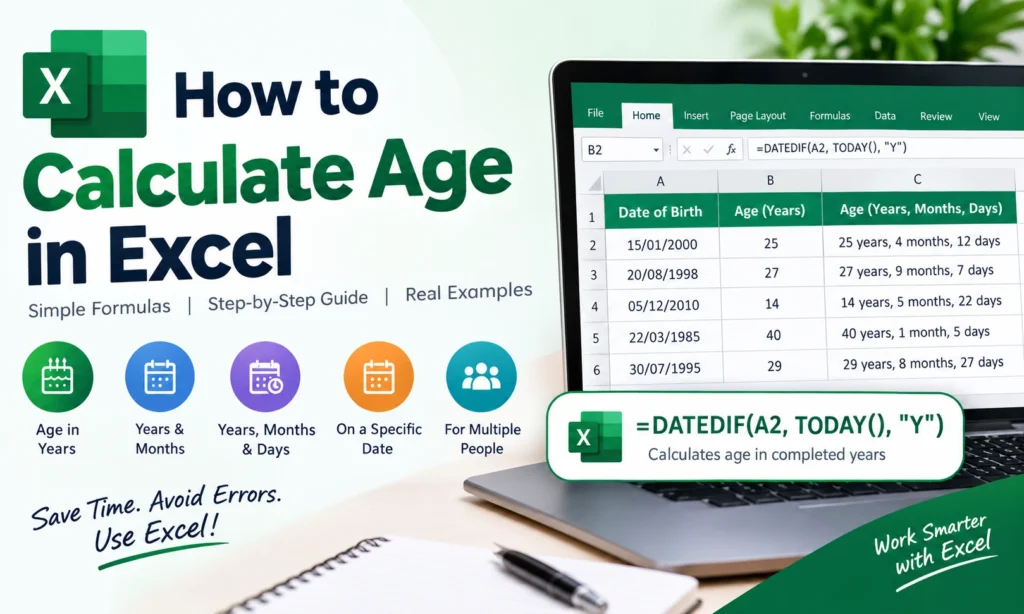
=DATEDIF(A2,TODAY(),"Y")
Press Enter. Excel will display the number of complete years between the date of birth and today’s date.
The TODAY function automatically returns the current date, so the calculated age updates when the worksheet recalculates on a later date.
Important: Make sure Excel recognizes the date of birth as a real date value rather than text.
How to Calculate Age in Excel Using the TODAY Function
The TODAY function returns the current date according to your computer’s date settings. It is particularly helpful when you want an age calculation that updates automatically.
The syntax is:
=TODAY()
To calculate age, combine TODAY with DATEDIF:
=DATEDIF(A2,TODAY(),"Y")
For example, imagine that a worksheet contains the following information:
| Cell | Information |
|---|---|
| A2 | 10/06/1995 |
| B2 | Age formula |
| C2 | Current date |
Enter the following formula in B2:
=DATEDIF(A2,TODAY(),"Y")
Excel calculates the completed years between the date in A2 and the current date.
You can use this formula for employee databases, school admission records, customer information, and other situations where age needs to remain current.
Advantages of Using TODAY
The main advantage of TODAY is that you do not need to change the formula every day.
However, remember that TODAY is a dynamic function. If you need to preserve someone’s age as of a particular date, use a fixed date instead of TODAY.
How to Calculate Age in Excel in Years, Months, and Days
Sometimes, calculating only the number of years is not enough. You may need to display a person’s exact age in years, months, and days.
For example, an employee’s age might need to be displayed as 26 years, 4 months, and 12 days.
You can calculate this using multiple DATEDIF formulas combined with text.
Assume the date of birth is in cell A2. Enter this formula:
=DATEDIF(A2,TODAY(),"Y")&" years, "&DATEDIF(A2,TODAY(),"YM")&" months, "&DATEDIF(A2,TODAY(),"MD")&" days"
This formula combines three calculations:
DATEDIF(A2,TODAY(),"Y")calculates completed years.DATEDIF(A2,TODAY(),"YM")calculates remaining months after completed years.DATEDIF(A2,TODAY(),"MD")calculates remaining days after completed months.
The result is displayed as a text string.
For example, the output may look like this:
26 years, 4 months, 12 days
The actual result depends on the date of birth and the current date.
This method is useful when you want to show a detailed age in reports or personal records.
Note: The "MD" unit has known edge cases in some date combinations. For applications requiring highly reliable calendar arithmetic, validate the formula against the dates you expect to handle.
How to Calculate Age in Excel Using the YEARFRAC Function
Another method for calculating age is the YEARFRAC function.
YEARFRAC calculates the fraction of a year represented by the number of days between two dates.
Its syntax is:
=YEARFRAC(start_date,end_date,[basis])
For example:
=YEARFRAC(A2,TODAY())
This formula returns a decimal number representing the elapsed years between the date in A2 and the current date.
To display an approximate age as a whole number, you might use:
=INT(YEARFRAC(A2,TODAY()))
This method is straightforward and can be useful for general reporting.
However, YEARFRAC uses year-fraction conventions and may not produce exactly the same result as a completed-calendar-years calculation in every situation. If you need a person’s age in completed years, DATEDIF is usually the more appropriate choice.
When Should You Use YEARFRAC?
YEARFRAC is useful when you need to calculate elapsed time as a fraction of a year, especially for financial or analytical calculations.
For ordinary age calculations, use DATEDIF when your requirement is the number of birthdays already reached.
How to Calculate Age in Excel Using the YEAR Function
You can also calculate age by subtracting the birth year from the current year.
For example:
=YEAR(TODAY())-YEAR(A2)
This formula subtracts the year of birth from the current year.
However, there is an important limitation: it does not check whether the person’s birthday has occurred yet this year.
For example, if a person was born in December 2000 and the current date is in October 2026, simply subtracting the years gives 26 even though the person has not yet turned 26.
To correct this, use:
=YEAR(TODAY())-YEAR(A2)-IF(DATE(YEAR(TODAY()),MONTH(A2),DAY(A2))>TODAY(),1,0)
This formula subtracts one year if the birthday for the current year has not occurred yet.
For most standard age calculations, however, the simpler formula below is easier to maintain:
=DATEDIF(A2,TODAY(),"Y")
How to Calculate Age in Excel From Date of Birth
Calculating age from a date of birth is one of the most common Excel tasks.
Follow these steps:
- Open Microsoft Excel.
- Create a column called Date of Birth.
- Enter each person’s date of birth in that column.
- Create another column called Age.
- Click the first cell under the Age heading.
- Enter the formula
=DATEDIF(A2,TODAY(),"Y"). - Press Enter.
- Copy the formula down for the remaining records.
Your worksheet might look like this:
| Date of Birth | Formula |
|---|---|
| 15/01/2000 | =DATEDIF(A2,TODAY(),"Y") |
| 20/08/1998 | =DATEDIF(A3,TODAY(),"Y") |
| 05/12/2010 | =DATEDIF(A4,TODAY(),"Y") |
| 22/03/1985 | =DATEDIF(A5,TODAY(),"Y") |
Excel calculates each age separately based on the date in the corresponding row.
This approach works well for employee lists, student databases, membership records, and customer information.
How to Calculate Age in Excel for Multiple People
When working with large datasets, calculating each age manually is inefficient. Excel allows you to calculate ages for many people by copying a formula down a column.
Suppose column A contains dates of birth, starting from cell A2.
Enter this formula in B2:
=DATEDIF(A2,TODAY(),"Y")
Then follow these steps:
- Select cell B2.
- Move the pointer to the small square at the bottom-right corner of the selected cell.
- Double-click the fill handle, or drag it down to the last row.
- Excel will adjust the row references automatically.
For example, the formula in B3 becomes:
=DATEDIF(A3,TODAY(),"Y")
The formula in B4 becomes:
=DATEDIF(A4,TODAY(),"Y")
This saves time and reduces manual calculation errors.
Use an Excel Table for Automatic Formulas
If your records are formatted as an Excel Table, formulas can automatically fill down the calculated column.
To create a table:
- Select your dataset.
- Press Ctrl+T.
- Confirm that the table has headers.
- Add a column named Age.
- Enter the age formula in the first data row.
Excel Tables are particularly useful for records that grow over time because new rows can inherit the calculated-column formula.
How to Calculate Age in Excel on a Specific Date
Sometimes, you may not want to calculate age as of today. You might need to calculate a person’s age on an admission date, retirement date, employment start date, or historical reporting date.
In that situation, use a fixed reference date.
Suppose:
- A2 contains the date of birth.
- B2 contains the date on which age must be calculated.
Enter:
=DATEDIF(A2,B2,"Y")
For example, if A2 contains a date of birth and B2 contains 01/01/2025, Excel calculates the person’s completed age as of January 1, 2025.
This method is useful for historical reports because the result does not change when today’s date changes.
Calculate Age on a Future Date
You can also calculate age on a future date.
For example, if A2 contains a date of birth and B2 contains a future date, the same formula works:
=DATEDIF(A2,B2,"Y")
Make sure the reference date is on or after the date of birth. Otherwise, DATEDIF returns an error.
How to Calculate Age in Excel in Months
There are situations where you need a person’s total age in months rather than years.
For example, age in months can be useful for tracking the development of young children or calculating durations for specific administrative purposes.
To calculate the number of complete months between a date of birth in A2 and today’s date, use:
=DATEDIF(A2,TODAY(),"M")
This returns the total number of completed months.
If you want to calculate months between two dates stored in A2 and B2, use:
=DATEDIF(A2,B2,"M")
For example, if the dates are exactly 24 complete months apart, the formula returns 24.
Remember that this formula returns complete months, not a decimal measurement of elapsed time.
How to Calculate Age in Excel in Days
To calculate the total number of days between a date of birth and the current date, enter:
=TODAY()-A2
Excel stores valid dates as serial numbers, which makes date subtraction possible.
If A2 contains a valid date of birth, the formula returns the number of elapsed days.
You can also use:
=DATEDIF(A2,TODAY(),"D")
Both methods can calculate the total elapsed days between the dates.
If the result appears as a date rather than a number, change the result cell’s number format to General or Number.
Calculate Days Between Two Specific Dates
If A2 contains a start date and B2 contains an end date, use:
=B2-A2
This returns the number of days between the two dates.
For accurate results, confirm that both cells contain valid Excel dates and that the end date is not earlier than the start date.
How to Calculate Age in Excel Without DATEDIF
Some users prefer formulas that use more familiar Excel functions. You can calculate completed age without DATEDIF by using YEAR, MONTH, DAY, and IF.
Assume A2 contains the date of birth. Use:
=YEAR(TODAY())-YEAR(A2)-IF(OR(MONTH(TODAY())<MONTH(A2),AND(MONTH(TODAY())=MONTH(A2),DAY(TODAY())<DAY(A2))),1,0)
This formula works as follows:
- YEAR extracts the current year and birth year.
- MONTH compares the current month with the birth month.
- DAY compares the day when both dates fall in the same month.
- IF subtracts one if the birthday has not occurred yet in the current year.
The result is the number of completed years.
This is a useful alternative if you want to avoid DATEDIF. However, it is longer and more difficult to read than the standard DATEDIF formula.
For most users, DATEDIF remains the simpler option.
How to Calculate Age in Excel Using an IF Formula
The IF function is useful when you want to calculate age only if a date of birth has been entered.
For example, a worksheet may contain blank rows or incomplete records. Using DATEDIF without checking for blank cells may produce confusing results.
Use:
=IF(A2="","",DATEDIF(A2,TODAY(),"Y"))
This formula checks whether A2 is blank.
If A2 is blank, the formula returns a blank result. If A2 contains a date, Excel calculates the completed age.
This is especially useful when preparing reports from incomplete employee or customer databases.
Show a Message for Invalid Dates
You can also use IFERROR to display a friendly message when a formula produces an error:
=IF(A2="","",IFERROR(DATEDIF(A2,TODAY(),"Y"),"Check date"))
This formula leaves blank rows empty and displays “Check date” if Excel cannot complete the age calculation.
However, IFERROR can hide different kinds of errors. For important records, verify that every entered date is valid and that no date of birth falls after the reference date.
How to Calculate Age in Excel and Display It as Text
You may want to display age together with a word such as “years” or “yrs.”
Use:
=DATEDIF(A2,TODAY(),"Y")&" years"
For example, if the calculated age is 26, the result will appear as:
26 years
You can also use a shorter format:
=DATEDIF(A2,TODAY(),"Y")&" yrs"
If you need to display years and months, use:
=DATEDIF(A2,TODAY(),"Y")&" years "&DATEDIF(A2,TODAY(),"YM")&" months"
This format is useful for reports, dashboards, and printable records.
Remember that combining a number with text produces a text result. If you need to perform further mathematical calculations with the age, keep the age as a numeric value in a separate cell.
How to Calculate Age in Excel for Employees
Human resource departments often need to calculate employee ages for internal records, workforce analysis, retirement planning, and administrative reporting.
To calculate employee ages, organize your worksheet with columns such as:
- Employee ID
- Employee Name
- Date of Birth
- Joining Date
- Current Age
If the date of birth is in C2, enter this formula in E2:
=IF(C2="","",IFERROR(DATEDIF(C2,TODAY(),"Y"),"Check date"))
Copy the formula down the Age column.
This formula automatically calculates each employee’s age while leaving blank records empty.
For retirement or eligibility decisions, do not rely solely on a calculated age. Check the applicable company policy, legal requirements, and exact reference date before making a decision.
How to Calculate Age in Excel for Students
Schools, colleges, and training institutes may use Excel to maintain student information and calculate ages for admission or administrative purposes.
Suppose column A contains student names and column B contains their dates of birth.
In C2, enter:
=IF(B2="","",DATEDIF(B2,TODAY(),"Y"))
The formula calculates each student’s completed age.
If the school needs to check age as of a fixed admission cutoff date, enter that cutoff date in a separate cell, such as E1.
Then use:
=IF(B2="","",DATEDIF(B2,$E$1,"Y"))
The dollar signs make E1 an absolute reference, so it does not change when the formula is copied down.
Always confirm the official admission cutoff date and eligibility rules before using calculated ages for enrollment decisions.
How to Calculate Age in Excel for Birthday Tracking
You may also want to use Excel to identify upcoming birthdays.
Suppose A2 contains a date of birth. The following formula returns the date of the next birthday:
=DATE(YEAR(TODAY())+(DATE(YEAR(TODAY()),MONTH(A2),DAY(A2))<TODAY()),MONTH(A2),DAY(A2))
This formula determines whether the birthday for the current year has already passed. If it has, Excel uses the following year.
You can then calculate the number of days remaining until the next birthday by subtracting TODAY from the next-birthday date.
For example, if the next birthday date is in B2, use:
=B2-TODAY()
Format the result as a number to display the number of days remaining.
Leap-day note: People born on February 29 require a specific policy for non-leap years if you need birthday dates for legal or administrative purposes. The formula above should not be treated as a universal rule for that situation.
Common Problems When Calculating Age in Excel
Although Excel age formulas are relatively simple, some problems can produce unexpected results.
1. Excel Displays an Error
If you see an error when using DATEDIF, check that the date of birth is not later than the reference date.
Also confirm that both cells contain valid Excel dates.
2. Excel Shows a Date Instead of Age
If Excel displays a date-like number rather than an age, the result cell may be formatted as Date.
Select the cell, open the Number Format menu, and change the format to General or Number.
3. Age Is One Year Too High
This can happen if you use:
=YEAR(TODAY())-YEAR(A2)
That formula ignores whether the birthday has already occurred this year.
Use:
=DATEDIF(A2,TODAY(),"Y")
to calculate completed years.
4. Formula Does Not Update
The TODAY function normally updates when Excel recalculates the workbook.
If the date does not change as expected, check the calculation settings under Formulas and confirm that calculation is set to Automatic.
5. Dates Are Stored as Text
A date that looks correct on the screen may be stored as text. Excel may not recognize it as a real date value.
You can try converting the text into a date using Excel’s date-conversion tools or the DATEVALUE function when the text format is recognized by your regional settings.
6. Different Date Formats Cause Confusion
Dates such as 04/05/2000 may mean April 5 or May 4, depending on the regional date format.
Use an unambiguous date format when sharing workbooks, and check your computer’s regional settings before calculating ages.
7. Leap Years Affect Date Calculations
February has 29 days in a leap year and 28 days otherwise.
Excel’s date functions handle calendar dates, but a special rule may be needed when determining the official birthday or eligibility date for someone born on February 29.
Best Practices for Calculating Age in Excel
To make age calculations accurate and easy to maintain, follow these recommendations.
Use DATEDIF for completed years. It is simple and suitable for most everyday age calculations.
Use a fixed reference date for historical reports. A formula containing TODAY will change as time passes. A fixed date produces a consistent historical result.
Keep dates in real date format. Do not rely on text that only looks like a date.
Check for blank records. An IF formula can prevent empty rows from displaying misleading results.
Use Excel Tables for large datasets. Tables make formulas easier to manage when records are added.
Keep numeric ages separate from descriptive text. This makes it easier to sort, filter, compare, and analyze results.
Test edge cases. Check birthdays that occur today, tomorrow, or later in the year, as well as dates around February 29.
Protect personal information. Date of birth is personal information. Store employee and student records securely and share only the information necessary for the intended purpose.
Frequently Asked Questions About Calculating Age in Excel
The easiest common formula is:=DATEDIF(A2,TODAY(),"Y")
It calculates the number of completed years between the date in A2 and today’s date.
Yes. Use DATEDIF together with TODAY. Excel recalculates the formula as the current date changes, provided the workbook recalculates normally.
Use:=DATEDIF(A2,TODAY(),"Y")&" years "&DATEDIF(A2,TODAY(),"YM")&" months"
This displays the completed years and remaining months.
Use:=TODAY()-A2
Make sure the result cell is formatted as General or Number.
DATEDIF is supported in many Excel versions, including modern desktop versions, although it may not appear in the function autocomplete list. If the function is not recognized, check your spreadsheet application’s compatibility and formula syntax.
Yes. If A2 contains the date of birth and B2 contains the reference date, use:=DATEDIF(A2,B2,"Y")
This calculates completed years between the two dates.
Common causes include an invalid date, a date of birth later than the reference date, or an incorrectly entered formula.
Yes. Enter the formula in the first row of the Age column and copy it down. Excel will adjust the cell references for each record.
Yes. You can use YEAR, MONTH, DAY, IF, and TODAY to calculate completed age. However, the formula is longer than the DATEDIF method.
Yes. Enter the required historical date in a cell and use it as the end date in the DATEDIF formula.
Yes, provided the future reference date is on or after the date of birth. Use the future date as the end date in DATEDIF.
For most ordinary age calculations, =DATEDIF(A2,TODAY(),"Y") is the simplest choice. For detailed ages, historical reports, or special eligibility requirements, choose the formula that matches your exact purpose.
Conclusion
Calculating age in Excel is straightforward once you understand the functions used for date calculations. The DATEDIF function is generally the best starting point because it can calculate completed years, total months, total days, and remaining months between two dates.
For a basic current-age calculation, use:
=DATEDIF(A2,TODAY(),"Y")
For age in years, months, and days, combine multiple DATEDIF calculations. If you need an age on a specific date, replace TODAY with a reference-date cell.
Excel can also calculate age for large lists of employees, students, customers, and other records by copying formulas down a column. With correctly formatted dates, appropriate error handling, and a clear understanding of the required result, you can create reliable age-calculation worksheets for many personal and professional tasks.
Start with the simplest formula that meets your needs, test it with a few known dates, and then apply it to your complete dataset.
Thank you so much for visiting ZeexasTech.com and taking the time to read my articles. Your support and interest mean a lot to me. I hope you find the information useful and enjoy exploring the website!
Best regards,
Vishal Kumar
Writer of ZeexasTech.com


2 comments