Hello! I’m Vishal Kumar, the creator of ZeexasTech.com.
Welcome to your destination for AI tools, Excel tips, technology tutorials, and smart digital solutions. My aim is to simplify complex topics and share practical knowledge that helps you learn faster, boost productivity, and stay ahead in the digital world.
ZeexasTech.com — Learn Technology. Work Smarter. Grow Faster.
Microsoft Excel is one of the most powerful tools for working with data, managing business records, analyzing information, and creating reports. However, many Excel users struggle to write complex formulas, understand errors, and perform calculations efficiently. This is where ChatGPT can make a significant difference.
ChatGPT Excel formulas is a popular topic for students, office professionals, accountants, business owners, data analysts, and anyone who wants to improve their Excel skills. ChatGPT can help you generate Excel formulas, explain how they work, troubleshoot formula errors, and automate repetitive spreadsheet tasks.
Whether you are a beginner learning basic Excel functions or an experienced user working with advanced formulas, ChatGPT can help simplify your workflow. Instead of spending hours searching for the correct formula, you can describe what you want to accomplish in ordinary language and ask ChatGPT to create a suitable formula.
In this comprehensive guide, you will learn how to use ChatGPT for Excel formulas, explore practical examples, discover useful prompts, compare different Excel functions, and understand the limitations of AI-generated formulas.
What Are ChatGPT Excel Formulas?
ChatGPT Excel formulas are spreadsheet formulas that you create, improve, explain, or troubleshoot with the assistance of ChatGPT.
Excel formulas perform calculations and manipulate data using functions, operators, cell references, and logical conditions. ChatGPT can help you build these formulas based on your requirements.
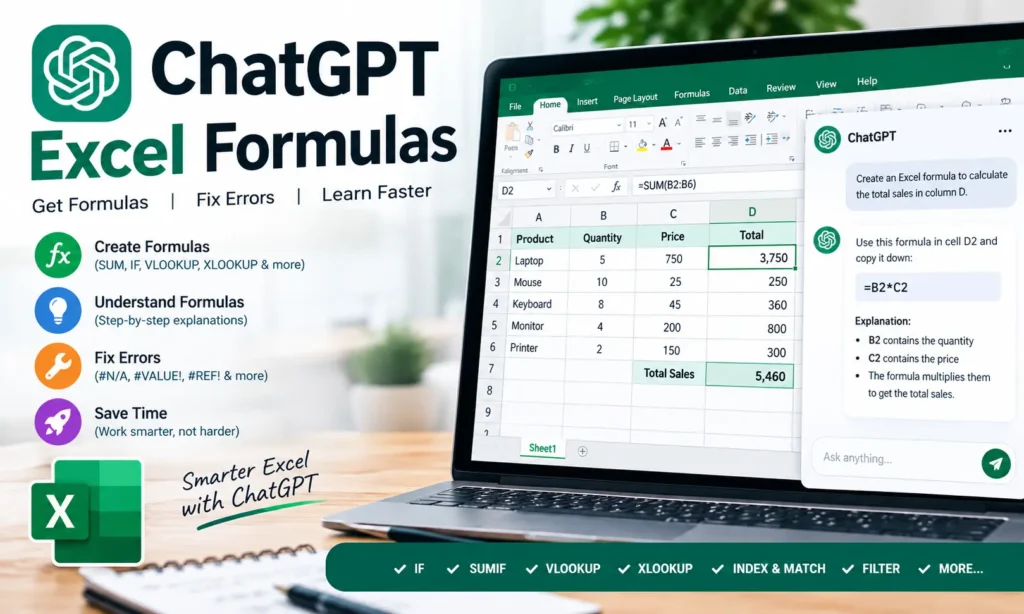
For example, suppose you have a sales spreadsheet with product prices in column B and quantities in column C. You want to calculate the total sales amount for each product.
You can ask ChatGPT:
“Create an Excel formula to multiply the product price in cell B2 by the quantity in cell C2.”
ChatGPT can provide this formula:
=B2*C2
You can enter the formula into cell D2 and copy it down to calculate the total for other products.
Similarly, ChatGPT can help with functions such as SUM, IF, COUNTIF, SUMIF, VLOOKUP, XLOOKUP, INDEX, MATCH, FILTER, TEXTJOIN, and many other Excel functions.
The main advantage is that you do not need to memorize every function or understand complex formula syntax before getting started. You can explain your problem in simple language and use the suggested formula as a starting point.
Benefits of Using ChatGPT for Excel Formulas
Using ChatGPT alongside Excel offers several advantages for everyday spreadsheet work.
1. Create Formulas Without Memorizing Syntax
Excel functions often contain multiple arguments, parentheses, cell references, and conditions. Beginners may find this syntax difficult to remember.
ChatGPT can translate your requirements into a formula.
For example, ask:
“Write an Excel formula to calculate a 10% discount on the price in cell B2.”
A suitable formula is:
=B2*(1-10%)
If the discount percentage is stored in cell C2, use:
=B2*(1-C2)
The second formula is more flexible because you can change the discount percentage without editing the formula itself.
2. Understand Complex Formulas
Sometimes you inherit a spreadsheet containing formulas written by another employee. Understanding those formulas can be challenging.
You can paste a formula into ChatGPT and ask for a step-by-step explanation.
For example:
=IF(C2>=60,"Pass","Fail")
ChatGPT can explain that Excel checks whether the value in C2 is at least 60. If the condition is true, the result is “Pass”; otherwise, the result is “Fail.”
This makes ChatGPT useful as a learning assistant for Excel users.
3. Fix Excel Formula Errors
Excel errors such as #N/A, #VALUE!, #REF!, and #NAME? can interrupt your work.
ChatGPT can help you identify possible causes and suggest solutions.
For example, if a VLOOKUP formula returns #N/A, the problem might involve a missing lookup value, extra spaces, mismatched data types, or an incorrect lookup range.
By sharing the formula, a small sample of your data, and the expected result, you can receive more targeted troubleshooting advice.
4. Save Time on Repetitive Tasks
Many spreadsheet tasks involve repeated calculations, data cleaning, reporting, and categorization.
ChatGPT can help create formulas that automatically calculate totals, identify duplicates, categorize sales, extract text, and summarize data.
Once the formula is correct, you can often copy it down thousands of rows instead of calculating each result manually.
5. Learn Advanced Excel Functions
ChatGPT can introduce you to advanced Excel functions such as XLOOKUP, FILTER, UNIQUE, LET, and dynamic array formulas.
It can also explain the differences between older functions and newer alternatives.
Keep in mind that function availability depends on your Excel version. Microsoft 365 and newer perpetual Excel versions support many modern functions that may not be available in older releases.
How to Use ChatGPT to Generate Excel Formulas
Using ChatGPT to generate formulas is straightforward. Follow these steps to get useful results.
Step 1: Describe Your Spreadsheet
Explain how your data is organized.
For example:
- Column A contains employee names.
- Column B contains monthly salaries.
- Column C contains attendance days.
- Column D should calculate a bonus.
The clearer your description, the easier it is to create a formula that matches your spreadsheet.
Step 2: Explain the Calculation You Need
Describe the result you want in plain English.
For example:
“Calculate a bonus of 5% of the salary in B2 if attendance in C2 is at least 25 days. Otherwise, return zero.”
Step 3: Ask ChatGPT to Write the Formula
A suitable formula is:
=IF(C2>=25,B2*5%,0)
This formula checks attendance first. If the attendance requirement is satisfied, it calculates 5% of the salary. Otherwise, it returns zero.
Step 4: Copy the Formula into Excel
Enter the formula into the appropriate cell, such as D2.
If you have multiple employee records, drag the fill handle down to apply the formula to additional rows.
Step 5: Test the Result
Check the formula using a few records where you already know the expected answer.
This is particularly important for financial reports, payroll calculations, tax-related spreadsheets, and business decisions.
Important tip: Tell ChatGPT which Excel version you use and whether your spreadsheet uses commas or semicolons between formula arguments. Some regional settings require semicolons instead of commas.
15 Useful ChatGPT Excel Formula Examples
The following examples demonstrate how ChatGPT can help you perform common spreadsheet tasks.
1. SUM Formula to Calculate Total
The SUM function adds multiple numbers or cell values.
Example:
=SUM(B2:B20)
This formula calculates the total of all numeric values between cells B2 and B20.
ChatGPT prompt: “Create an Excel formula to calculate the total sales from cells B2 to B20.”
Best for: Sales reports, expense tracking, budgets, and inventory calculations.
2. AVERAGE Formula to Calculate Average
The AVERAGE function calculates the arithmetic mean of numeric values.
Example:
=AVERAGE(C2:C20)
This formula calculates the average of the values in C2 through C20, ignoring blank cells and text entries in the referenced range.
ChatGPT prompt: “Write an Excel formula to calculate the average marks of students stored in C2.”
Best for: Student results, average sales, performance analysis, and survey data.
3. IF Formula for Conditional Results
The IF function returns one result when a condition is true and another when it is false.
Example:
=IF(B2>=50,"Pass","Fail")
If B2 contains 50 or more, Excel returns “Pass.” Otherwise, it returns “Fail.”
ChatGPT prompt: “Create an Excel formula that displays Pass when marks are 50 or above and Fail when marks are below 50.”
Best for: Student grading, employee evaluations, eligibility checks, and status reports.
4. COUNTIF Formula to Count Matching Values
COUNTIF counts cells that meet a specified condition.
Example:
=COUNTIF(C2:C100,"Completed")
This formula counts cells containing the text “Completed” in the specified range.
ChatGPT prompt: “Write an Excel formula to count how many orders have the status Completed in column C.”
Best for: Attendance reports, task tracking, customer records, and order management.
5. SUMIF Formula to Add Values Based on a Condition
SUMIF adds values that satisfy a specified condition.
Suppose column A contains product categories and column B contains sales amounts.
Example:
=SUMIF(A2:A100,"Electronics",B2:B100)
This formula adds sales amounts from column B for rows where column A contains “Electronics.”
ChatGPT prompt: “Create an Excel formula to calculate total sales for the Electronics category.”
Best for: Department expenses, category-based sales reports, and budget analysis.
6. VLOOKUP Formula to Find Information
VLOOKUP searches for a value in the first column of a table and returns a value from another column in the same row.
Example:
=VLOOKUP(E2,A2:C100,3,FALSE)
This formula searches for the value in E2 in the first column of A2 and returns the corresponding value from the third column. FALSE requests an exact match.
ChatGPT prompt: “Write a VLOOKUP formula to find the product price using the product ID in E2. Product IDs are in column A and prices are in column C.”
Best for: Product databases, employee records, price lists, and inventory management.
7. XLOOKUP Formula for Flexible Searches
XLOOKUP is a modern lookup function available in supported Excel versions.
Example:
=XLOOKUP(E2,A2:A100,C2:C100,"Not found")
This formula searches for the value in E2 within A2 and returns the corresponding value from C2. If no match exists, it returns “Not found.”
Unlike VLOOKUP, XLOOKUP can return values from columns to the left or right of the lookup column.
ChatGPT prompt: “Create an XLOOKUP formula to find a product price using its product ID and display Not found when no match exists.”
Best for: Product searches, employee information, financial records, and flexible lookup tasks.
8. IFERROR Formula to Handle Errors
IFERROR returns an alternative result when a formula produces an error.
Example:
=IFERROR(A2/B2,0)
If the division produces an error, the formula returns zero.
ChatGPT prompt: “Write an Excel formula to divide A2 by B2 and return zero if the calculation produces an error.”
Best for: Financial calculations, dashboards, ratios, and reports.
Use IFERROR carefully because it can hide underlying data problems. During troubleshooting, it is often better to identify the original error first.
9. CONCAT or TEXTJOIN to Combine Text
TEXTJOIN combines text from multiple cells using a delimiter.
Example:
=TEXTJOIN(" ",TRUE,A2,B2)
This formula combines the text in A2 and B2 with a space between them, ignoring empty values.
For example, if A2 contains “Rahul” and B2 contains “Sharma,” the result is “Rahul Sharma.”
ChatGPT prompt: “Create an Excel formula to combine a first name in A2 and a last name in B2 with a space between them.”
Best for: Full names, addresses, labels, and report descriptions.
10. LEFT Formula to Extract Characters
LEFT returns characters from the beginning of a text string.
Example:
=LEFT(A2,3)
If A2 contains “EXCEL2026,” the formula returns “EXC.”
ChatGPT prompt: “Write an Excel formula to extract the first three characters from the product code in A2.”
Best for: Product codes, customer IDs, and structured text.
11. RIGHT Formula to Extract the Last Characters
RIGHT returns characters from the end of a text string.
Example:
=RIGHT(A2,4)
If A2 contains “INV1234,” the formula returns “1234.”
ChatGPT prompt: “Create a formula to extract the last four characters from each invoice number in column A.”
Best for: Invoice numbers, reference codes, and document identifiers.
12. MID Formula to Extract Text from the Middle
MID extracts a specified number of characters starting at a particular position.
Example:
=MID(A2,4,3)
If A2 contains “ABC123XYZ,” the result is “123.”
ChatGPT prompt: “Write an Excel formula to extract three characters beginning at position four from cell A2.”
Best for: Structured product codes, transaction references, and formatted identifiers.
13. TRIM Formula to Remove Extra Spaces
TRIM removes leading and trailing spaces and reduces repeated internal spaces to single spaces in ordinary text.
Example:
=TRIM(A2)
This formula is useful when inconsistent spacing causes lookup formulas or comparisons to fail.
ChatGPT prompt: “Create an Excel formula to clean extra spaces from customer names in column A.”
Best for: Imported data, customer lists, and data cleaning.
Note that TRIM does not remove every possible invisible character, such as all nonbreaking spaces. Some imported data requires additional cleaning functions.
14. UNIQUE Formula to Extract Distinct Values
UNIQUE returns distinct values from a range in supported Excel versions.
Example:
=UNIQUE(A2:A100)
This formula returns a list of unique entries from A2, spilling results into neighboring cells as needed.
ChatGPT prompt: “Write an Excel formula to create a unique list of product names from column A.”
Best for: Customer lists, product categories, and summary reports.
15. FILTER Formula to Extract Matching Records
FILTER returns rows that satisfy a condition.
Suppose column B contains sales regions and columns A through C contain the complete sales records.
Example:
=FILTER(A2:C100,B2:B100="North","No results")
This formula returns records where column B contains “North.” If no matching rows are found, it displays “No results.”
ChatGPT prompt: “Create an Excel formula to display all records from columns A to C where the region in column B is North.”
Best for: Dynamic reports, regional analysis, customer segmentation, and interactive dashboards.
ChatGPT Excel Formulas for Advanced Users
Once you understand basic formulas, you can use ChatGPT to build more sophisticated spreadsheet solutions.
Nested IF Formulas
Nested IF formulas evaluate multiple conditions.
Example:
=IF(B2>=90,"A",IF(B2>=75,"B",IF(B2>=50,"C","Fail")))
This formula assigns grades according to the marks in B2:
- 90 or above: A
- 75 to less than 90: B
- 50 to less than 75: C
- Below 50: Fail
For more complicated grading systems, ask ChatGPT to explain each condition and check whether the boundaries overlap or leave gaps.
SUMIFS for Multiple Conditions
SUMIFS adds values that meet multiple criteria.
Example:
=SUMIFS(C2:C100,A2:A100,"North",B2:B100,"Completed")
This formula sums values in column C when the corresponding region in column A is North and the status in column B is Completed.
You can use this function to calculate regional sales, approved expenses, completed orders, or department-specific totals.
COUNTIFS for Multiple Conditions
COUNTIFS counts records that satisfy multiple conditions.
Example:
=COUNTIFS(A2:A100,"North",B2:B100,"Completed")
This formula counts rows where the region is North and the status is Completed.
It is useful for analyzing sales performance, tracking projects, and creating management reports.
INDEX and MATCH for Flexible Lookups
INDEX and MATCH can work together to retrieve data from a table.
Example:
=INDEX(C2:C100,MATCH(E2,A2:A100,0))
MATCH finds the position of the value in E2 within A2. INDEX returns the corresponding value from C2.
This approach is especially useful when working with older Excel versions that do not support XLOOKUP.
LET for More Readable Formulas
LET allows you to assign names to intermediate calculations within a formula.
Example:
=LET(total,B2*C2,total*10%)
This formula calculates B2 multiplied by C2, names that intermediate result total, and returns 10% of it.
LET can make long formulas easier to read and may prevent repeated calculations.
Date-Based Calculations
ChatGPT can also help you create formulas for working days, deadlines, aging reports, and date differences.
For example:
=TODAY()-A2
This calculates the number of days between the date in A2 and the current date. The result updates as the current date changes.
If you need to calculate business days while excluding weekends and holidays, ask ChatGPT about the NETWORKDAYS function.
Best ChatGPT Prompts for Excel Formulas
The quality of an AI-generated formula often depends on how clearly you describe the task.
Here are practical prompts you can copy and customize.
Prompt 1: Create a formula
“Act as an Excel expert. Create an Excel formula to calculate the total amount using quantity in B2 and unit price in C2. Explain the formula and show one example.”
Prompt 2: Explain a formula
“Explain this Excel formula in simple language, step by step: [paste your formula here]. Describe what each function does and give a practical example.”
Prompt 3: Fix an error
“My Excel formula returns #N/A. Here is the formula: [paste formula]. My lookup value is in E2, the lookup column is A, and the return column is C. Explain possible causes and suggest a corrected formula.”
Prompt 4: Create a conditional formula
“Write an Excel formula that displays High when sales are at least 100000, Medium when sales are between 50000 and 99999, and Low when sales are below 50000. The sales value is in B2.”
Prompt 5: Find duplicates
“Create an Excel formula that identifies duplicate customer IDs in column A. Display Duplicate when an ID appears more than once and Unique otherwise.”
A suitable formula for this task is:
=IF(COUNTIF(A:A,A2)>1,"Duplicate","Unique")
Prompt 6: Clean spreadsheet data
“Suggest Excel formulas to clean a list of customer names by removing extra spaces, handling inconsistent text, and identifying blank cells.”
Prompt 7: Compare two columns
“Create an Excel formula to compare values in A2 and B2. Return Match if the values are identical and Different otherwise.”
For a basic comparison, use:
=IF(A2=B2,"Match","Different")
Prompt 8: Build a dashboard formula
“Help me create Excel formulas for a sales dashboard that calculates total sales, average order value, completed orders, and sales by region. Explain which cell ranges I should use.”
For the most accurate results, include sample column headings, a few representative rows, the desired output, and your Excel version.
ChatGPT vs. Traditional Excel Formula Searching
ChatGPT and traditional Excel documentation serve different purposes.
| Feature | ChatGPT | Traditional search or documentation |
|---|---|---|
| Formula creation | Generates formulas from natural-language instructions | Usually requires you to adapt an example |
| Formula explanations | Can tailor explanations to your experience | Often provides standardized explanations |
| Troubleshooting | Can analyze the formula and error details you provide | Helps you research known causes and fixes |
| Custom examples | Can use your sample data | Examples may use unrelated data |
| Accuracy | Requires testing and verification | Official documentation defines supported behavior |
| Current feature details | May need verification | Official documentation is useful for version-specific details |
A practical approach is to use ChatGPT to develop and understand formulas, then consult Microsoft’s official Excel documentation when you need to confirm function behavior or compatibility.
Can ChatGPT Write Excel Formulas Automatically?
Yes. ChatGPT can generate Excel formulas from natural-language instructions. You can also provide a formula and ask for an explanation, optimization, or correction.
However, generating a formula is different from automatically changing your workbook.
In a normal text conversation, ChatGPT provides the formula for you to copy into Excel. Depending on the tools and integrations available, additional workflows may support working with uploaded spreadsheets or editing workbook content.
For example, you can describe a spreadsheet containing product names, quantities, and prices and ask ChatGPT to suggest a formula for the total amount column.
If you want to automate Excel tasks more extensively, you can also ask ChatGPT to help write VBA macros, Office Scripts, or Python code, provided the relevant environment supports them.
Always review generated automation before running it on important business data.
Common Problems When Using ChatGPT for Excel Formulas
Although ChatGPT is useful, generated formulas can occasionally be incorrect or unsuitable for your workbook.
1. Using the Wrong Cell References
A formula may refer to the wrong columns or rows if the spreadsheet layout is unclear.
Solution: Provide the exact column letters, row numbers, and sample data.
2. Using Unsupported Functions
Some formulas work only in newer versions of Excel.
For example, FILTER and UNIQUE are unavailable in many older Excel versions.
Solution: Specify your Excel version and request an alternative if necessary.
3. Incorrect Formula Separators
Depending on your regional settings, Excel may require semicolons instead of commas between function arguments.
For example, a formula such as =IF(A1>10,"Yes","No") may need semicolons in some configurations.
Solution: Ask ChatGPT to provide the formula using your Excel separator settings.
4. Incorrect Assumptions About Data
A formula may fail when dates are stored as text, numbers contain hidden spaces, or lookup values have inconsistent formats.
Solution: Share a small, anonymized sample of the actual data and explain the expected result.
5. Hiding Errors Instead of Fixing Them
Functions such as IFERROR can make a spreadsheet look cleaner, but they may also conceal incorrect references or unexpected data.
Solution: Test the original formula before adding error-handling functions.
6. Trusting Results Without Verification
ChatGPT may misunderstand a requirement or produce a formula that handles only some cases.
Solution: Test normal values, blank cells, duplicates, boundary values, and unexpected inputs before using the formula in a production report.
Do not upload confidential customer records, passwords, financial account details, or other sensitive information unnecessarily. Use anonymized sample data whenever possible.
Is ChatGPT Better Than Learning Excel Formulas?
ChatGPT can make Excel easier to use, but it does not replace the value of understanding spreadsheet fundamentals.
If you rely entirely on generated formulas without understanding them, you may struggle to identify incorrect results or maintain complex workbooks.
The best approach is to combine AI assistance with practical learning.
Start by learning the basic functions: SUM, AVERAGE, IF, COUNTIF, and SUMIF. Next, practice lookup functions such as VLOOKUP and XLOOKUP. Then explore text functions, date calculations, dynamic arrays, and advanced conditional formulas.
Whenever ChatGPT creates a formula, ask it to explain why the formula works and what could cause it to fail.
Over time, you will become more confident at creating formulas independently while continuing to use ChatGPT to save time on unfamiliar or repetitive tasks.
Frequently Asked Questions About ChatGPT Excel Formulas
ChatGPT may generate Excel formulas on available free plans, subject to the current plan’s usage limits and feature availability. You can describe a calculation in ordinary language and ask for a formula.
Yes. ChatGPT can help create and explain nested IF formulas, SUMIFS, INDEX and MATCH, XLOOKUP, dynamic array formulas, and other advanced calculations. Complex formulas should be tested against real examples before use.
Yes. Provide the formula, the error message, a small sample of your data, and the expected result. ChatGPT can suggest likely causes and corrected formulas, although its suggestions are not guaranteed to be correct.
Yes. ChatGPT can help create both functions. VLOOKUP is useful for traditional vertical lookups, while XLOOKUP offers more flexibility in supported Excel versions.
Yes. Paste the formula and ask for a beginner-friendly explanation, a breakdown of each argument, and a practical example.
Yes. For example, you can ask it to calculate a 10% commission when sales exceed a target. ChatGPT can translate that requirement into an Excel formula using IF and arithmetic operators.
Depending on the features available in your ChatGPT account, you may be able to upload a workbook and ask questions about its contents. File size, format, and analysis capabilities may vary. Review formulas and results independently before relying on them.
Yes. ChatGPT can help write and explain VBA macros and other automation code. Test generated code on a copy of your workbook first, particularly if the code changes or deletes data.
Beginners should start with SUM, AVERAGE, MIN, MAX, IF, COUNTIF, SUMIF, and basic cell references. Once comfortable with these functions, they can learn lookup functions, text functions, date functions, and dynamic arrays.
No. Results depend on the clarity of the instructions, spreadsheet structure, function availability, and assumptions made by the model. Always verify the formula using known examples and edge cases.
Conclusion
ChatGPT Excel formulas can make spreadsheet work easier, faster, and more accessible. From simple calculations using SUM and AVERAGE to advanced lookups using XLOOKUP and data extraction using FILTER, ChatGPT can help you create formulas, understand their logic, and troubleshoot common errors.
The key is to provide clear instructions, describe your spreadsheet structure, specify the expected output, and test the generated formula before using it in important work.
Whether you are a student, business owner, accountant, office employee, or data analyst, combining ChatGPT with Excel knowledge can improve productivity and reduce time spent on repetitive calculations.
Start using ChatGPT for your next Excel task: describe the problem in plain English, request a formula, test the result, and ask ChatGPT to explain how it works. With consistent practice, you can become more confident and efficient at working with Excel.
Thank you so much for visiting ZeexasTech.com and taking the time to read my articles. Your support and interest mean a lot to me. I hope you find the information useful and enjoy exploring the website!
Best regards,
Vishal Kumar
Writer of ZeexasTech.com



3 comments