I’m Vishal Kumar, the founder of ZeexasTech.com, a platform built around my passion for technology, learning, and digital innovation.
I believe technology should be easy to understand and useful in everyday life. That’s why ZeexasTech.com focuses on sharing valuable insights about artificial intelligence, Microsoft Excel, emerging technologies, productivity tools, and practical digital skills.
My vision is to build a helpful online resource where beginners and experienced users alike can discover new tools, solve problems, develop their skills, and unlock new opportunities through technology.
Introduction
Microsoft Excel is one of the most popular tools for organizing data, analyzing information, and preparing reports. Whether you are managing sales records, tracking student marks, maintaining employee information, or analyzing business expenses, counting specific values in a worksheet is a common task.
For example, you may want to know how many employees work in a particular department, how many students scored more than 80 marks, how many orders are pending, or how many times a product appears in a sales report.
Instead of counting each cell manually, you can use the COUNTIF function in Excel.
The COUNTIF function counts the number of cells within a specified range that meet a particular condition. It is a simple but powerful formula that helps you save time, reduce manual errors, and analyze large datasets more efficiently.
In this complete guide, you will learn what COUNTIF is, how its syntax works, how to use it with numbers and text, how to count dates and partial matches, and how to solve common problems with practical examples.
What Is COUNTIF in Excel?
COUNTIF is an Excel statistical function that counts cells within a specified range when they satisfy one condition.
The name combines two ideas: COUNT, which means counting cells, and IF, which means checking whether a condition is satisfied.
For example, imagine that a worksheet contains the names of students who passed or failed an examination. If you want to count how many students passed, you can use COUNTIF instead of counting every occurrence of the word “Pass” manually.
The formula would be:
=COUNTIF(B2:B20,"Pass")
This formula checks cells B2 through B20 and counts the cells containing the text “Pass”.
COUNTIF is useful for tasks such as:
- Counting the number of times a product appears in a list.
- Counting employees in a particular department.
- Finding how many students scored above a specific mark.
- Counting orders with a particular status.
- Counting cells containing specific words or characters.
- Counting dates before or after a given date.
- Identifying duplicate values in a dataset.
COUNTIF is available in modern versions of Microsoft Excel, including Excel for Microsoft 365 and Excel 2021, 2019, and 2016.
COUNTIF Formula Syntax in Excel
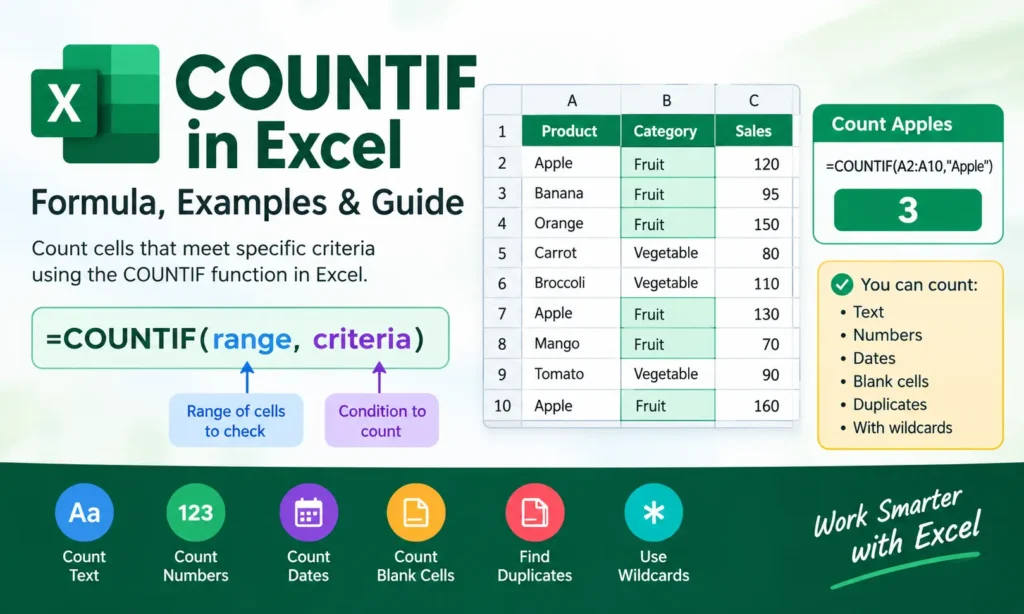
The basic syntax of the COUNTIF function is:
=COUNTIF(range, criteria)
The function contains two arguments.
| Argument | Description |
|---|---|
range | The group of cells that Excel checks. |
criteria | The condition that determines which cells are counted. |
1. Range
The range is the collection of cells where Excel searches for matching values.
For example, A2:A20 represents the cells from A2 through A20.
2. Criteria
The criteria specify the condition that a cell must satisfy to be counted.
Criteria can include:
- Text, such as
"Apple". - Numbers, such as
100. - Comparison operators, such as
">50". - Cell references, such as
D2. - Wildcards, such as
"A*".
For example:
=COUNTIF(A2:A20,"Apple")
This formula counts cells containing “Apple” in the range A2.
Another example is:
=COUNTIF(B2:B20,">50")
This formula counts cells containing numeric values greater than 50.
Important: COUNTIF evaluates one criterion. If you need to apply multiple conditions simultaneously, you will generally use COUNTIFS.
How to Use COUNTIF in Excel: Step-by-Step Guide
Follow these steps to use COUNTIF in a worksheet.
Step 1: Prepare your data.
Suppose column A contains product names:
| Product |
|---|
| Apple |
| Banana |
| Apple |
| Orange |
| Apple |
| Banana |
Step 2: Select an empty cell.
Click the cell where you want to display the result, such as C2.
Step 3: Enter the COUNTIF formula.
Type the following formula:
=COUNTIF(A2:A7,"Apple")
Step 4: Press Enter.
Excel displays 3 because the word “Apple” appears three times in the specified range.
Step 5: Change the criteria when needed.
If you want to count bananas, use:
=COUNTIF(A2:A7,"Banana")
The result is 2.
You can apply the same approach to hundreds or thousands of rows without manually counting individual cells.
10 Practical COUNTIF Examples in Excel
The best way to understand COUNTIF is to examine real-world examples.
Example 1: Count Cells Containing Specific Text
Suppose you have the following sales data:
| A: Salesperson |
|---|
| Rahul |
| Priya |
| Rahul |
| Amit |
| Rahul |
| Priya |
To count how many times Rahul appears, use:
=COUNTIF(A2:A7,"Rahul")
Result: 3
Excel searches the specified range and counts every cell matching the criterion.
This formula is helpful for employee lists, customer records, attendance sheets, product inventories, and sales reports.
Example 2: Count Numbers Greater Than a Specific Value
Suppose column B contains examination marks:
| Student | Marks |
|---|---|
| Rahul | 85 |
| Priya | 72 |
| Amit | 91 |
| Neha | 65 |
| Rohan | 78 |
To count students who scored more than 80 marks, enter:
=COUNTIF(B2:B6,">80")
Result: 2
The formula counts 85 and 91.
You can also use other comparison operators:
| Condition | Formula |
|---|---|
| Greater than 70 | =COUNTIF(B2:B6,">70") |
| Less than 70 | =COUNTIF(B2:B6,"<70") |
| Equal to 85 | =COUNTIF(B2:B6,85) |
| Not equal to 80 | =COUNTIF(B2:B6,"<>80") |
| Greater than or equal to 75 | =COUNTIF(B2:B6,">=75") |
| Less than or equal to 90 | =COUNTIF(B2:B6,"<=90") |
These formulas are useful when analyzing scores, sales figures, expenses, quantities, and performance measurements.
Example 3: Count Cells Equal to a Specific Number
Suppose column C contains the following order quantities:
| Quantity |
|---|
| 10 |
| 20 |
| 10 |
| 30 |
| 10 |
| 40 |
To count how many cells contain exactly 10, use:
=COUNTIF(C2:C7,10)
Result: 3
Because the criterion is a number, you can enter 10 without quotation marks.
You can also write:
=COUNTIF(C2:C7,"=10")
Both formulas count cells whose numeric value equals 10.
Example 4: Count Cells That Are Not Equal to a Value
Sometimes you want to count all entries except a particular value.
Suppose column D contains order statuses such as Completed, Pending, and Cancelled.
To count cells that are not equal to “Completed”, use:
=COUNTIF(D2:D100,"<>Completed")
This counts cells whose contents do not match “Completed”. Blank cells are also included in this not-equal criterion, so exclude blanks separately if you need only nonblank, non-completed entries.
For that requirement, use:
=COUNTIFS(D2:D100,"<>Completed",D2:D100,"<>")
This formula excludes both Completed entries and blank cells.
Example 5: Count Cells Containing Partial Text
COUNTIF supports wildcards, which allow you to find text without specifying the complete cell content.
The asterisk (*) represents any number of characters, including zero characters.
Suppose column A contains:
- Apple Juice
- Orange Juice
- Apple Pie
- Mango Juice
- Apple Shake
To count cells containing the word “Apple” anywhere in the text, use:
=COUNTIF(A2:A6,"*Apple*")
Result: 3
The asterisk before and after Apple allows other characters to appear on either side.
This technique is useful for product descriptions, customer names, addresses, and other text-based records.
Example 6: Count Cells Beginning with a Specific Letter
Suppose you want to count all product names beginning with the letter A.
Use:
=COUNTIF(A2:A100,"A*")
This formula counts cells whose text begins with A, including entries such as Apple, Almond, and Avocado.
You can change the first letter to match your requirements.
For example:
=COUNTIF(A2:A100,"B*")
This counts text entries beginning with B.
Example 7: Count Cells Ending with Specific Text
You can also count cells that end with a particular word or character.
Suppose column A contains filenames and product names. To count entries ending with “Pro”, use:
=COUNTIF(A2:A100,"*Pro")
The asterisk allows any characters before Pro, while the ending must match the specified text.
This is useful for classifying product models, checking naming patterns, and analyzing lists of descriptions.
Example 8: Count Dates Before or After a Specific Date
COUNTIF can count dates by comparing them with a specified date.
Suppose column A contains order dates. To count orders placed after 1 January 2026, use:
=COUNTIF(A2:A100,">"&DATE(2026,1,1))
The DATE function creates a valid Excel date, and the ampersand joins it to the comparison operator.
To count orders placed before 1 January 2026, use:
=COUNTIF(A2:A100,"<"&DATE(2026,1,1))
To count orders placed on or after 1 January 2026, use:
=COUNTIF(A2:A100,">="&DATE(2026,1,1))
Excel stores dates as serial numbers, which makes date comparisons possible.
Tip: If your cells contain date and time values, a comparison against a date can include or exclude entries differently than expected. To count all timestamps on a particular day, use two criteria with COUNTIFS:
=COUNTIFS(A2:A100,">="&DATE(2026,1,1),A2:A100,"<"&DATE(2026,1,2))
This counts timestamps from the start of 1 January up to, but not including, 2 January.
Example 9: Count Blank Cells
To count empty cells within a range, use:
=COUNTIF(A2:A100,"")
This formula counts blank cells, including cells containing formulas that return an empty string.
For example, if you have a customer registration list and want to determine how many entries have no customer name, this formula can help.
To count nonblank cells, use:
=COUNTIF(A2:A100,"<>")
The second formula counts cells that are not blank under COUNTIF’s criteria rules.
Example 10: Count Duplicate Values
COUNTIF can help identify repeated entries in a list.
Suppose column A contains customer IDs. Enter the following formula in B2:
=COUNTIF($A$2:$A$100,A2)
Copy the formula down the column.
If the result is greater than 1, that customer ID appears more than once in the selected range.
For example:
| Customer ID | Count |
|---|---|
| C101 | 2 |
| C102 | 1 |
| C101 | 2 |
| C103 | 1 |
The dollar signs keep the lookup range fixed when you copy the formula down, while A2 changes to A3, A4, and so on.
This technique is useful for checking duplicate invoices, product codes, registration numbers, and customer records.
How to Use COUNTIF with Cell References
You do not always need to type the criterion directly into a formula. You can refer to another cell, making your formulas easier to maintain.
Suppose cell E2 contains the word “Apple”, and column A contains product names.
Use:
=COUNTIF(A2:A100,E2)
Excel counts cells matching the value in E2.
This approach is particularly useful when users need to change the search value frequently.
COUNTIF with Comparison Operators and Cell References
Suppose cell E2 contains the threshold 500, and column B contains sales amounts.
To count sales greater than the value in E2, use:
=COUNTIF(B2:B100,">"&E2)
The ampersand joins the operator ">" with the value stored in E2.
Similarly, to count values less than or equal to the threshold, use:
=COUNTIF(B2:B100,"<="&E2)
Remember that when you combine a comparison operator with a cell reference, the operator generally needs to be enclosed in quotation marks.
COUNTIF vs. COUNTIFS in Excel
COUNTIF and COUNTIFS are closely related, but they serve different purposes.
COUNTIF applies one criterion, while COUNTIFS can apply multiple criteria across one or more ranges.
| Feature | COUNTIF | COUNTIFS |
|---|---|---|
| Number of criteria | One | Multiple |
| Main purpose | Count cells matching one condition | Count records matching several conditions |
| Text matching | Yes | Yes |
| Number comparisons | Yes | Yes |
| Date conditions | Yes | Yes |
| Multiple conditions on different columns | Not directly in one function | Yes |
COUNTIF Example
To count sales greater than 1,000:
=COUNTIF(B2:B100,">1000")
COUNTIFS Example
Suppose column A contains departments and column B contains sales figures. To count records where the department is Sales and sales are greater than 1,000, use:
=COUNTIFS(A2:A100,"Sales",B2:B100,">1000")
This formula counts rows that satisfy both conditions.
Use COUNTIF for straightforward one-condition tasks and COUNTIFS when you need to filter records by multiple criteria.
Common COUNTIF Errors and How to Fix Them
Although COUNTIF is easy to use, some formulas may return unexpected results.
1. Incorrect Range
Formula:
=COUNTIF(A2:A10,"Apple")
If the required data extends to A100, the formula will ignore entries outside A2.
Solution: Check that the range includes all the relevant cells.
2. Missing Quotation Marks Around Text
Incorrect formula:
=COUNTIF(A2:A20,Apple)
Correct formula:
=COUNTIF(A2:A20,"Apple")
Text criteria typed directly into the formula generally need quotation marks.
3. Incorrect Comparison Criteria
Incorrect formula:
=COUNTIF(B2:B20,>100)
Correct formula:
=COUNTIF(B2:B20,">100")
Comparison operators used as criteria need to be included in a text string.
4. Extra Spaces in Text
A cell may contain "Apple " instead of "Apple".
COUNTIF normally ignores case differences, but additional characters or spaces can affect exact matches.
Solution: Clean your data using functions such as TRIM when appropriate, or investigate inconsistent source values.
5. Numbers Stored as Text
Some imported datasets contain numbers stored as text. These can cause unexpected results when you use numeric criteria.
Solution: Check the cell format and underlying values. Convert text-formatted numbers to actual numbers if appropriate.
6. Incorrect Date Formatting
Dates imported from other systems may be stored as text rather than recognized Excel dates.
Solution: Verify that the values are genuine Excel dates before applying date criteria.
7. Wrong Wildcard Placement
Formula:
=COUNTIF(A2:A50,"Apple*")
This counts entries beginning with Apple, not entries containing Apple anywhere.
To count entries containing Apple anywhere, use:
=COUNTIF(A2:A50,"*Apple*")
Understanding wildcard placement helps you produce accurate results.
COUNTIF Wildcards Explained
Wildcards make COUNTIF especially useful for searching text.
| Wildcard | Meaning | Example |
|---|---|---|
* | Any number of characters | "App*" |
? | Exactly one character | "Appl?" |
~ | Escapes a wildcard character | "~*" |
For example, the formula below counts text beginning with App:
=COUNTIF(A2:A100,"App*")
The formula below counts five-character text entries beginning with Appl:
=COUNTIF(A2:A100,"Appl?")
To count cells containing a literal asterisk, use:
=COUNTIF(A2:A100,"~*")
The tilde tells Excel to treat the asterisk as a regular character rather than a wildcard.
These options are useful when working with codes, product names, filenames, and text that includes special characters.
Important COUNTIF Tips for Better Results
Follow these recommendations to improve the reliability and readability of your formulas.
Use absolute references when copying formulas. A range such as $A$2:$A$100 remains fixed when you copy a formula to other cells.
Use cell references for changing criteria. Instead of writing "Apple" into every formula, store the criterion in a separate cell.
Check the data before troubleshooting the formula. Hidden spaces, inconsistent formats, and incorrect date values can affect results.
Remember that COUNTIF is not case-sensitive. It normally treats “Apple” and “APPLE” as equivalent for matching purposes.
Use COUNTIFS for multiple conditions. It is generally easier to understand and maintain than complicated workarounds when several conditions must be met.
Choose the correct wildcard. Use * for any number of characters and ? for exactly one character.
Be careful with whole-column references in large workbooks. A reference such as A:A is convenient, but large numbers of complex formulas may affect workbook performance.
Use Excel Tables for expanding datasets. Structured references can make formulas easier to read and help them adapt as data is added.
For example, if an Excel Table is named SalesData and its column is named Status, you can use:
=COUNTIF(SalesData[Status],"Completed")
This formula counts Completed entries in the table’s Status column.
Frequently Asked Questions About COUNTIF in Excel
COUNTIF counts the number of cells in a specified range that meet one condition. It is useful for counting text, numbers, dates, and other values that satisfy a criterion.
2. What is the syntax of COUNTIF?
The syntax is:=COUNTIF(range,criteria)
The range identifies the cells to check, and the criteria specify the condition that determines which cells are counted.
Yes. For example:=COUNTIF(A2:A100,"Apple")
This counts cells matching Apple in the specified range. COUNTIF is not case-sensitive for ordinary text matching.
Use:=COUNTIF(A2:A100,">100")
The formula counts numeric values greater than 100.
COUNTIF supports one criterion. For multiple criteria that must all be satisfied, use COUNTIFS.
For example:=COUNTIFS(A2:A100,"Sales",B2:B100,">1000")
This counts records where the department is Sales and the value in column B exceeds 1,000.
Use:=COUNTIF(A2:A100,"")
This counts blank cells, including cells containing formulas that return an empty string.
No. COUNTIF is not case-sensitive for ordinary text matching. If case-sensitive matching is required, a formula using SUMPRODUCT and EXACT may be more suitable.
Yes. For example:=COUNTIF(A2:A100,">"&DATE(2026,1,1))
This counts dates later than 1 January 2026, provided the cells contain valid Excel date values.
COUNT counts cells containing numbers. COUNTIF counts cells that satisfy a specified condition, which can include text, numbers, dates, and criteria-based comparisons.
Common reasons include an incorrect range, mismatched text, extra spaces, numbers stored as text, dates stored as text, or incorrectly formatted criteria. Check the data and formula syntax to identify the issue.
Yes. You can use wildcards to count partial text matches.
For example:=COUNTIF(A2:A100,"*Excel*")
This counts cells containing Excel anywhere in the text.
Yes. Use a formula such as:=COUNTIF($A$2:$A$100,A2)
If the result is greater than 1, the value in A2 appears more than once in the specified range.
Conclusion
The COUNTIF function in Excel is an essential tool for anyone who works with spreadsheets. It makes counting cells based on a condition quick, consistent, and efficient.
Whether you need to count specific text, identify values above a threshold, analyze dates, find blank cells, search partial text, or detect duplicates, COUNTIF can simplify your work.
The basic formula is easy to remember:
=COUNTIF(range,criteria)
Once you understand its two arguments, you can apply the function to many practical situations. You can also combine it with cell references, comparison operators, and wildcards to build more flexible formulas.
For more advanced analysis involving multiple conditions, COUNTIFS is the natural next step.
Start by practicing the examples in this guide using your own Excel data. With regular use, COUNTIF can become one of the most valuable functions in your spreadsheet toolkit.
Thank you so much for visiting ZeexasTech.com and taking the time to read my articles. Your support and interest mean a lot to me. I hope you find the information useful and enjoy exploring the website!
Best regards,
Vishal Kumar
Writer of ZeexasTech.com


1 comment