Introduction
Welcome to ZeexasTech.com, your trusted destination for technology, AI tools, Microsoft Excel tutorials, digital productivity, and the latest tech insights.
I’m Vishal Kumar, the creator of ZeexasTech.com. My goal is to make technology simple, practical, and accessible for everyone. Through helpful guides, step-by-step tutorials, and informative articles, I aim to help students, professionals, bloggers, and business owners learn new skills and work smarter.
At ZeexasTech.com, we believe that the right knowledge and tools can make a real difference in your digital journey.
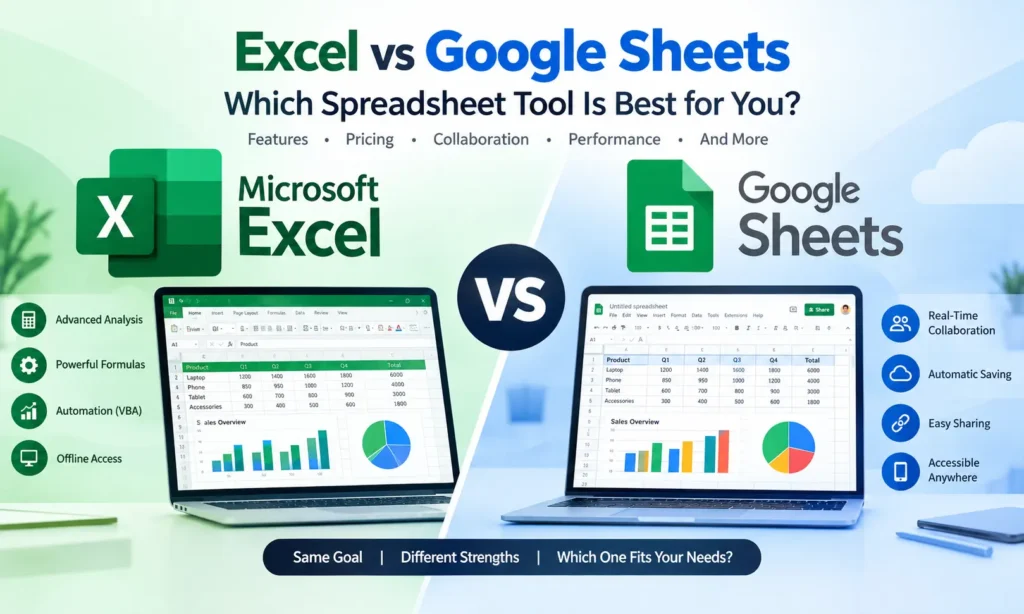
Spreadsheets are essential tools for managing data, performing calculations, organizing information, creating reports, and making better business decisions. Two of the most popular spreadsheet applications are Microsoft Excel and Google Sheets. Both tools help users work with numbers, analyze information, build charts, and manage everyday tasks, but they offer different features and working experiences.
Microsoft Excel has been a leading spreadsheet application for decades. It is widely used by accountants, financial analysts, business professionals, students, and data analysts who need powerful calculations, advanced data analysis, and automation features.
Google Sheets, on the other hand, is a cloud-based spreadsheet application known for its simplicity, accessibility, and real-time collaboration. It allows multiple people to work on the same spreadsheet simultaneously, making it especially useful for teams, students, teachers, and businesses that share information online.
But which spreadsheet tool is best for you? Should you choose Excel for its advanced features or Google Sheets for its convenient collaboration tools?
The answer depends on your needs, budget, technical skills, and the type of work you perform.
In this guide, we will compare Excel vs Google Sheets based on features, pricing, collaboration, performance, formulas, data analysis, automation, security, and ease of use. By the end, you will understand which spreadsheet application is the right choice for your personal, educational, or professional needs.
1. What Is Microsoft Excel?
Microsoft Excel is a spreadsheet application developed by Microsoft. It is part of the Microsoft 365 ecosystem and is available as a desktop application, a web application, and mobile apps.
Excel organizes information into rows and columns, allowing users to enter data, perform calculations, analyze datasets, and create visual reports. It supports simple calculations as well as advanced analytical workflows.
Key Features of Microsoft Excel
- Advanced formulas: Use functions such as SUM, IF, XLOOKUP, INDEX, MATCH, SUMIFS, COUNTIFS, and many others.
- PivotTables: Summarize, group, and analyze large datasets.
- Charts and graphs: Create visual representations of information.
- Power Query: Import, clean, transform, and combine data from different sources.
- Power Pivot: Build data models and analyze relationships between tables in supported editions.
- Macros and VBA: Automate repetitive tasks with programmable workflows.
- Conditional formatting: Highlight important values based on rules.
- What-if analysis: Use tools such as Goal Seek and Scenario Manager.
- Offline access: Work with locally saved files without a continuous internet connection.
- Microsoft integration: Connect spreadsheets with other Microsoft applications and services.
Excel is especially useful when users need advanced data processing, complex financial calculations, detailed reports, or automation.
2. What Is Google Sheets?
Google Sheets is a spreadsheet application developed by Google. It is available through a web browser and mobile applications and is closely integrated with Google Drive and other Google Workspace services.
Google Sheets allows users to create spreadsheets, perform calculations, build charts, organize records, and collaborate with other people online.
One of its biggest advantages is that multiple users can edit the same spreadsheet simultaneously. Changes are generally saved automatically, reducing the need to send updated files back and forth.
Key Features of Google Sheets
- Real-time collaboration: Multiple people can edit a spreadsheet together.
- Automatic saving: Changes are saved to Google Drive as you work.
- Easy sharing: Invite people to view, comment on, or edit a file.
- Useful formulas: Work with SUM, IF, FILTER, QUERY, XLOOKUP, and many other functions.
- Charts and graphs: Create charts to visualize data.
- Pivot tables: Summarize and analyze information.
- Version history: Review previous versions and restore earlier changes when available.
- Google Forms integration: Collect responses directly into a spreadsheet.
- Apps Script: Automate tasks and create custom workflows using JavaScript-based scripting.
- Google Workspace integration: Work with Gmail, Docs, Drive, Forms, and other supported services.
Google Sheets is a practical choice for shared projects, online recordkeeping, classroom assignments, team reporting, and everyday spreadsheet tasks.
3. Excel vs Google Sheets: Quick Comparison
The following table summarizes the main differences between Microsoft Excel and Google Sheets.
| Feature | Microsoft Excel | Google Sheets |
|---|---|---|
| Developer | Microsoft | |
| Main working environment | Desktop, web, and mobile | Web and mobile |
| Real-time collaboration | Supported, especially with cloud-stored files | A major built-in strength |
| Offline access | Strong desktop support | Available with setup and supported configurations |
| Advanced data analysis | Extensive tools | Good tools for many everyday needs |
| Large datasets | Generally stronger desktop capabilities | Subject to spreadsheet limits and browser performance |
| Pivot tables | Advanced capabilities | Good for common summarization tasks |
| Automation | VBA, Office Scripts, and other supported tools | Google Apps Script |
| Data transformation | Power Query and related tools | Functions, connected services, and other tools |
| File formats | Strong support for XLSX and other formats | Native Google Sheets format and Excel import/export |
| Sharing | Microsoft 365 sharing features | Straightforward Google Drive sharing |
| Best suited for | Advanced analysis and complex workflows | Collaboration and cloud-based work |
The exact capabilities depend on the version, subscription, account settings, and device you use.
4. Pricing: Which Spreadsheet Tool Is More Affordable?
Pricing is an important factor when choosing between Excel and Google Sheets.
Microsoft Excel Pricing
Excel is available through different Microsoft offerings. Some Microsoft 365 subscriptions include Excel alongside Word, PowerPoint, OneDrive storage, and additional features. Certain versions of Office are sold as one-time purchases, while Excel for the web is available without a paid Microsoft 365 subscription for eligible users.
The desktop application generally offers a broader set of advanced capabilities than the free web version.
Before purchasing, check whether your required features are included in the specific plan or edition.
Google Sheets Pricing
Google Sheets is available for personal use with a Google account, subject to Google’s terms and storage policies. Many everyday spreadsheet features are available without paying for a Google Workspace subscription.
Businesses may choose Google Workspace plans that provide organizational email, administrative controls, additional storage, and other business features.
Which Is Better for Your Budget?
Google Sheets is an excellent starting point for people who need basic or intermediate spreadsheet functionality without buying desktop software.
Excel may offer better value for users who regularly depend on advanced analysis, Power Query, specialized reporting, or desktop automation.
Verdict: Google Sheets is a strong budget-friendly option for everyday work. Excel may be worth paying for when its advanced capabilities directly support your work.
5. Ease of Use: Which Tool Is Easier for Beginners?
Both Excel and Google Sheets use a grid of rows and columns. If you understand one application, you can learn the basics of the other relatively quickly.
However, their interfaces and workflows differ.
Microsoft Excel
Excel provides a feature-rich ribbon interface with dedicated tabs for formulas, data, charts, page layout, and other functions. This makes advanced features accessible, but beginners may initially find the interface overwhelming.
Once users become familiar with the ribbon, Excel offers extensive control over formatting, calculations, analysis, and reporting.
Google Sheets
Google Sheets has a straightforward interface that is easy to access through a browser. Users can create a spreadsheet, enter data, share a link, and begin collaborating without installing desktop software.
Its simpler experience is convenient for people who need to complete common spreadsheet tasks quickly.
Which Is Easier?
For someone learning spreadsheets for the first time, Google Sheets may feel more approachable. Excel is also beginner-friendly for basic tasks and offers a deeper set of tools to learn over time.
Verdict: Google Sheets often wins for simplicity, while Excel is an excellent choice for users who want to progress toward advanced spreadsheet work.
6. Formulas and Functions: Excel vs Google Sheets
Formulas are one of the most important parts of any spreadsheet application. Both Excel and Google Sheets support many popular spreadsheet functions.
Common Formulas in Both Tools
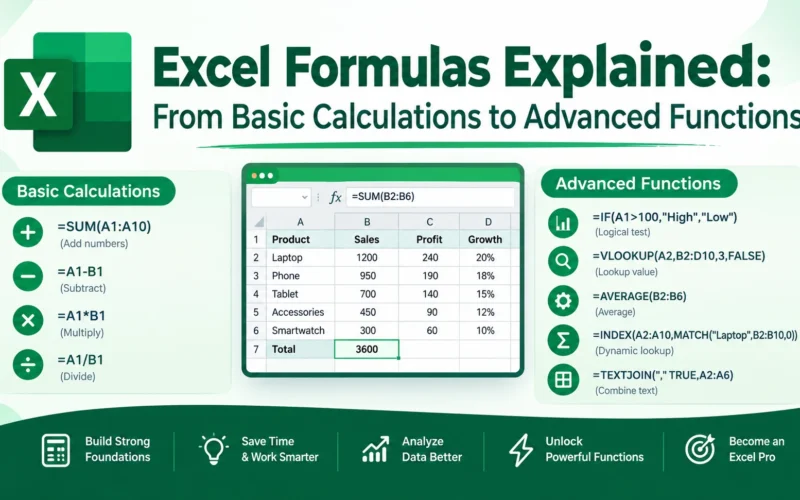
SUM: Adds numbers.
=SUM(A1:A10)
AVERAGE: Calculates the average of a range.
=AVERAGE(B1:B10)
IF: Returns different results based on a condition.
=IF(C2>=50,"Pass","Fail")
COUNTIF: Counts cells that meet a condition.
=COUNTIF(A1:A20,"Completed")
XLOOKUP: Searches for a value and returns a corresponding result in supported versions.
=XLOOKUP(E2,A2:A20,B2:B20,"Not found")
These functions can help you manage budgets, calculate grades, track inventory, organize sales records, and analyze business information.
Where Excel Stands Out
Excel offers a broad range of advanced functions and features for financial analysis, data modeling, and complex calculations. Its support for structured table references, dynamic arrays, and advanced analytical workflows makes it useful for sophisticated workbooks.
Where Google Sheets Stands Out
Google Sheets provides useful functions for working with shared online data. Functions such as FILTER, QUERY, IMPORTRANGE, and ARRAYFORMULA can help users organize information, retrieve data, and automate calculations.
QUERY is particularly useful when you want to filter, group, or summarize spreadsheet data using a query-like syntax.
Which Is Better for Formulas?
Both applications are excellent for common spreadsheet formulas. Excel is often preferable for highly complex workbooks and advanced analysis, while Google Sheets is especially convenient for collaborative data workflows.
Remember that some functions, arguments, and advanced features differ between the applications. Formulas may need adjustments when you move files between them.
7. Data Analysis: Which Tool Has More Powerful Features?
Data analysis helps users discover trends, identify problems, measure performance, and make informed decisions.
Excel for Data Analysis
Excel provides a powerful collection of data analysis features, including:
- PivotTables and PivotCharts.
- Power Query for importing and transforming data.
- Power Pivot and data modeling in supported editions.
- Advanced charting and reporting options.
- What-if analysis tools.
- Statistical and financial functions.
- Connections to various external data sources.
For example, a business analyst can combine sales data from multiple files, clean inconsistent records with Power Query, build a PivotTable, and create a report that summarizes revenue by region.
These capabilities make Excel particularly suitable for professional reporting and analytical work.
Google Sheets for Data Analysis
Google Sheets offers a useful set of analysis tools, including:
- Pivot tables.
- Charts and dashboards.
- FILTER and QUERY functions.
- Conditional formatting.
- Data validation and dropdown lists.
- Connected workflows through supported Google services and extensions.
For example, a small business can maintain a shared sales spreadsheet, filter orders by status, calculate monthly revenue, and create a chart that team members can review online.
Which Is Better for Data Analysis?
Excel generally has the advantage when data preparation, complex modeling, and advanced reporting are central to the task.
Google Sheets is very capable for small and medium-sized datasets, straightforward dashboards, and team-based analysis.
8. Collaboration: Which Is Better for Teamwork?
Collaboration is one of the clearest differences between these applications.
Collaboration in Excel
Excel supports co-authoring when workbooks are stored in supported cloud locations, such as OneDrive or SharePoint, and users have compatible versions and permissions.
Team members can edit the same workbook, and collaboration features help reduce the need to exchange separate copies.
However, the experience can depend on the file format, storage location, software version, and the features being used.
Collaboration in Google Sheets
Google Sheets is designed around online collaboration. Users can share a spreadsheet and assign viewer, commenter, or editor permissions.
Team members can work in the same spreadsheet, see changes, leave comments, and use version history to review earlier versions.
This is especially useful for group assignments, project planning, employee schedules, expense tracking, and shared business reports.
Which Is Better for Collaboration?
Google Sheets often provides the more straightforward collaboration experience, particularly for teams already using Google Drive.
Excel is also a strong collaborative tool when a team works within the Microsoft 365 ecosystem.
9. Offline Access: Can You Work Without the Internet?
Offline access matters when you travel, have an unreliable connection, or need to work in locations without internet service.
Excel Offline Access
The Excel desktop application can open and edit locally stored workbooks without an internet connection. Cloud-based collaboration and synchronization require connectivity when changes need to be shared or synchronized.
This makes desktop Excel a reliable option for many offline workflows.
Google Sheets Offline Access
Google Sheets can support offline editing, but offline access must be configured in advance and depends on the browser, device, account, and supported settings. The relevant files must be available offline.
Changes can synchronize when connectivity returns.
Which Is Better Offline?
Excel has the advantage for users who regularly work offline with locally stored files. Google Sheets can work offline too, but it requires more preparation.
10. Performance: Which Tool Handles Large Datasets Better?
Performance depends on the size of your spreadsheet, formula complexity, computer hardware, browser, and the features being used.
Excel Performance
The Excel desktop application can be a strong choice for large and complex analytical workbooks. It offers advanced tools for data transformation and modeling, and its performance can benefit from a capable computer.
Excel worksheets support up to 1,048,576 rows and 16,384 columns, although practical performance may become a limitation well before a workbook reaches those maximums.
Google Sheets Performance
Google Sheets works well for many everyday spreadsheets and shared datasets. However, complex formulas, extensive formatting, large numbers of calculated cells, and heavy simultaneous activity can slow a spreadsheet down.
Google Sheets has a limit of 10 million cells per spreadsheet under its standard documented limits, though actual performance depends on the workload.
Which Is Better for Large Data?
Excel is generally the better starting point for large, complex desktop analysis. Google Sheets is excellent for shared datasets that fit comfortably within its performance and feature constraints.
For very large analytical workloads, a dedicated database or business intelligence platform may be more appropriate than either spreadsheet tool.
11. Automation: Excel VBA vs Google Apps Script
Automation helps reduce repetitive work, improve consistency, and save time.
Automation in Excel
Excel supports several automation options:
- VBA macros: Automate tasks in desktop Excel using Visual Basic for Applications.
- Office Scripts: Automate supported tasks, particularly in compatible Excel web and Microsoft 365 environments.
- Power Query: Repeat data-import and transformation steps.
- Power Automate: Connect spreadsheet workflows with supported business processes and applications.
For example, an accountant might use a macro to apply formatting, prepare recurring reports, or process a series of workbooks.
Automation in Google Sheets
Google Sheets supports Google Apps Script, which uses JavaScript-based programming.
Users can automate tasks, send notifications, process data, and connect spreadsheets to supported Google services.
For example, a project manager could create a script that sends a notification when a task status changes or automatically prepares a recurring summary.
Which Is Better for Automation?
Excel is a strong choice for organizations that depend on existing VBA macros, desktop workflows, or Microsoft automation tools.
Google Sheets is attractive for lightweight cloud automation and workflows built around Google Workspace.
The best choice depends on your existing code, integrations, and technical requirements.
12. Charts and Data Visualization
Charts turn raw numbers into visual information that is easier to understand.
Excel Charts
Excel offers a wide range of chart types and formatting controls. Users can build dashboards, combine chart types, apply advanced formatting, and create reports for business presentations.
Its integration with PivotTables and other analytical features is useful when visualizations need to summarize complex data.
Google Sheets Charts
Google Sheets makes it easy to create charts from spreadsheet data and share them with collaborators. Charts can be updated as source data changes, making them convenient for online reporting.
Its charts are suitable for many everyday dashboards, classroom projects, and team reports.
Which Is Better for Charts?
Excel generally offers more extensive charting and reporting capabilities. Google Sheets is convenient when you want straightforward visualizations that can be shared and updated online.
13. Templates: Which Tool Offers Better Ready-Made Options?
Templates help users start working without building a spreadsheet from scratch.
Excel Templates
Excel templates can support:
- Monthly budgets.
- Business expense reports.
- Inventory management.
- Project timelines.
- Employee schedules.
- Sales dashboards.
- Financial forecasts.
- Personal finance tracking.
Users can also create custom templates with formulas, formatting, charts, and automation.
Google Sheets Templates
Google Sheets templates can help users create:
- To-do lists.
- Project trackers.
- Attendance sheets.
- Shared budgets.
- Content calendars.
- Event planning sheets.
- Team task trackers.
- Basic business reports.
These templates are easy to share and edit collaboratively.
Which Is Better for Templates?
Both applications offer useful templates. Excel is a strong option for sophisticated financial models and formatted business reports, while Google Sheets is especially practical for shared trackers and collaborative planning.
14. File Compatibility: Can Excel and Google Sheets Work Together?
Excel and Google Sheets can exchange many spreadsheet files, but compatibility is not perfect.
Excel commonly uses the XLSX format, while Google Sheets has its own native format and can import or export Excel workbooks.
When an Excel file is uploaded to Google Sheets, users can often edit it or convert it into the Google Sheets format. Similarly, Google Sheets can export spreadsheets to Excel format.
However, some workbook features may not transfer exactly.
Potential compatibility issues include:
- VBA macros.
- Certain advanced formulas.
- Complex charts and formatting.
- External data connections.
- Specialized data models.
- Some pivot table configurations.
- Application-specific scripts and automation.
If you regularly exchange files with clients or colleagues, test important workbooks in both applications before adopting a new workflow.
Tip: Keep a backup of the original workbook before converting or editing a file in another spreadsheet application.
15. Security and Privacy: Which Is Safer?
Both Excel and Google Sheets provide security features, but the level of protection depends on how files are stored, shared, and managed.
Excel Security
Excel supports workbook and worksheet protection, file encryption options, and cloud sharing controls through compatible Microsoft services.
Organizations can also use Microsoft 365 administration and compliance features where their plans support them.
Worksheet protection should not be treated as a substitute for strong file encryption or proper access control.
Google Sheets Security
Google Sheets uses Google account permissions and Google Drive sharing controls. Owners can decide who can view, comment on, or edit a spreadsheet.
Organizations using Google Workspace may have additional administrative, auditing, and security controls depending on their subscription.
Which Is Better for Security?
Neither tool is automatically more secure in every situation. Both can support secure workflows when users apply appropriate permissions, account protection, and organizational policies.
For confidential business information, review your organization’s security requirements and the controls included in the specific subscription you use.
16. Excel vs Google Sheets for Students
Students often use spreadsheets for assignments, research, budgeting, attendance records, and project analysis.
Why Students May Prefer Google Sheets
- Easy access through a browser.
- Convenient group assignments.
- Simple file sharing with classmates.
- Automatic saving.
- Useful formulas and charts for common tasks.
Why Students May Prefer Excel
- Advanced analytical tools for technical subjects.
- Strong support for complex calculations.
- Useful features for statistics, accounting, and finance.
- Experience with software commonly used in many workplaces.
Recommendation: Google Sheets is a good choice for group projects and everyday assignments. Excel is particularly useful for students studying accounting, finance, analytics, engineering, or other fields requiring advanced spreadsheet skills.
17. Excel vs Google Sheets for Business
Businesses use spreadsheets for financial tracking, sales reporting, inventory management, project planning, and performance analysis.
When Excel Is Better for Business
Choose Excel when your work requires complex financial models, sophisticated data preparation, advanced reports, extensive VBA automation, or integration with established Microsoft-based workflows.
When Google Sheets Is Better for Business
Choose Google Sheets when employees need shared trackers, simple reports, collaborative planning, online data collection, and easy access across devices.
Can Businesses Use Both?
Yes. Many organizations use Google Sheets for shared operational data and Excel for detailed analysis or formal reporting.
However, using both tools requires clear rules about which file is authoritative, how data is transferred, and who has permission to edit each version.
18. Advantages and Disadvantages of Excel
Advantages
- Powerful data analysis and modeling features.
- Extensive formula and function support.
- Advanced charting and reporting.
- Power Query and supported data-modeling tools.
- Strong desktop and offline capabilities.
- VBA and other automation options.
- Widely used in many professional environments.
Disadvantages
- Some advanced features require a paid edition or subscription.
- The interface may feel complex to new users.
- Sharing and co-authoring depend on compatible configurations.
- Large or complicated workbooks can become difficult to maintain.
- Macros and specialized features may not transfer cleanly to other spreadsheet applications.
19. Advantages and Disadvantages of Google Sheets
Advantages
- Accessible through a web browser.
- Convenient real-time collaboration.
- Automatic cloud saving.
- Straightforward sharing and permissions.
- Useful formulas, charts, and pivot tables.
- Apps Script automation.
- Strong integration with Google Workspace.
Disadvantages
- Some advanced analysis capabilities are less extensive than Excel’s desktop tools.
- Performance can suffer with complex spreadsheets.
- Offline editing requires configuration.
- Certain Excel features may not transfer perfectly.
- Access and sharing depend on account permissions and service availability.
- Large datasets may require a more specialized tool.
20. Excel vs Google Sheets: Which One Should You Choose?
The best spreadsheet tool depends on what you want to accomplish.
| Your Requirement | Recommended Tool |
|---|---|
| Basic calculations and personal budgets | Either |
| Team collaboration and shared trackers | Google Sheets |
| Advanced financial modeling | Excel |
| Complex data transformation | Excel |
| Group assignments | Google Sheets |
| Existing VBA-based automation | Excel |
| Cloud-based task management | Google Sheets |
| Advanced desktop reporting | Excel |
| Simple online dashboards | Google Sheets |
| Microsoft 365-based workflows | Excel |
| Google Workspace-based workflows | Google Sheets |
| Working offline frequently | Excel desktop |
These are general recommendations rather than strict rules. Both applications can handle many of the same tasks.
21. Can You Use Excel and Google Sheets Together?
Yes. Using both applications can be an effective strategy.
For example, a team could use Google Sheets to collect daily sales updates from employees. At the end of the month, the data could be exported into Excel for more advanced analysis, financial modeling, or presentation-ready reporting.
A student might use Google Sheets to collaborate with classmates and then use Excel to complete a more advanced statistical analysis.
To avoid problems when working across both applications:
- Decide which application contains the master copy of each dataset.
- Use consistent column names and data formats.
- Keep backups of important workbooks.
- Test formulas and charts after conversion.
- Check whether macros, scripts, and advanced features are supported.
- Avoid editing multiple independent copies of the same file without a clear reconciliation process.
This approach lets users benefit from the strengths of both tools without forcing every task into a single application.
22. Final Verdict: Excel vs Google Sheets
Microsoft Excel and Google Sheets are both excellent spreadsheet applications, but they are designed around somewhat different strengths.
Excel is generally the better choice for advanced data analysis, complex financial models, sophisticated reporting, Power Query workflows, and desktop automation. It is especially useful for professionals who work with detailed datasets and need extensive analytical controls.
Google Sheets is generally the better choice for simple online access, real-time collaboration, shared trackers, group assignments, and workflows centered on Google Workspace. It allows teams to work together conveniently without constantly exchanging separate spreadsheet files.
If you are a beginner, either application is a good starting point. Google Sheets can make it easier to get started with collaborative spreadsheets, while Excel provides a strong path toward advanced professional analysis.
Our recommendation: Choose Google Sheets if collaboration and simplicity are your main priorities. Choose Excel if advanced analysis, complex workbooks, and desktop capabilities are more important. If your work involves both collaboration and detailed analysis, consider using both.
The best spreadsheet tool is ultimately the one that fits your workflow, budget, technical requirements, and team environment.
Frequently Asked Questions (FAQs)
Excel is generally better for advanced data analysis, complex financial modeling, extensive reporting, and many desktop automation workflows. Google Sheets is often better for convenient online collaboration and shared spreadsheets. The best option depends on your needs.
Google Sheets is available for personal use with a Google account, subject to Google’s terms and storage policies. Businesses may pay for Google Workspace plans that provide additional services and organizational features.
Google Sheets can replace Excel for many everyday tasks, including budgets, lists, common formulas, charts, and collaborative reports. However, it may not replace Excel for workflows that rely on advanced desktop features, VBA macros, Power Query, or specialized data models.
Yes. Google Sheets supports importing and editing many Excel workbooks. Some advanced features may need adjustments, so verify important formulas, charts, formatting, and automation after conversion.
Both are suitable for beginners. Google Sheets may feel simpler for basic online tasks, while Excel offers a broad range of tools to learn as your spreadsheet skills develop.
Excel is generally stronger for complex desktop analysis and many large-data workflows. Google Sheets works well for numerous everyday datasets but has documented spreadsheet limits and can slow down with complex calculations.
Yes, offline editing is supported when the required settings and files have been configured in advance on a compatible device and browser. Changes synchronize when connectivity returns.
Yes. Excel supports co-authoring in compatible versions when files are stored in supported cloud locations and the necessary permissions and configurations are in place.
Excel is often preferable for advanced financial analysis and sophisticated reporting. Google Sheets is often preferable for shared operational trackers and collaborative workflows. Some businesses benefit from using both.
Start with the application that best matches your immediate needs. Learn basic formulas, sorting, filtering, formatting, charts, and pivot tables. These skills transfer well between the two applications and provide a foundation for more advanced spreadsheet work.
Conclusion
The Excel vs Google Sheets debate does not have one universal winner. Both applications provide powerful tools for organizing information, performing calculations, and understanding data.
Excel stands out for advanced analysis, desktop capabilities, automation, and complex reporting. Google Sheets stands out for collaboration, accessibility, and straightforward cloud-based workflows.
Before choosing, consider the type of work you perform most often, the applications your team already uses, your budget, and whether offline access or advanced analysis is essential.
Once you understand these differences, you can select the spreadsheet tool that helps you work more efficiently and confidently.
Thank you so much for visiting ZeexasTech.com and taking the time to read my articles. Your support and interest mean a lot to me. I hope you find the information useful and enjoy exploring the website!
Best regards,
Vishal Kumar
Writer of ZeexasTech.com
3 comments