Welcome to ZeexasTech.com, your trusted destination for technology, AI tools, Microsoft Excel tutorials, digital productivity, and the latest tech insights.
I’m Vishal Kumar, the creator of ZeexasTech.com. My goal is to make technology simple, practical, and accessible for everyone. Through helpful guides, step-by-step tutorials, and informative articles, I aim to help students, professionals, bloggers, and business owners learn new skills and work smarter.
At ZeexasTech.com, we believe that the right knowledge and tools can make a real difference in your digital journey.
Microsoft Excel is one of the most popular tools for managing data, performing calculations, and analyzing information. Among its many functions, the IF formula is one of the most useful because it allows users to make decisions based on specific conditions. However, when working with large datasets, a single condition is often not enough. You may need to check two or more conditions before returning a result.
This is where the Excel IF formula with multiple conditions becomes extremely useful.
Whether you want to calculate student grades, evaluate employee performance, check sales targets, apply discounts, or classify business data, Excel provides several ways to use IF with multiple conditions. You can combine IF with AND, OR, and other functions to build formulas that handle complex situations.
In this guide, you will learn how to use the Excel IF formula with multiple conditions, understand the difference between AND and OR logic, explore practical examples, and discover common mistakes to avoid.
What Is the IF Formula in Excel?
The IF function is a logical function that checks whether a condition is true or false. It returns one result when the condition is true and another result when the condition is false.
The basic syntax is:
=IF(logical_test, value_if_true, value_if_false)Here is what each argument means:
- logical_test: The condition Excel evaluates.
- value_if_true: The result Excel returns when the condition is true.
- value_if_false: The result Excel returns when the condition is false.
For example, suppose cell A2 contains a student’s score. You want to display “Pass” when the score is 40 or higher and “Fail” otherwise.
Use this formula:
=IF(A2>=40,"Pass","Fail")If A2 contains 75, Excel returns “Pass”. If A2 contains 30, Excel returns “Fail”.
This formula checks only one condition. To evaluate multiple conditions, you can use nested IF functions or combine IF with AND and OR.
How to Use the Excel IF Formula with Multiple Conditions
There are several ways to check multiple conditions in Excel. The best method depends on whether all conditions must be true, at least one condition must be true, or different conditions require different results.
The most common approaches are:
- IF with AND
- IF with OR
- Nested IF formulas
- IF with AND and OR together
- IFS for multiple possible results
- IF with comparison operators and text conditions
Let’s explore each method with examples.
1. Excel IF Formula with AND for Multiple Conditions
The AND function checks whether all specified conditions are true. It returns TRUE only when every condition is satisfied.
When you combine IF with AND, Excel returns one result if all conditions are true and another result if any condition is false.
Syntax
=IF(AND(condition1, condition2), value_if_true, value_if_false)You can include more than two conditions inside AND.
Example: Check Whether a Student Passed
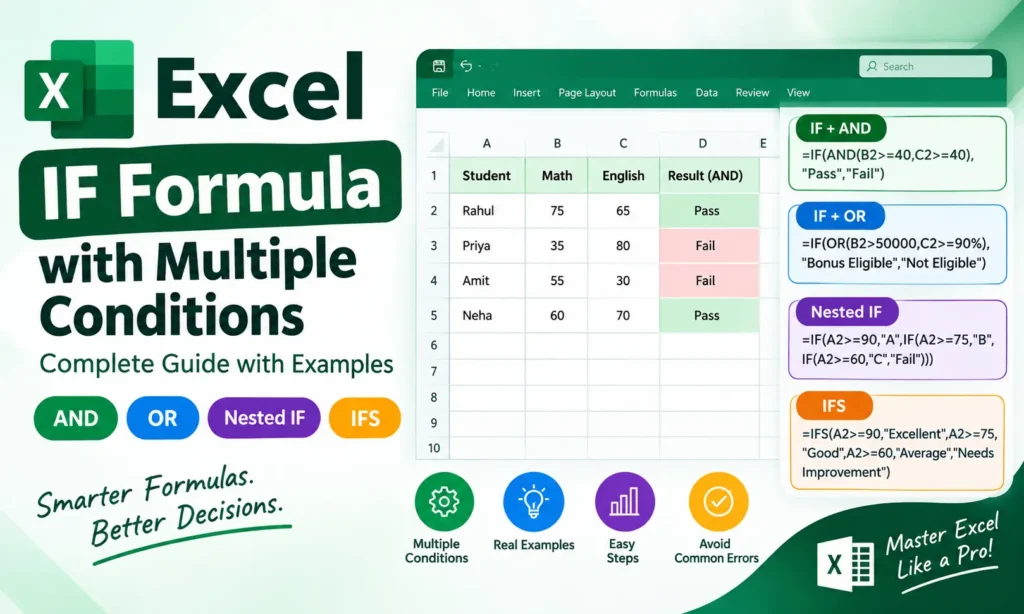
Suppose a student must score at least 40 in both Mathematics and English to pass.
| Student | Mathematics | English |
|---|---|---|
| Rahul | 75 | 65 |
| Priya | 35 | 80 |
| Amit | 55 | 30 |
| Neha | 60 | 70 |
Assume Mathematics scores are in B2 and English scores are in C2.
Enter this formula in D2:
=IF(AND(B2>=40,C2>=40),"Pass","Fail")Copy the formula down the column.
How the formula works
- Excel checks whether the Mathematics score is at least 40.
- It checks whether the English score is at least 40.
- If both conditions are true, the result is “Pass”.
- If either condition is false, the result is “Fail”.
Rahul and Neha pass because both scores meet the requirement. Priya and Amit fail because each has a score below 40 in one subject.
When should you use IF with AND?
Use this formula when all conditions must be satisfied.
Common examples include:
- A student must pass every required subject.
- An employee must meet attendance and performance requirements.
- A customer must meet minimum purchase and membership requirements.
- A sales representative must achieve both a sales target and a customer satisfaction target.
- An order must meet quantity and price requirements before receiving a discount.
2. Excel IF Formula with OR for Multiple Conditions
The OR function checks whether at least one condition is true. It returns TRUE if any condition is satisfied and FALSE only when all conditions are false.
Syntax
=IF(OR(condition1, condition2), value_if_true, value_if_false)Example: Check Eligibility for a Bonus
Suppose an employee qualifies for a bonus if sales exceed ₹50,000 or customer satisfaction is at least 90%.
Assume sales are recorded in B2 and customer satisfaction is recorded in C2.
Use this formula:
=IF(OR(B2>50000,C2>=90%),"Bonus Eligible","Not Eligible")If C2 contains a percentage, enter 90% rather than 90 to represent a 90% satisfaction score.
How the formula works
Excel checks two conditions:
- Sales are greater than ₹50,000.
- Customer satisfaction is at least 90%.
If either condition is true, the formula returns “Bonus Eligible”. If neither condition is true, it returns “Not Eligible”.
For example:
| Employee | Sales | Satisfaction | Result |
|---|---|---|---|
| Rahul | ₹60,000 | 80% | Bonus Eligible |
| Priya | ₹40,000 | 95% | Bonus Eligible |
| Amit | ₹35,000 | 75% | Not Eligible |
Rahul qualifies through sales, while Priya qualifies through customer satisfaction.
When should you use IF with OR?
Use this method when satisfying any one of several conditions is sufficient.
Examples include:
- A customer receives free shipping if the order value exceeds a limit or the customer has premium membership.
- An employee qualifies for recognition by meeting a sales or service target.
- A product is marked for review if its price is too high or its stock is too low.
- A student receives extra credit for exceptional performance in either of two subjects.
3. Excel IF Formula with Multiple Conditions Using Nested IF
A nested IF formula places one IF function inside another IF function. This allows Excel to test multiple conditions and return different results depending on the outcome.
Syntax
=IF(condition1,result1,IF(condition2,result2,result3))You can add more IF functions when you need additional result categories.
Example: Calculate Student Grades
Suppose student grades depend on their marks:
- 90 or above: A
- 75 to 89: B
- 60 to 74: C
- 40 to 59: D
- Below 40: Fail
Assume the student’s score is in cell A2.
Use this formula:
=IF(A2>=90,"A",IF(A2>=75,"B",IF(A2>=60,"C",IF(A2>=40,"D","Fail"))))How it works
Excel evaluates the conditions in order.
- If the score is at least 90, it returns A.
- Otherwise, if the score is at least 75, it returns B.
- Otherwise, if the score is at least 60, it returns C.
- Otherwise, if the score is at least 40, it returns D.
- If none of these conditions is true, it returns Fail.
For example, if A2 contains 82, Excel returns B. If A2 contains 45, Excel returns D.
Important tip for nested IF formulas
Arrange your conditions carefully. When you are testing descending score thresholds, begin with the highest threshold and move downward. Otherwise, a broader condition might match first and prevent later conditions from being evaluated.
Nested IF is useful for a small number of categories, but a long formula can become difficult to read and maintain. For several ordered conditions, the IFS function may be easier to understand.
4. Excel IF Formula with AND and OR Together
Sometimes a business rule requires a combination of AND and OR. For example, a customer might qualify for a discount if they are a premium member and have purchased at least ₹10,000 worth of products, or if their order exceeds ₹25,000 regardless of membership.
In this situation, you can combine AND and OR inside an IF formula.
Example: Customer Discount Eligibility
Suppose:
- B2 contains the customer’s membership type.
- C2 contains the order value.
- Premium customers qualify when the order is at least ₹10,000.
- Any customer qualifies when the order is greater than ₹25,000.
Use this formula:
=IF(OR(AND(B2="Premium",C2>=10000),C2>25000),"Discount","No Discount")Understanding the logic
The formula contains three main parts:
B2="Premium"checks whether the customer has premium membership.AND(B2="Premium",C2>=10000)requires both premium membership and an order value of at least ₹10,000.OR(...,C2>25000)allows the customer to qualify through either the premium-member rule or the high-order-value rule.
The formula returns “Discount” if either route is satisfied.
This structure is especially useful when business rules contain multiple requirements and exceptions.
Another example: Employee eligibility
Suppose an employee qualifies for promotion when they have at least five years of experience and a performance rating of at least 4, or when they have at least ten years of experience.
Assume experience is in A2 and the rating is in B2.
=IF(OR(AND(A2>=5,B2>=4),A2>=10),"Eligible","Not Eligible")The first route requires both experience and performance. The second route requires ten or more years of experience.
Whenever you combine AND and OR, use parentheses to make the logic clear and reduce mistakes.
5. Use the IFS Function Instead of Multiple IF Conditions
The IFS function evaluates multiple conditions in order and returns the result associated with the first condition that is TRUE.
It can make formulas easier to read when you have several possible outcomes.
Syntax
=IFS(condition1,result1,condition2,result2,condition3,result3)Unlike a nested IF formula, IFS does not require repeatedly nesting another IF inside the previous one.
Example: Assign Performance Ratings
Suppose an employee’s performance score is stored in A2:
- 90 or higher: Excellent
- 75 or higher: Good
- 60 or higher: Average
- Below 60: Needs Improvement
Use this formula:
=IFS(A2>=90,"Excellent",A2>=75,"Good",A2>=60,"Average",A2<60,"Needs Improvement")The formula checks each condition from left to right and returns the first matching result.
Add a default result with TRUE
If your conditions do not cover every possible value, IFS can return #N/A when no condition matches. You can use TRUE as the final condition to provide a default result.
=IFS(A2>=90,"Excellent",A2>=75,"Good",A2>=60,"Average",TRUE,"Needs Improvement")This is often a convenient way to handle the remaining cases.
Compatibility note: IFS is available in modern Excel versions, including Excel 2019 and Microsoft 365. If you use an older version that does not support IFS, use nested IF instead.
6. Excel IF Formula with Multiple Conditions for Text Values
The IF function can also evaluate text values. You can check whether a cell contains a particular word, category, department, or status.
Example: Check Order Status
Suppose cell A2 contains an order status.
You want to display “Completed” when the status is “Delivered” and “Pending” otherwise.
=IF(A2="Delivered","Completed","Pending")To check multiple acceptable statuses, use OR:
=IF(OR(A2="Delivered",A2="Shipped"),"In Progress or Complete","Pending")This formula returns the same result when the status is either Delivered or Shipped.
Example: Check Department and Salary
Suppose an employee receives a special allowance only if they work in the Sales department and earn less than ₹40,000.
Assume department is in A2 and salary is in B2.
=IF(AND(A2="Sales",B2<40000),"Allowance Eligible","Not Eligible")Both conditions must be true for the employee to qualify.
Excel’s standard text equality comparisons are generally case-insensitive. If exact case matching matters, use the EXACT function as part of the logical test.
For example:
=IF(EXACT(A2,"Sales"),"Matched","Not Matched")This formula distinguishes “Sales” from “SALES”.
7. Excel IF Formula with Multiple Conditions Using Comparison Operators
Comparison operators allow you to compare numbers, dates, and text values.
The most common operators are:
| Operator | Meaning | Example |
|---|---|---|
= | Equal to | A2=100 |
> | Greater than | A2>100 |
< | Less than | A2<100 |
>= | Greater than or equal to | A2>=100 |
<= | Less than or equal to | A2<=100 |
<> | Not equal to | A2<>100 |
You can use these operators with AND or OR to create more specific formulas.
Example: Identify Products That Need Reordering
Suppose:
- B2 contains stock quantity.
- C2 contains minimum stock quantity.
- D2 contains product price.
You want to flag products for review when stock is below the minimum and the price is greater than ₹1,000.
Use:
=IF(AND(B2<C2,D2>1000),"Review Product","Stock Acceptable")This formula flags a product only when both conditions are true.
Example: Check a Date Range
Suppose A2 contains an order date. You want to identify orders placed during January 2026.
=IF(AND(A2>=DATE(2026,1,1),A2<DATE(2026,2,1)),"January Order","Other Month")Using the first day of February as an exclusive upper limit also works when A2 contains timestamps, not just dates.
The DATE function creates valid Excel date values and avoids ambiguity from regional date formats.
8. Excel IF Formula with Multiple Conditions for Sales Targets
Sales reporting is another practical application of multiple-condition formulas.
Suppose a sales representative earns a performance bonus when:
- Monthly sales are at least ₹100,000.
- At least 50 units have been sold.
- Customer satisfaction is at least 90%.
Assume sales are in B2, units sold are in C2, and satisfaction is in D2.
Use:
=IF(AND(B2>=100000,C2>=50,D2>=90%),"Bonus Approved","Bonus Not Approved")This formula checks all three conditions.
If the sales representative meets the sales target and unit target but has a satisfaction score of 85%, the formula returns “Bonus Not Approved”.
You can also calculate the bonus amount rather than simply displaying a status.
For example, suppose an employee receives a bonus of ₹5,000 when the same conditions are met.
=IF(AND(B2>=100000,C2>=50,D2>=90%),5000,0)The formula returns 5000 when eligible and 0 otherwise.
If your bonus policy contains multiple tiers, you can use nested IF or IFS to calculate different bonus amounts based on sales ranges.
9. Excel IF Formula with Multiple Conditions for Discounts
Retail businesses frequently use conditional formulas to calculate discounts.
Suppose a store offers:
- A 15% discount on orders worth ₹20,000 or more.
- A 10% discount on orders worth ₹10,000 or more.
- A 5% discount on orders worth ₹5,000 or more.
- No discount on smaller orders.
Assume the order value is in A2.
Use this formula to calculate the discount percentage:
=IF(A2>=20000,15%,IF(A2>=10000,10%,IF(A2>=5000,5%,0%)))To calculate the discount amount, multiply the order value by the resulting discount rate:
=A2*IF(A2>=20000,15%,IF(A2>=10000,10%,IF(A2>=5000,5%,0%)))For an order worth ₹12,000, the formula returns a discount amount of ₹1,200.
To calculate the final price after the discount, use:
=A2*(1-IF(A2>=20000,15%,IF(A2>=10000,10%,IF(A2>=5000,5%,0%))))For a ₹12,000 order, the final price is ₹10,800.
Always check whether the thresholds are inclusive or exclusive and make sure the formula matches your actual pricing policy.
10. Excel IF Formula with Multiple Conditions for Attendance
Attendance tracking is another area where IF with multiple conditions is useful.
Suppose an employee is eligible for an attendance reward if:
- Attendance is at least 95%.
- Late arrivals are no more than two.
Assume attendance percentage is in B2 and late arrivals are in C2.
Use:
=IF(AND(B2>=95%,C2<=2),"Reward Eligible","Not Eligible")The employee must meet both conditions.
If your organization allows employees to qualify through either excellent attendance or a perfect attendance record over a special reporting period, you can adapt the formula with OR.
For example:
=IF(OR(B2>=99%,AND(B2>=95%,C2=0)),"Reward Eligible","Not Eligible")This formula returns “Reward Eligible” when attendance is at least 99%, or when attendance is at least 95% and there are no late arrivals.
Always ensure that attendance percentages are stored consistently. A cell containing 95% has the underlying value 0.95, so comparing it with 95 would produce an incorrect result.
11. Excel IF Formula with Multiple Conditions and Blank Cells
Blank cells can create unexpected results when using IF formulas. If you want to avoid displaying a result before the user enters data, check for blank cells first.
Suppose A2 contains a student’s score. You want the formula to remain blank when A2 is empty.
Use:
=IF(A2="","",IF(A2>=40,"Pass","Fail"))This formula returns a blank result when A2 is empty. Otherwise, it checks whether the score is at least 40.
For multiple required input cells, you can check whether any required cell is blank:
=IF(OR(B2="",C2=""),"Enter Both Scores",IF(AND(B2>=40,C2>=40),"Pass","Fail"))This formula asks the user to enter both scores before evaluating the pass condition.
Note that formulas returning an empty string ("") can make a cell look blank without making it genuinely empty. Functions that count or test blank cells may treat formula-generated blanks differently from truly empty cells.
12. Common Mistakes When Using IF with Multiple Conditions
Even a simple formula can produce incorrect results if its logic or syntax is wrong. The following mistakes are worth checking when troubleshooting an Excel IF formula.
Mistake 1: Using AND when OR is required
Consider:
=IF(AND(A2>=50,B2>=50),"Pass","Fail")This formula requires both scores to be at least 50.
If only one score needs to reach 50, use OR instead:
=IF(OR(A2>=50,B2>=50),"Pass","Fail")Mistake 2: Incorrect condition order
In a nested IF formula, a broad condition placed before a more specific condition can prevent the specific result from appearing.
For example, checking A2>=40 before A2>=90 causes a score of 95 to match the first condition.
Put higher thresholds first when assigning descending score categories.
Mistake 3: Missing quotation marks
Text results should generally be enclosed in double quotation marks.
Correct:
=IF(A2>=40,"Pass","Fail")Incorrect:
=IF(A2>=40,Pass,Fail)Without quotation marks, Excel may interpret the words as names or references rather than text values.
Mistake 4: Incorrect cell references
Make sure your formula refers to the intended cells. If you copy formulas across a worksheet, relative references change automatically.
For example:
=IF(AND(B2>=40,C2>=40),"Pass","Fail")If a reference must remain fixed when copying a formula, use an absolute reference such as $B$2.
Mistake 5: Using the wrong percentage scale
If a cell contains 85%, its underlying numeric value is 0.85. Compare it with 85% or 0.85, not 85.
Correct:
=IF(A2>=85%,"Qualified","Not Qualified")Mistake 6: Forgetting to test boundary values
If a rule says “at least 40”, use >=40. If it says “greater than 40”, use >40.
Testing values immediately below, at, and above each threshold can reveal errors before you use the formula in a large worksheet.
Mistake 7: Using unsupported functions
If Excel does not recognize IFS, your version may not support it. A nested IF formula can provide a compatible alternative.
Also, some regional Excel settings use semicolons instead of commas as argument separators. If a formula produces a syntax error, check your regional settings.
13. IF with Multiple Conditions: Which Formula Should You Use?
The following table summarizes the best use cases for each approach.
| Requirement | Recommended formula |
|---|---|
| All conditions must be true | IF with AND |
| At least one condition must be true | IF with OR |
| Different results for several categories | Nested IF |
| Several ordered conditions | IFS |
| A mix of required conditions and alternatives | IF with AND and OR |
| Text-based conditions | IF with text comparisons |
| Avoid results when inputs are blank | IF with blank checks |
For simple formulas, IF with AND or OR is usually easiest to maintain. For multiple categories, nested IF or IFS may be more suitable.
If you are evaluating many possible criteria or working with complex business rules, consider whether a lookup table, a dedicated helper column, or a more structured formula would be easier to manage over time.
Frequently Asked Questions (FAQs)
You can combine IF with AND when every condition must be true, or with OR when at least one condition must be true.
Example:=IF(AND(A2>=50,B2>=50),"Pass","Fail")
Yes. The AND function can evaluate several logical conditions.
For example:
=IF(AND(A2>=50,B2>=50,C2>=50),”Pass”,”Fail”)
The formula returns “Pass” only when all three cells contain values of at least 50.
Yes. You can nest AND and OR inside an IF formula.
For example:
=IF(OR(AND(A2>=50,B2>=50),C2>=90),”Qualified”,”Not Qualified”)
The result is “Qualified” if both A2 and B2 are at least 50, or if C2 is at least 90.
AND returns TRUE only when all conditions are true. OR returns TRUE when at least one condition is true.
Use AND for rules that require every requirement to be satisfied. Use OR for rules that allow multiple alternative ways to qualify.
An IF function evaluates one logical test, but that test can contain multiple conditions through AND, OR, or other logical expressions. Excel supports up to 64 nested levels of IF functions in modern versions, although very deeply nested formulas are difficult to maintain.
IFS can be easier to read when you need to evaluate several conditions and return different results. Nested IF is useful when you need compatibility with older Excel versions or want to combine more complex branching logic.
Yes. You can compare text values directly or combine them with AND and OR.
Example:
=IF(AND(A2=”Sales”,B2=”Active”),”Eligible”,”Not Eligible”)
This formula returns “Eligible” when the department is Sales and the status is Active.
Common reasons include incorrect condition order, using AND instead of OR, missing quotation marks, incorrect cell references, inconsistent data types, and incorrect percentage comparisons. Test the formula with sample values, including values at each threshold.
Yes. You can return different percentages depending on the conditions.
Example:
=IF(A2>=20000,15%,IF(A2>=10000,10%,5%))
This returns 15% for values of at least 20,000, 10% for values of at least 10,000, and 5% otherwise.
Yes. Excel dates are stored as serial numbers, so you can compare them with date values using AND or OR.
Example:
=IF(AND(A2>=DATE(2026,1,1),A2<DATE(2026,2,1)),”January”,”Other Month”)
This identifies dates in January 2026, including timestamps during that month.
Conclusion
The Excel IF formula with multiple conditions is an essential tool for automating decisions and analyzing data. By combining IF with AND, OR, and nested IF functions, you can evaluate multiple requirements, assign grades, calculate discounts, determine employee eligibility, and automate business reports.
Use IF with AND when all conditions must be true, IF with OR when at least one condition is sufficient, and nested IF or IFS when you need several possible outcomes. For more complex rules, combine AND and OR carefully and use clear parentheses to make the logic easier to understand.
The most effective way to learn these formulas is to practice them with real examples. Start with two conditions, test the results, and gradually move to more complex formulas. With regular practice, you can use Excel’s logical functions to reduce manual work, improve accuracy, and make better decisions from your data.
If you work with Excel regularly, mastering IF with multiple conditions will help you create more efficient spreadsheets and build a strong foundation for advanced Excel skills.
Thank you so much for visiting ZeexasTech.com and taking the time to read my articles. Your support and interest mean a lot to me. I hope you find the information useful and enjoy exploring the website!
Best regards,
Vishal Kumar
Writer of ZeexasTech.com